Configuring File Indexing
To search data in the Live Location or Storage Location, indexing must be performed.
In the IPRO Administration Console, you can set up and run a job for file indexing only, or configure a job for file archiving and simultaneous file indexing. For more information, see Configuring File Archiving.
-
If you previously configured a Direct From Source type of File Archiving job, you do not need to set up and run a separate File Indexing job to search the archived data.
-
If you intend to configure an Index Search Query type of File Archiving job, you must first set up and run a File Indexing job. With File Indexing configured, you can search archived data and perform policy based file archiving in the indexed location.
To create a File Indexing job in the IPRO Administration Console, see steps below.
A File Index job is also called a crawler job. You must create a crawler job for each File location you wish to index.
 How to configure a file indexing job
- Log into the IPRO Administration Console.
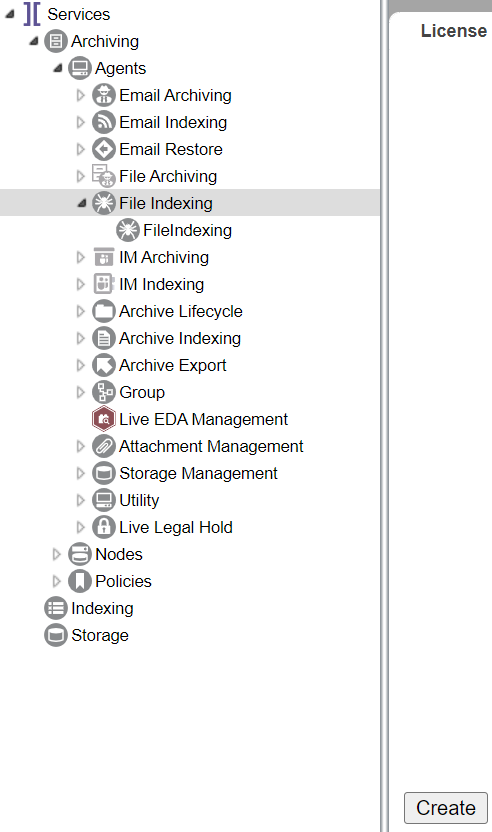
- Go to Archiving > Agents > File Indexing.
- At the bottom-left of the License tab, click Create.

- Enter a meaningful name for the job.
- The newly created job appears in the navigation tree under File Indexing. Click on it.
- Navigate to the Criteria tab to begin configuration tasks. Certain default settings are preselected.
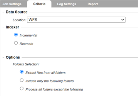
- In the Data Source section, select the location you want the crawler to crawl.
-
NOTE
If you previously configured the DFSRoot connector, pointing to the DFS root location, and intend to select this as the Data Source—see Configuring Indexing for the DFS Root. - In the Indexer section, select one of the following:
- lncremental: Indexes only new data since the last index update. This is an efficient option if your users need the latest data or if there is a constant flow of new data being created in the location.
- Recreate: Rereads the entire contents of the location and indexes it. This will require some time depending on the size of the location.
- In the Options section, you can specify the (sub)folders to be indexed.
- You make your selection through the process of inclusion or exclusion. Choose one of the following:
- Extract files from all folders: Does not restrict the scope of the crawling job to specific (sub)folders.
- Include only the following folders: Restricts the scope of the crawling job by including only the specified (sub)folders.
Click + and click List Folders to select specific folders. Click - to remove an added folder. Enable Recursive to apply the inclusion policy to the subfolders of the specified folder(s). - Process all folders except the following: Restricts the scope of the crawling job by excluding the specified (sub)folders.
Click + and click List Folders to select specific folders. Click - to remove an added folder. Enable Recursive to apply the exclusion policy to the subfolders of the specified folder(s). 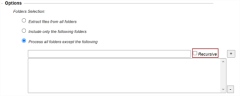
-
NOTE
If Box for Business is selected as data source, then you can add a wildcard. When you filter by wildcard, you restrict the scope of the job to the specified folder and the selected user accounts. You can do this through the process of inclusion or exclusion. Enter the wildcard in the following format: */FolderName. Enable Recursive to apply the wildcard to the subfolders of the specified folder.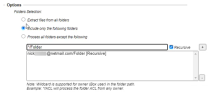
-
NOTE
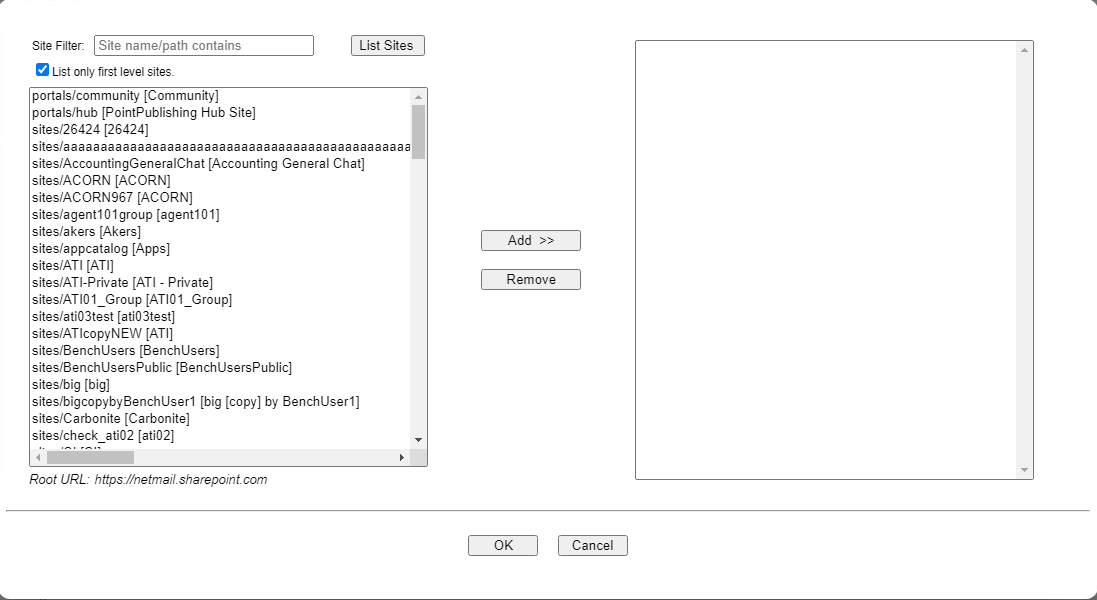
If SharePoint is selected as data source, then you can specify the sites to be indexed.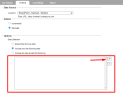
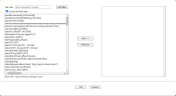
• Extract files from all sites: Does not restrict the scope of the job.
• Include only the following sites: Restricts the scope of the job by including only the specified sites. Click + and click List Sites to select specific sites. With List Only First Level Sites enabled, only root-level sites are shown. Click - to remove an added site.
• Process all sites except the following: Restricts the scope of the job by excluding the specified sites. Click + and click List Sites to select specific sites. With List Only First Level Sites enabled, only root-level sites are shown. Click - to remove an added site. - Click Save. The job specifications are now configured.
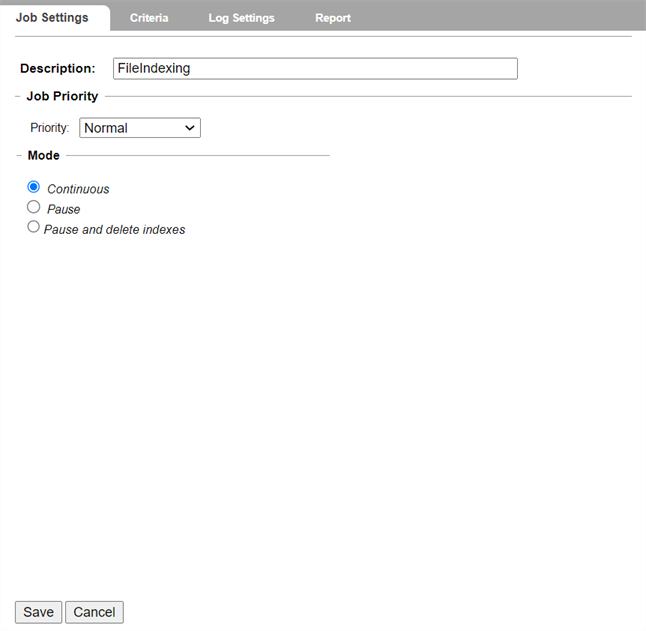
- Select the Job Settings tab.

- In the Description field, enter a description for the index job. This is helpful if there are multiple jobs of the same type.
- In the Job Priority section, set a priority, choosing from Low, Normal, and High. Normal is the default priority.
-
NOTE
This setting is useful in scenarios where multiple jobs are running concurrently and you want to control which job takes priority with respect to thread allocation. The job priority you select determines which job in the queue is selected next by the JobManager process, which is responsible for allocating queued job threads to available thread slots on the archive nodes. Prioritization is categorized according to user account. For example, you may want to assign higher priority to crawling files created by VIP users. If a normal priority job is already running and using all available job threads, setting the priority to high and executing it will direct any freed threads to be used on the new high-priority job. This feature works in conjunction with load balancing in order to control crawling job distribution. - In the Mode section, select the mode in which the index will operate:
- Continuous: Indexes operate on a continual basis without interruption. The index keeps up to date with all changes in the location.
- Pause: Stops indexing. Once the initial index is built, there is no need to continue running it.
- Pause and delete indexes: Stops indexing and deletes the existing index.
- Depending on the data source selected, you can specify the users included in the job. If you are indexing a Box for Business location, you can select user accounts in the Users section.
-
NOTE
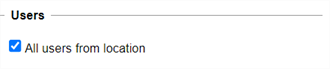
User selection is only available when crawling a Box for Business data source. This requires configuration of the Box for Business connector and User Mapping. For more information—see Configuring Box for Business Connector and User Mapping. - By default, all users are included in the Box for Business crawler job. If you wish to index all user accounts, leave All users from location enabled.
- If you wish to index specific user accounts, disable the option and click Select.

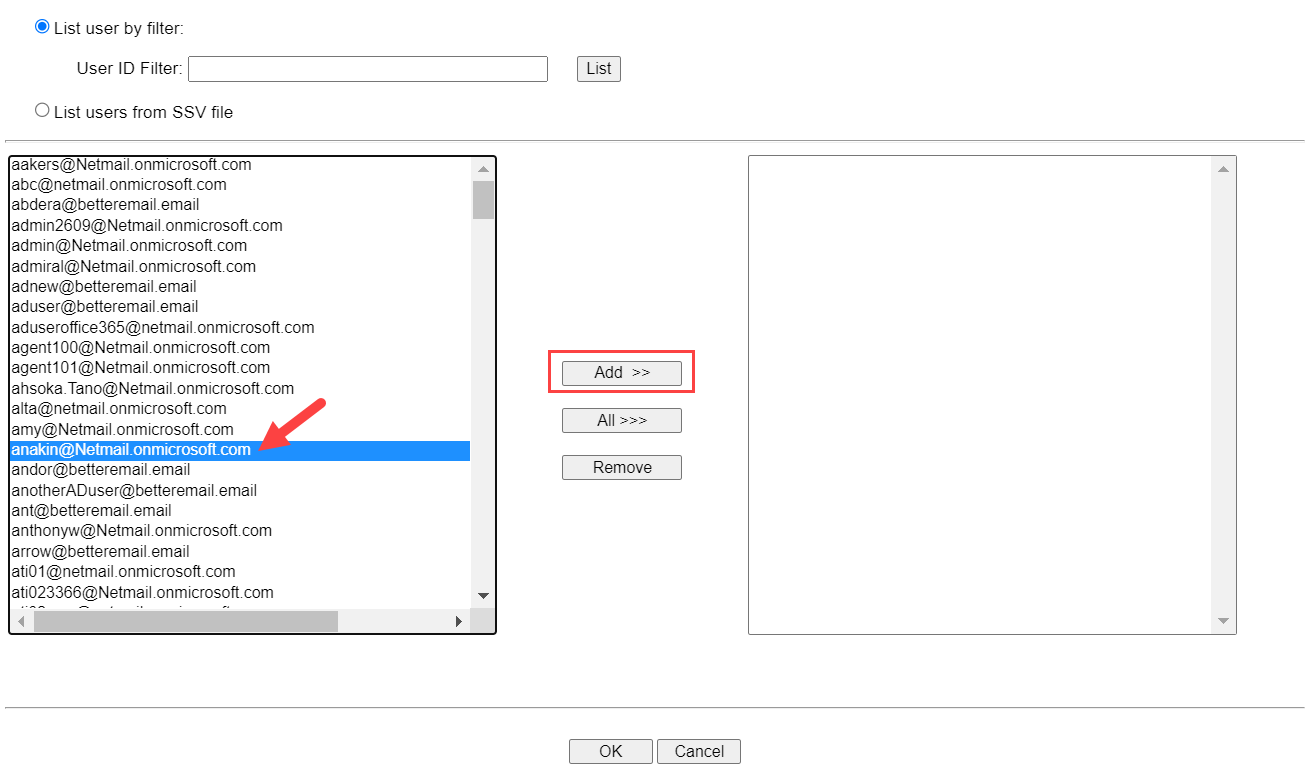
- To list users, click List.
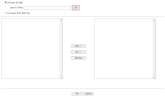
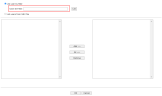
- To list users by ID Filter, enter the User ID Filter in the corresponding field.
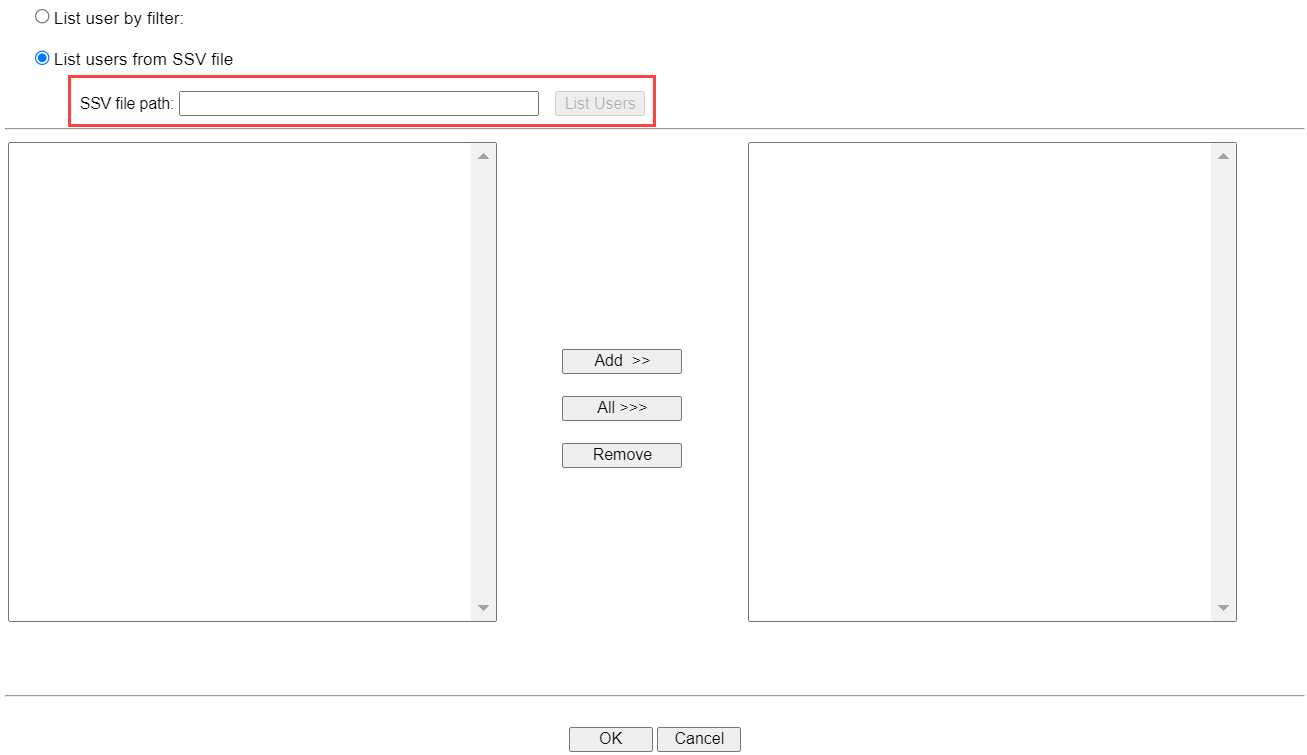
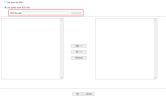
- To list users by SSV file, select List users from SSV file and ensure the correct SSV file path is entered.
-
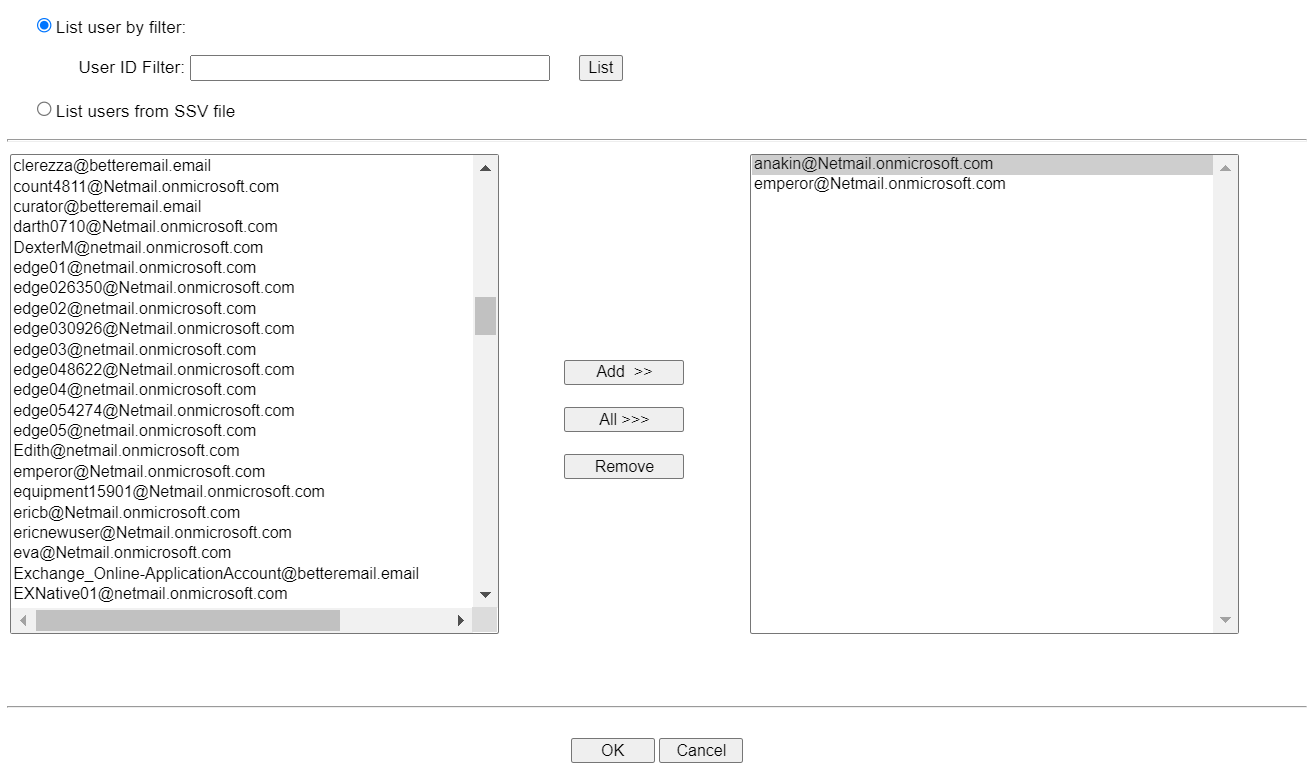
Once listed, you can choose users from the left-hand column. Select user account(s) individually and click Add. Click All to select and add all users accounts. When users are moved to the right-hand column, they are added.
-
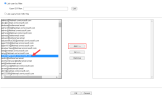
-
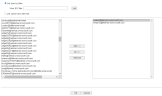
-
When finished with user selection, click OK.
-
Click Save at the bottom-left of the screen.
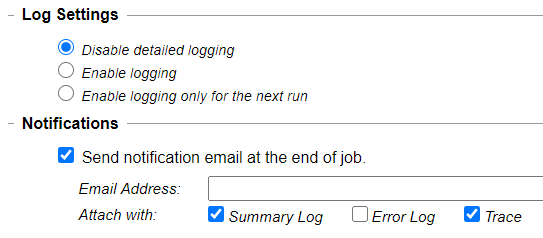
The job will run according to the schedule set. Alternatively, you can click Run Now to start the job immediately. - (Optional) Open the Log Settings tab. Logging provides detailed job logs for troubleshooting purposes. Choose from the following log settings:
- Disable detailed logging (default setting)
- Enable logging
- Enable logging only for the next run
- You can also have email Notifications sent at the completion of a job, along with attachment options.
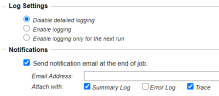
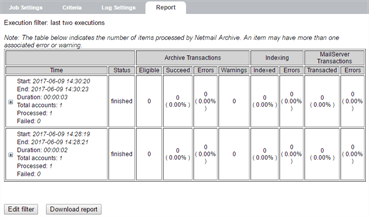
For more information about logging—see Configuring Logging.- (Optional) In the Report tab, check on the progress of the job.
For more information about reviewing reports—see Viewing Reports.