Create Vendor Templates
Sync Plus allows you to create custom vendor templates that display details about your organization on the launch page of a DepoView Volume. When a user creates a vendor template, that template becomes available for all users on the subscription, including non-admins. Users can then publish a DVT with a vendor template created by another user.
To create a new vendor template:

|
Note: Only administrators have access to the Vendor Template work area. |
-
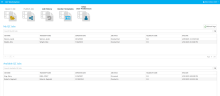
Open Sync Plus. The QC Workstation start page displays.
-
Click the Vendor Templates button at the top of the start page.

-
The Vendor Templates work area opens. Click the Add Template button in the ribbon bar at the top of the work area.
-
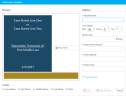
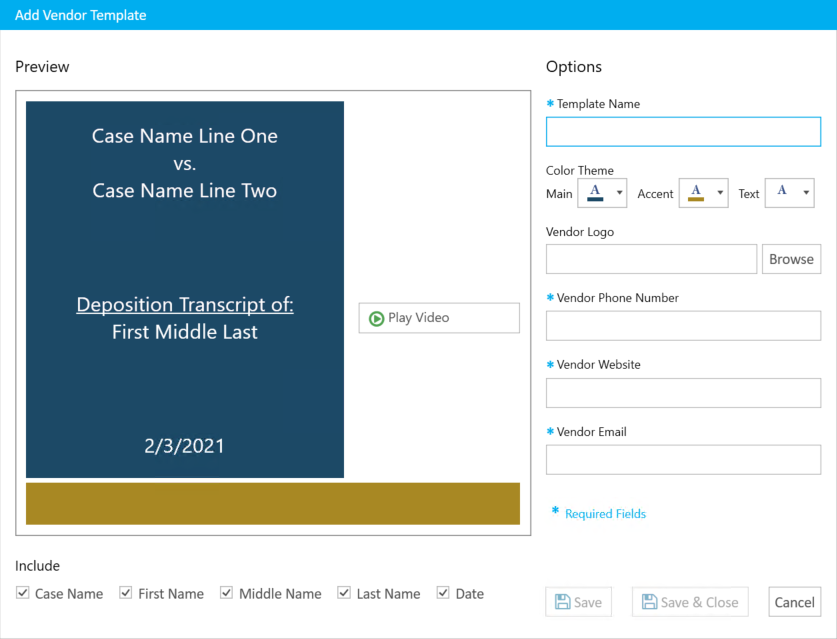
The Add Vendor Template dialog box displays. Fill out the information in the dialog as needed.
-
Template Name: The name associated with the new template.
-
Color Theme: Select the colors you would like displayed on the template, including the main, accent, and text colors. The preview box updates to display the colors you select.
-
Vendor Phone Number: Your organization's phone number, to display at the bottom center of the template.
-
Vendor Website: Your organization's website, to display in the bottom-right corner of the template.
-
Vendor Email: An email address associated with your organization, to display in the bottom-left corner of the template.
-
-
In the Include section, select the deposition details you would like displayed on the template. Click the check box beside the parameter to include it in the template. Options include:
-
Case Name
-
First name of deponent
-
Middle name of deponent
-
Last name of deponent
-
Date
-
-
When finished, click the Save button. There are two save options for your convenience:
-
Save - Saves the new vendor template, does not close the dialog, and clears the fields so you can add another vendor template right away.
-
Save & Close - Saves the new vendor template and closes the dialog.
-

Related Topics
Version: 2022.2.0
Last Revision: 1/18/2023