Manage Data Locations
Data locations refer to where the data you are processing is actually located, such as a network share location, an external drive, a folder on an external drive, etc. You can view and manage your data locations via the Data Locations tab.
View Data Location Summary
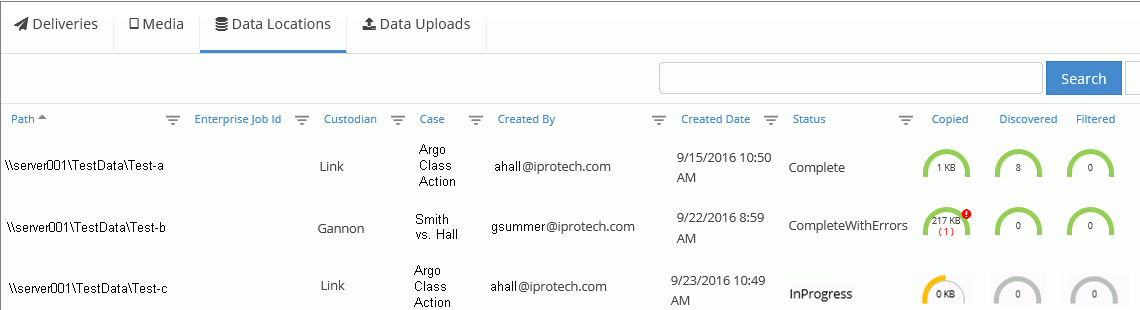
The Data Locations tab displays a list that contains a summary of all data locations selected for all media jobs.
|
|
Note: Data locations listed more than once have been selected for more than one media. |

The list contains the following columns:
|
Column |
Description |
||
|
Path |
Data location path selected as part of media definition. |
||
|
OPEN DISCOVERY Job ID |
Job identification assigned in the OPEN DISCOVERY Processing module. This job ID will be “0” until the job starts in the OPEN DISCOVERY Processing module.
|
||
|
Custodian |
The data owner selected as part of the media definition. |
||
|
Case |
The case selected as part of the data source definition. |
||
|
Created By |
The Media Manager user who connected the data location to the media. |
||
|
Created Date |
The date and time the data location connection was completed for the media (that is, all steps completed and the Process button clicked). |
||
|
Status |
The processing job status. |
||
|
Job Details |
File/data progress details as described in Monitor Job Status In Media Manager. |
View Location Details
To view details for a specific data location and associated media:
-
In Media Manager, click the Data Locations tab.
-
Locate a needed data location in the Data Locations list.

See Grids for details on sorting, filtering, and/or searching in the list.
-
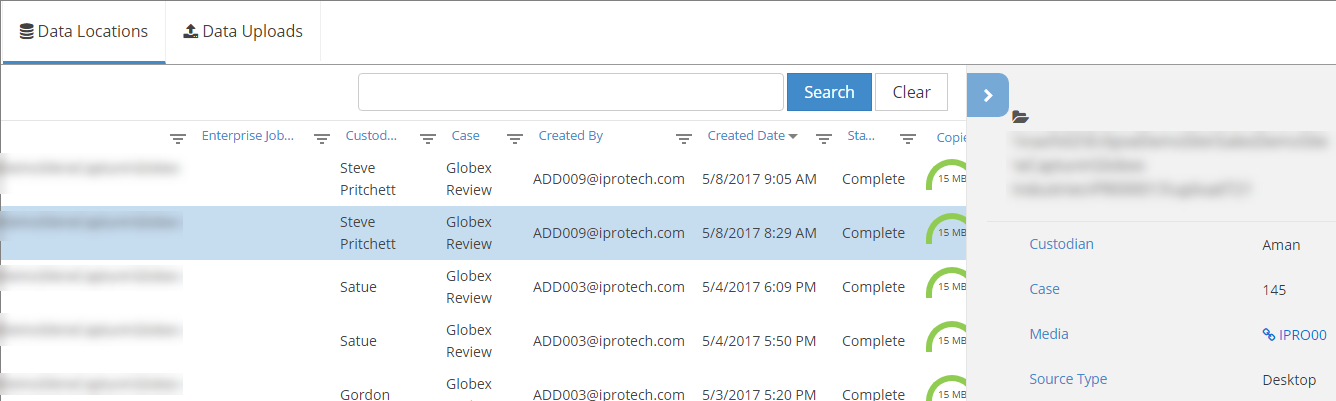
Click an individual data location to view its details, which appear in a pane on the right side of the Data Locations list, as shown in the following figure.
-
Take any of the following actions:
-
Review data location details. You may need to scroll in the browser to see all information. Details are taken from eCapture and Media Manager.
-
Click the Media link to view associated details in the Media tab.
-
Close the details pane by clicking
 .
.
-
Related Topics