Search Methods
In IPRO Eclipse, you have three ways to search:
|
|
Note: IPRO Eclipse administrators can define lists of related search terms (words, phrases, or expressions) of particular importance, and find documents containing these terms. This function is called “keyword searching” and it can help administrators with document management, review, and other tasks. |

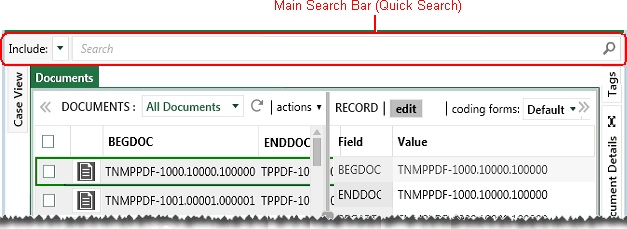
Main Search Bar
The main Search bar (also called “Quick Search”) is located at the top of the IPRO Eclipse screen when documents are listed in the case pane (such as in the Documents or related tab).
Many people prefer typing to selecting options in a dialog box; they will find it relatively easy to learn the syntax required to enter a search expression in the Search bar. Results are displayed in the Search Results tab, which replaces the Documents tab.
Advanced Search
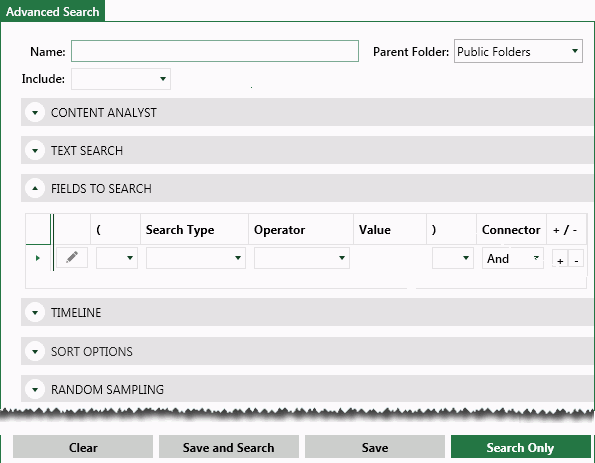
Create a search expression by selecting various options and entering search criteria in an easy-to-use interface (shown in the following figure). Results are displayed in the Search Results tab, which replaces the Documents (or other open) tab.
Visual Search
Create a visual search expression by clicking the Edit Chart link next to the displayed chart. From the Edit Chart dialogue box, you can edit the name of the chart, select the type of chart in which you wish to view your data, and select the filter fields you wish to use in the x and/or y-axis. Once you have created your expression, press OK to view the results.
Search Fundamentals
Several concepts apply whether you are using the Advanced Search function or main Search bar. For more information, see Default Search Assumptions.