Print Multiple Documents
IPRO Eclipse allows you to print multiple documents—either original case images or produced images. (In IPRO Eclipse, original images appear on the Image tab and produced images appear on the Production tab in the Document Details pane.) The following procedures explain how to print multiple documents, and the various tabs associated with procedure.
|
|
Note: Users must have permission to View Redactions in order to print from Eclipse. Since the printer can burn in redactions when printing, users by default must have rights to view redactions to complete printing operations. |
Basic Procedure
To print multiple documents:
-
Getting started:
-
Log in to IPRO Eclipse and open the needed case (or batch).
-
In the Case View pane, click Documents.
-
Optional: Display a specific subset of records by performing a search, opening a Smart Folder, filtering on one or more columns, or selecting an Analytics cluster or category.
-
Batches only: If you are working in a batch, select the scope of listed documents in the Documents from list.
-
Optional: Sort the case table. Documents will print in the order shown in the Documents or related tab. (See "Sort the Case Table" for details on sorting.)
-
-
In the Documents or related tab’s toolbar, click actions to open the mass actions toolbar.
-
Select the documents to be printed:
-
To print all documents in the current set (entire case, batch, search results, etc.), select All from the mass actions toolbar and skip to Step 4.
-
To print some, but not all, documents, click the options on the left side of the needed records in the case table. See the first figure, here.
-
SelectChecked from the menu above the case table. See the second figure, here.

Note: All documents in a batch or an entire case may be printed, although such selections may be too large to be processed effectively.
-
-
From the adjacent menu, select Print, then click Submit.
-
Continue defining the print job as explained in the following topics:
-
When all aspects of the print job are defined, click Print. If a color printer is being used, all colors will be maintained.
Options Tab
Continue defining the print job on the Options tab as follows:
-
Select the needed Printer and Paper Source. As needed, click Properties to select printer-specific options. Continue with step 2, 3, or 4 based on your needs.
-
To print only original images, ensure that <Original Images> is in the Selected list and skip to step 5. If original images are missing, they will be skipped in the print job.
-
To print images from only a single production set, click it in the Available list; it will be added to the Selected list. Remove <Original Images> from the Selected list and skip to step 5. If images are missing from the production set, they will be skipped in the print job.
-
To print images from more than one image set (to minimize or eliminate the number of missing images), complete the following steps:
-
Add all image sets (original and production) from which images may be used to the Selected list.
-
Review the selected image sets; if any set is not needed, click its checkbox,
 , in the Selected
list to move it to the Available
list.
, in the Selected
list to move it to the Available
list. -
Review the order of image sets. The order in the Selected list determines how IPRO Eclipse finds a document to be printed. For each image:
-
IPRO Eclipse looks first in the image set at the top of the list; if the image is found, it will be printed.
-
If the image is not found in the first set, IPRO Eclipse checks the second set; if the image is found, that is the version that will be printed.
-
If the image is not found in the first/second sets, IPRO Eclipse continues to check remaining image sets in the Selected list, from top to bottom. As soon as it finds the image, that is the version that will be printed.
-
-
To change the order of image sets in the Selected list, click the name of an image set to be moved, then click the up or down buttons until the image set is in the needed position. Repeat to move other image sets until the list is in the needed order.
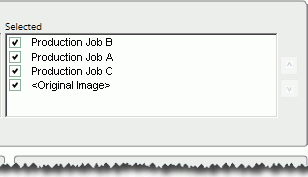
In this example, IPRO Eclipse will print images from Production Job B; if an image is missing, IPRO Eclipse will then check the remaining image sets, in order (A, C, original). As soon as it finds the image, that version will be printed.
-
-
If needed, select the Include “Image Missing” slip sheet if image unavailable option.
-
Original images only: to include a text watermark, enter the needed text in the Watermark field. This text will appear “behind” existing document content, similar to a stamp. (Note: redactions may obscure some or all of a watermark.)
-
Original images only: to add image keys to the bottom right-hand corner of each page, select the Image Key option in the Quick Endorsements area.
-
To evaluate the size of the print job, click Calculate. The total number of pages displays to the right of the button. Adjust the size of the print job if needed.
-
Original images only: reviewers’ annotations (embedded text, highlighting, and/or mark-ups) will be printed by default if they exist. Take any of the following actions to change annotation settings:
-
To remove all annotations in original images from the print job, clear the Print Annotations option.
-
To remove individual annotations in original images from the print job, click each annotation to be removed.
-
-
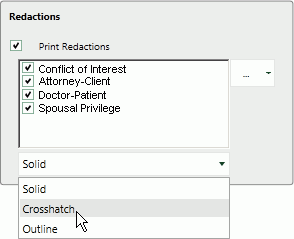
Original images only: all redactions will be printed in solid format by default if they exist. If you have the permission to modify/delete other users’ redactions, take any of the following actions to change redaction settings:
-
To remove all redactions in original images from the print job, clear the Print Redactions option.
-
To remove individual redactions in original images from the print job, click each redaction to be removed.
-
To include one or more redactions that are not listed, click
 in the Redactions
area and select the needed redaction(s).
in the Redactions
area and select the needed redaction(s). -
To change redaction format, select the needed format from the list below the redactions list. In this figure, the Crosshatch format is being selected.
-
-
Define other aspects of the print job using the procedures described in this section. Or, click Print if the print job is ready.
Slip Sheets Tab
A slip sheet is a separator page between documents. If printing a single document, a slip sheet allows you to include a cover sheet with document-specific detail. To include slip sheets in your print job:
-
In the Print dialog box, click the Slip Sheets tab.
-
Select the Print Slip Sheets option.
-
If needed, select a specific Paper Source for the slip sheets.
-
For a plain slip sheet, click the Blank Page option and skip to step 6.
-
To include document-specific information in the slip sheet:
-
Click the Fields/Custom option and complete any of the following steps (b, c, and/or d).
-
To include a custom message, enter it in the Custom Text field.
-
To include field content, in the Available Fields list, select the fields to be included in the slip sheets.
-
To include tags from selected tag groups, in the Available Tag Groups list, select the groups to be included in the slip sheets.
-
-
Define other aspects of the print job using the procedures described in this section. Or, click Print if the print job is ready.
Endorsement Tab
Endorsements are document details printed in the header and/or footer of documents in the original image set.
|
|
Note: Endorsements are for original images only; they will not be added to production-set images. |
To include endorsements in your print job:
-
Click the Endorsements tab and continue with the following steps.
-
To include field content in each document’s header and/or footer:
-
Click the Data Fields tab.
-
Select one or more fields to be included in a specific area in the header or footer.
-
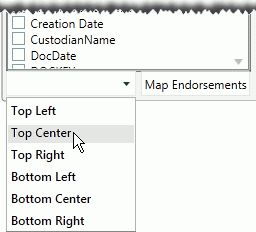
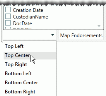
At the bottom of the fields list, select the location where the field(s) should be printed, as shown in this example.
-
Click Map Endorsements.
-
Repeat these steps to include other fields in other locations.
-
-
To include tag details in the header or footer, click the Tag Options tab, then repeat step 2, selecting tags instead of fields.
-
To include a custom message in the header or footer:
-
Click the Custom Text tab.
-
Click in the custom text area and type the information (a single line) to be included.
-
At the bottom of the custom text area, select the location where the custom text should be printed, as explained in step 2.
-
Repeat these steps to add custom text to other locations.
-
-
Review your endorsements. If changes are needed:
-
For an area containing endorsements on multiple lines, change the order of the lines by clicking an item and clicking the corresponding
 or
or  button to move the line up or down, respectively.
 -
To remove endorsements in a particular area, click Clear for that area.
-
To remove all endorsements, click Clear All.
-
-
Define other aspects of the print job using the procedures described in this section. Or, click Print if the print job is ready.