Persistent Highlighting
Your administrator may configure “persistent highlighting” to emphasize specific document content. Persistently highlighted words can help you find needed information quickly. This highlighting appears in the Extracted Text and Native Viewer tabs. Search results are also highlighted in these tabs. Note:
-
These terms highlight persistently within a case or batch, similar to “permanent” searches.
-
Highlighting colors are defined by your administrator.
-
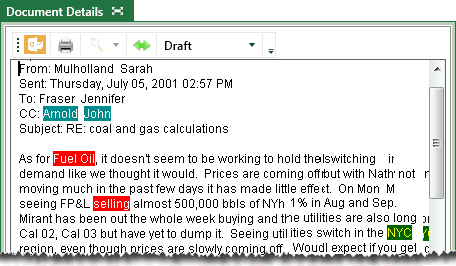
The following example shows persistent highlighting in the Extracted Text tab.
If persistent highlighting is included in your cases:
-
Read case instructions or contact your administrator to make sure you understand how to use keywords.
-
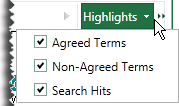
If persistent highlights interfere with your evaluation of search results, remove them from the current view by clearing the options on the Highlights menu, as shown in this figure.
Navigate Persistent Highlights
To navigate through persistent highlighting and search results in the current document in the Native View or Extracted Text tab:
-
For a selected record, open the Extracted Text tab as explained in "Accessing Case Documents."
-
Select a view (Normal, Draft, or Preview). To ensure highlighted text in email headers is visible, select Preview.
-
To check the persistent highlighting that your administrator has configured, select Highlighting and review the names. In this example, agreed terms, license-related details and the names of primary parties in the case will be indicated with persistent highlighting. If you have any questions about evaluating/using highlighted content, contact your administrator.
-
Scroll to see highlighted content, or use the arrow buttons to navigate through the highlights.
|
|
Tip: If you change highlighting selections (such as clear all highlighting), but the highlighting does not change on the page, navigate to the next document and then back to force the page to refresh. |
