Run a Report
If you have the privilege to do so, run an IPRO Eclipse report as follows:
-
Log in to IPRO Eclipse and open the needed case or batch.
-
In the Case View pane, click Reports.
-
Click the needed report.
-
For reports that require additional selections, make the selection(s) and click OK. Report options are listed in the following table (reports not listed require no user selections).
-
Group By Field: Select the field containing needed relationship data, such as a field indicating near duplicates. All fields defined with the Allow Group by option are listed. For example, the CAATNDGroup is the IPRO Eclipse Analytics field that identifies near-duplicate documents.
-
Tag Group: Select the tag group to be evaluated for inconsistencies.
-
Similarity: Select the field containing degree-of-similarity information, such as the CAATNDSimilarity field.
-
Minimum Similarity: Enter the minimum similarity of interest (a whole number from 0 to 99 percent). For example, enter 90 to include only documents with a 90% or greater level of similarity will be included in the report.
-
After the report is generated, review results in the Reports tab. Use the following actions as needed:
-
Scroll vertically and/or horizontally to view all information or click in the report and press the PgUp and PgDn keys for easy scrolling.
-
Click a column heading to sort by that column.
-
Enlarge or reduce a column’s width by dragging the right or left edge of the column’s heading.
-
|
Field |
Description |
|
Case Data Summary |
Select the field upon which the report should be organized. |
|
Gap |
Select fields containing beginning/ending document data—BEGDOC/ENDDOC, production-number fields (Begin/End Bates selections during production), or other document-numbering fields. |
|
Privileged |
Select tags to be included in the report. |
|
Review Audit |
Select the following items: Optional: |
|
Review Status by Custodian |
Select the review pass of interest and field upon which the report should be organized. |
|
Reviewer Status by Reviewer |
Select the review pass of interest. |
|
Reviewer Edits per Day |
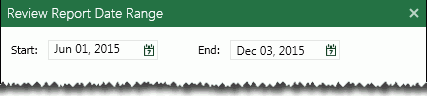
Enter
or click
|
|
Reviewer History |
|
|
Reviewer History Detail |
|
|
Summon by Custodian |
Select the review pass of interest and field upon which the report should be organized. |
|
TAR Reports |
See "Evaluate TAR Reports" for details. |
|
Transcript Reports |
See "Transcript Reports" for details. |
 to
select the starting and ending dates of the time period of interest.
Any common date format can be entered.
to
select the starting and ending dates of the time period of interest.
Any common date format can be entered.