Working with Transcript Reports
This page contains the following content:
Generating a Transcript Report
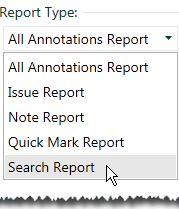
The following reports can be generated for transcripts:
-
Annotation reports:
- All Annotations
- Issues
- Notes
- Quick Marks
-
Search report (based on a specific search)
|
|
|
|
|
To generate a transcript report:
-
Log in to IPRO Eclipse and open the needed case or batch.
-
Access the Document Details pane and click the Transcripts tab.
-
Click Reporting in the tab’s left pane. Continue with step 4 or step 5.
-
To generate an annotation report:
-
In the Reporting pane, select the transcript(s) upon which the report should be based from the list.
-
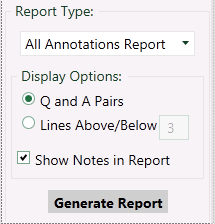
Select the type of report from the Report Type list. In this example, the default report, which shows all annotations, is selected.
-
Select display options as described in the following table.

-
Click Generate Report. The report will be generated and display in a separate window.
option
Description
Q and A Pairs
If highlighted text occurs within a question-answer dialog, the complete question and answer(s) will be included in the report. Highlighted text will be bold.
Lines Above Below
Enter the number of lines to be included above and below each annotated result (to provide context). To show only the annotated content, enter 0 (zero).
Show Notes in Report
Include annotation notes in the report. Does not apply to quick-mark or search reports.
-
-
To generate a transcript search report:
-
In the Report Type list, select Search Report.
-
Complete the New Search dialog box. See "Search transcripts" for details.
-
Click Generate Report.
-
Click Search. The report will be generated and display in a separate window.

-
-
Continue with "Evaluating a Transcript Report."
Evaluating a Transcript Report
To work with a transcript report:
-
Generate the report as explained in "Generating a Transcript Report." Take any of the following actions to evaluate the report’s content.
-
To maximize the report within the browser window, click
 in the upper right
corner of the report screen.
in the upper right
corner of the report screen. -
To page through, scroll in, and/or magnify the report, use the following shortcuts:
-
Press the PgUp or PgDn key to move through the report a page at a time.
-
If your mouse includes a wheel, use it to scroll in the report.
-
-
Scroll mode only: use Ctrl+mouse wheel to change the font size.
-
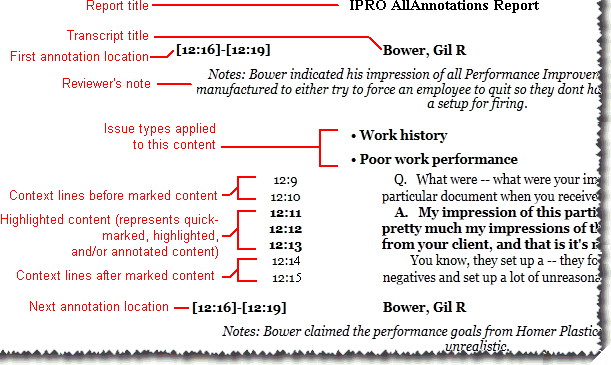
Evaluate report content as shown in the following figure; if needed, print the report as described in "Printing a Transcript Report."
-
When finished, close the report by clicking X in the upper right corner of the Generate Report dialog box.
Printing a Transcript Report
To print a report:
-
Generate the report as explained in "Generating a Transcript Report."
-
Select Print from the browser’s File menu.
-
Complete the Print dialog box and click Print. Note: all pages of the report will be printed.
|
|
Tip: These procedures apply only if the complete width and/or height of the image is not visible. For example, if the entire width of the page is visible, you will not be able to move the image from side-to-side. |
