Print Document Images
To print document images:
|
|
Note: Users must have permission to View Redactions in order to print from Eclipse. Since the printer can burn in redactions when printing, users by default must have rights to view redactions to complete printing operations. |

-
For a selected record, open the Image tab as explained in Accessing Case Documents.
-
On the Image tab toolbar, click
 .
. -
In the Print dialog box Options tab, select the needed Printer and Paper Source. As needed, click Properties to select printer-specific options.
-
To evaluate the size of the print job, click Calculate at the bottom of the Options tab. The total number of pages displays to the right of the button.
-
In the Page Range section, select the pages to be printed, all, current, or a unique set of pages. In the latter case, separate individual entries (individual pages and/or page ranges with commas). Indicate a page range with a dash. For example: 1, 3, 5-10, 15-20.
-
To include a watermark (text only) in the print job, enter the needed text in the Watermark field. This text will appear “behind” existing document content, similar to a stamp.
-
To add image keys to the bottom right-hand corner of each page, select the Image Key option in the Quick Endorsements area.
-
Reviewers’ annotations (embedded text, highlighting, and/or mark-ups) will be printed by default if they exist. To omit annotations in the print job:
-
To remove all annotations, clear the Print Annotations option.
-
To remove some annotations, click each one in the Annotations area. These annotations will be removed from the list in the Print dialog box.
-
To add annotation(s), click
 in the Annotations area and select those annotations you want to print.
-
-
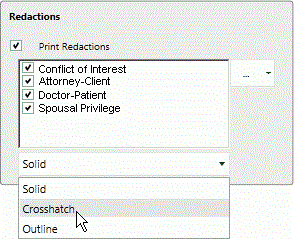
Redactions that have been applied in images will be printed in solid format. If you have sufficient permissions, you can select which redactions will be included in the print job and how they will appear:
-
To remove all redactions, clear the Print Redactions option.
-
To remove some redactions, select the Print Redactions option, then click (clear) the unwanted redaction(s). These redactions will be removed from the list in the Print dialog box. The following figure shows an example of print selections for redactions.
-
To add redaction(s), click in the Redactions area and select those redactions you want to print.
-
To change redaction format, select the needed format from the list below the redactions list, In the previous figure, the Crosshatch redaction format is being selected.
-
-
A slip sheet can serve as a cover sheet for your print job. To define a slip sheet, click the Slip Sheets tab and select the content to be included. See "Slip Sheets tab" for details.
-
To include document content (field data, tag information, or custom messages) in the header and/or footer of the document being printed, click the Endorsements tab and select the content to be included. See "Endorsements tab" for details.
-
When all aspects of the print job are defined, click Print. If a color printer is being used, all colors will be maintained.