Document Image Tab
This page contains the following content:
- Working with Document Images
- Image Actions
- Toolbar Overview
- Getting Started With Images
- Change Image View
Working with Document Images
About Document Images
Document images include TIFF, JPG, or PDF files created from native document files. If they exist for your case, document images appear on the Image tab in the Document Details pane of IPRO Eclipse (web).
Image Actions
In the Image tab, you can perform the tasks explained in the following table, in addition to tasks related to viewing the image, such as enlarging or rotating the image. These tasks can be performed on the individual pages of a document.
|
Field |
Description |
|
View images |
Magnify images in a variety of ways, rotate image, and/or change image quality. |
|
Redact text |
Place a box (solid, outlined, or cross-hatched) over text on a document. Redactions also have labels to identify why the information is redacted (for example, “Attorney-Client” privilege). |
|
Add mark-ups |
Draw free-form lines on the image. |
|
Highlight text |
Emphasize text by highlighting it. |
|
Add embedded text |
Enter text comment that is visible on the image. |
|
Add "sticky notes" |
Add
personal notes that are visible by double-clicking the sticky
note icon, as shown on the right. |
|
Print document images |
Print documents or pages. |

Toolbar Overview
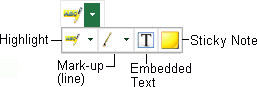
The following figure and table show the Image tab toolbar and identify each button.

|
Button |
action |
|
|
Pointer (releases another button’s action). |
|
|
Move or resize annotation object. |
|
|
Move image (if all of content is not visible). |
|
|
Redact image content. (This button will not be active if redactions are not configured by your administrator.) |
|
|
Mark-up (add line, text, or shape).
|
|
|
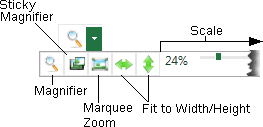
Magnify image or reduce image in different ways.
|
|
|
Rotate image right or left. All pages of a document are rotated. |
|
|
Print image. |





Getting Started with Images
To view images:
-
Complete "Accessing Case Documents" to start working in IPRO Eclipse and install the IPRO Eclipse Viewer control.
-
In the Document Details pane, click the Image tab.
-
If images have not yet been viewed, click the View button. Images will be downloaded and synchronized with case records.
When a record is selected, the image file is
downloaded and displayed on the Image
tab. A progress meter in the status bar indicates download details, similar
to the following example. The download rate depends on system resources.
Change Image View
Change image quality
The image quality of some types of files can be adjusted based on the number of pixels used per character. To adjust the quality:
-
In the Document Details pane’s Image tab, click the Pointer,
 .
. -
Right-click in the image and select Scale Quality > High Quality (more pixels) or Low Quality (fewer pixels).
Rotate image
To change the orientation of documents in the Image tab, take one of the following actions. Note that the cahnges made to the orientation will only affect the currently viewed page.
-
In the Document Details pane’s Image tab, click
 or
or  to rotate document’s 90
degrees right (clockwise) or right (counterclockwise), respectively.
to rotate document’s 90
degrees right (clockwise) or right (counterclockwise), respectively. -
Click the button multiple times to continue to rotate images (90 degrees per click).
Magnify image area
To enlarge a particular area of an image in the Image tab:
-
In the Document Details pane’s Image tab, position the image so the text to be magnified is visible. (See "Move image" if needed.)
-
On the Image tab toolbar, click
 , then
click the area to be magnified. Do not release the mouse button.
, then
click the area to be magnified. Do not release the mouse button. -
Drag the mouse as needed and read/evaluate the information
-
When finished, release the mouse button.
-
Move the image to another area if needed, and repeat steps to magnify other areas.
-
When finished, click
or another button to stop the magnify function.
Sticky magnification
The sticky magnifier allows you to open a window for magnified content that will stay open until you close it. To use the sticky magnifier:
-
In the Document Details pane’s Image tab, position the image so the text to be magnified is visible. (See "Move image" if needed.)
-
Click
 next to the magnification button and then click
  .
. -
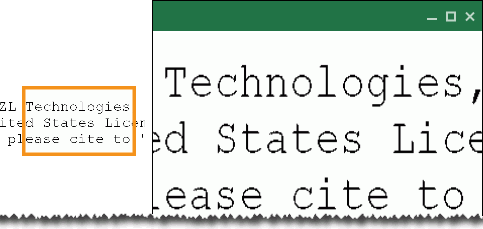
Drag across the area to be magnified. The sticky magnifier area will be marked on the image and the sticky magnifier window will open. The following figure shows an example.
-
If the window is too small, resize it by dragging any edge to the needed size. Also, drag the window to a convenient location.
-
As needed, complete one or more of the following actions:
-
Image tab: position the pointer in the sticky magnifier area; the pointer changes to
 .
Drag the defined area to other locations to see other areas of the image.
.
Drag the defined area to other locations to see other areas of the image. -
Image tab: drag across another area of the image to redefine the sticky magnifier area.
-
Documents tab: click another record. The same relative area of the new image will be magnified.
-
-
When finished, click X on the sticky magnifier window and then click
(or
another button) to stop the magnify function.
Resize an image
Scaling
To easily change the image size in the Document Details pane’s Image tab, complete one of the following procedures to resize the image.
-
Marquee Zoom: In the Image tab toolbar:
-
Click the down arrow,
, next
to the Magnification button. -
Click
 .
. -
Drag across the image area of interest. The image will enlarge when you release the mouse button.
-
When finished, click
or
another button to stop the zoom function.
-
- Scale: In the Image tab, toolbar:
-
Click the down arrow,
, next
to the Magnification button. -
Drag the slider on the scale until the image is the desired size.

-
When finished, click in the image or click
or another button
to stop the previously selected function.
Selecting pre-defined sizes
To easily change the image size in the Document Details pane’s Image tab to a pre-defined size, click one of the following buttons on the Magnification toolbar:
-
 :
Fit the image vertically in the Image
tab space.
:
Fit the image vertically in the Image
tab space. -
 :
Fit the image horizontally in the Image
tab space.
:
Fit the image horizontally in the Image
tab space.
Alternatively, right-click anywhere in the image and select Fit to Width or Fit to Height
Move an image
To move the image within the Image tab:
-
If your mouse has a scroll wheel, click on the image and use the scroll wheel to move up and down. If your mouse does not have a scroll wheel, complete the following steps.
-
On the Image tab toolbar, click
 .
. -
Drag in the image area until the needed area is visible.
-
When finished, click
or another button to stop the move function.
|
|
Tip: These procedures apply only if the complete width and/or height of the image is not visible. For example, if the entire width of the page is visible, you will not be able to move the image from side-to-side. |
