Annotating Transcripts
This page contains the following content:
Navigating Through Annotations
To navigate through a transcript’s quick marks, highlights, and annotations:
-
Log in to IPRO Eclipse and open the needed case or batch.
-
Access the Document Details pane and click the Transcripts tab.
-
Select the Auto Annotate option on the Transcript toolbar.
-
Open the needed transcript and click Annotations.
-
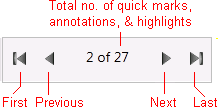
Use the navigation bar in the Annotations pane, shown in this figure.
-
Review highlighted transcript content as well as details in the Annotations pane.
Modify an Annotation
After adding quick marks, highlights, and/or annotations, make changes as follows:
-
Log in to IPRO Eclipse and open the needed case or batch.
-
Access the Document Details pane and click the Transcripts tab.
-
Open the needed transcript and take the following actions as needed.
-
Quick marks: to remove a quick mark, simply click the highlighted line number. The quick mark will be deleted.
-
Highlights: to remove a highlight (and associated issue tags, notes, and links), right-click the highlight and select Delete.
-
Issue tags, notes, links: to change issue tags, notes, or links:
-
Click Annotations in the left pane of the Transcripts tab.
-
Click the needed highlight and take any of the following actions.
-
Select or clear issues.
-
Edit or delete note content. Use common keyboard shortcuts to cut, copy, or paste note text.
-
Click Remove Link to remove a document link.
-
Add a Quick Mark
A “quick mark” is a simple place marker – a highlight of line numbers in the transcript’s margin, as shown in the following figure. In addition to providing visual cues, you can generate a report that summarizes quick marks.
To add a quick mark, click line numbers of the transcript content you want to mark.

Highlight Transcript Content
To highlight transcript content as shown in the previous figure (without any annotations):
-
Log in to IPRO Eclipse and open the needed case or batch.
-
Access the Document Details pane and click the Transcripts tab.
-
Open the needed transcript and go to the needed page and line(s).
-
Drag across the text to be highlighted.
Add Annotation Details
Annotation details include issue tags, document links, and/or notes. To add annotation details to highlighted transcript content:
-
Log in to IPRO Eclipse and open the needed case or batch.
-
Access the Document Details pane and click the Transcripts tab.
-
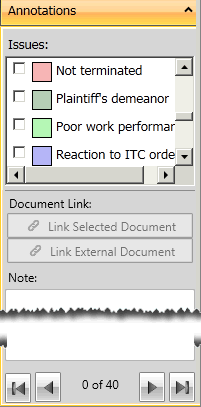
If desired, select the Auto Annotate option on the Transcript toolbar to make the Annotations pane (shown in this figure) active automatically as you work.
-
Highlight content as described in the previous procedure or click an existing highlight to select it.
-
If you did not select Auto Annotation in step 3, right-click the highlight and select Annotate. Complete the following steps as needed.
-
Issues: To add an issue tag, click relevant issue(s). Scroll in the list to view all issues.

-
Document Links: Complete step 8 or step 9 to link a case document or an external file to highlighted text.
-
To link a case document:
-
Make sure the needed highlight is selected in the Transcript tab.
-
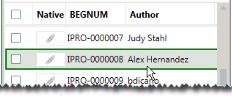
Locate and click the needed document in the Documents tab (or Search Results, etc. tab) as shown in the following figure.
-
In the transcript Annotations pane, click Link Selected Document. The selected document appears in the Annotations pane as shown here.
-
When reviewing highlighted text, select a highlight and click
 to view the linked
document in a Search Results tab.
to view the linked
document in a Search Results tab.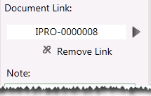
-
-
To link a file:
-
Make sure the needed highlight is selected in the Transcript tab.
-
In the transcript Annotations pane, click Link External Document.
-
In the Open dialog box, navigate to and select the needed document. This document will be copied from its source location to an IPRO Eclipse location defined by your administrator.
-
When reviewing highlighted text, select a highlight and click the External Document button,
 ,
to open and view the linked document.
,
to open and view the linked document.
-
-
Notes: In the Notes area of the tab, enter needed information by typing or pasting (press Ctrl+V to paste).
-
Repeat steps as needed for other transcript content.
|
|
Tip: If content will be tagged with multiple issues, the first issue selected determines the highlighting color. In this case, select the issue most needed for color-coding first. |

|
|
Note: One case document or one external file can be associated with each transcript highlight. |


Finding Annotation Details
Search for text within annotation notes as explained in "Finding Transcript Content."