Select the Data Source
After completing preparation (see Before You Begin above), complete the following steps:
-
If your import file is open in another application, for example, a .CSV file is open in Microsoft® Excel, close the file and the application.
-
In the Import Data screen, click the Step 1. Select Source tab.
-
Select the managing client and case into which data is to be imported.
-
Job Name: If desired, replace the default job name with a name of your own choosing. This job name is used in the Import-Job History for the case. The log file path cannot be changed.
-
Import File: Enter the full path to the needed import file. Alternatively, click the
 button and navigate to and choose the needed
file. Files may be any of the following types:
button and navigate to and choose the needed
file. Files may be any of the following types:-
Document-level data: .CSV, .DAT, .DLF, .DII, or .TXT
-
Page-level data: .DLF, .LFP, or .OPT
-
Document-level text (extracted text) files: .LST
-
-
Number of sample records: Select a sample of 1, 15, or 100 records. The initial lines in the import file are evaluated in order to display the number of records (documents and/or pages) specified here. If the selected number of records is not defined within the lines that are evaluated, then the sample will be smaller than specified.
-
First line is a header: Select this option if the first row in the import file contains column titles instead of data. (Some file types, such as .OPT, will select this option automatically.)
-
Encoding: Select the character set to be used. Common encodings are available for selection.
-
Sample Data: Review the excerpt of data from the import file.
-
Delimiters: If the data imported includes delimiters other than the standard types, change the delimiters to match the file. For details on default delimiters and instructions on using custom delimiters, see Delimiter Details.
-
Field: Select the character that separates each field.
-
Quote: This optional delimiter typically marks the beginning and end of a field (as in .CSV files).
-
Newline: Select the character that signifies the start of a new line in the load file.
-
Multi-Value: Select the character that separates values within multi-value fields (TEXT_TM fields).
-
Merged Fields: Eclipse allows you to merge multiple fields (in Match Database Fields). For example, you may be importing a case in which two fields were used for a large amount of text.
-
Nested Value: If you are importing tags (including nested tags) from a .TXT or .CSV file, select the delimiter that identifies the nested tags.
-
Date Format: Select the date format that most closely matches the dates in your import file. For example, if your file includes dates in the format of dd-mm-yyyy, select the D/M/Y option. Also note the following:
-
Dates to be imported must be in a common date format. (For example, 27-09-2009 or 27 Sept 2009.)
-
If you are importing data from a .DLF file, the format must be Y/M/D.
-
Partial dates will not be imported (for example, 09/2009 or Sept 2009).
-
Batch Import: To select additional files to import, complete the following steps. If the file selected in step 5 is the only file to be imported, skip to Match Database Fields.
-
Files must be of the same type and have the same fields as defined in the file specified in the Import File field.
-
Determine whether you are adding a single file, a directory of files, or multiple recursive directories.
-
In the Batch Import area, click the Add button.
-
Navigate to and select the needed file(s), then click OK. Use Shift+click or Ctrl+click to select a contiguous or non-contiguous set of files, respectively.
-
If needed, repeat steps b and c to locate and select additional files.
-
Review the files listed in the File Name list. If a file should not be imported, click the file in the list and then click Remove.
-
When the set of files is correct, continue with Match Database Fields.
-
|
|
Note: To import multiple files at once (for example, a service bureau has provided multiple files for a case), select any one of the files to be imported now. Additional files will be selected in step 12. |

|
|
Note: For each case, make sure that the same encoding option is used for the load file containing the case metadata (such as .DAT, .DLF, .DII, or .TXT file) and the corresponding image load file (.OPT or .LFP) for the case. |
The columns in the table will differ, depending on which type of file is being imported. If you are importing an LFP or OPT file, columns will be similar to this figure.
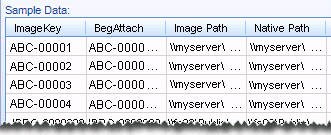
If default delimiters are not used in your load file, the sample data will not display correctly. In this case, continue to step 10.
Ignore any delimiters that are not pertinent to your load file. (The entries in this area will be ignored if they do not apply to your load file.)
Delimiter options include:
If you want to merge fields, but also want an indicator of the original field separations, specify the delimiter here. The delimiter will be included in the merged data to identify the original field delineation(s).
When delimiters have been defined, review the Sample Data to ensure it appears as intended.
|
|
Regarding imports from LFP files: The import process imports/updates only those records specified in the LFP. Therefore, related documents are updated only if they are specified in the LFP file. Not all LFP commands are supported. Supported commands include: AN, FT, IM, OF, OI, OT, VN. Unsupported commands are ignored. |
Delimiter Details
This information supplements step 10 above.
Default Delimiters
Eclipse includes default delimiters based on file type, as listed in the following table. In this table:
-
A box, □, represents a non-printing character.
-
“NA” indicates the delimiter is not applicable to the file type.
 Default
Delimeters
Default
DelimetersCreate Custom Delimiters
Certain import files, such as .CSV, .DAT, or .TXT, may include custom delimiters. To select a custom delimiter in step 10 of Select the Data Source:
-
In the needed delimiter field, select Custom. (You will need to scroll to the bottom of the delimiter list.)
-
In the Create Custom Delimiter dialog box, click the Characters or ASCII Values option, depending on how you will specify the delimiter character(s).
-
If you select Characters, enter the character(s) in the top field under the Characters option. Separate more than one character with a space. The ASCII value for each character appears in the bottom field.
-
If you select ASCII Values, enter the ASCII value(s) for the needed character(s) in the top field under the ASCII Values option. Separate more than one value with a space. The character corresponding to each value appears in the bottom field.
-
When finished, click OK.