Match Database Fields
If you are importing document data, match (map) the data fields defined in the imported file to the fields defined for the case in Eclipse Administration. Note:
-
A field must be mapped to the case BEGDOC field.
-
Some fields in the import file can be omitted (not mapped) if needed. For example, the import file may include a Word Count field that is not needed in the Eclipse case.
-
More than one field in the import file can be mapped to a single field in the case. For example, the import file may have two fields to define an author’s name (First Name, Last Name). In the Eclipse case, a single field may be used for this information (Name).
-
Several options relate to field mapping. For example, Eclipse allows you to correct the file path information in the import file so that the data will be correct in your Eclipse case.
-
The following procedures comprise this step of the import process:
-
Create Fields on the Fly When Mapping
-
Map fields Using Auto-Selection
-
Map Fields Manually
-
Map Fields Using a Field Template
-
Map Image Data and Text Files
-
Map fields Using Auto-Selection
-
|
|
Note: If you are importing image data (such as from an .LFP or .OPT file), matching of database fields may not be required. See Map image data and text files. |
Create Fields on the Fly When Mapping
There are many ways to map fields, but the exact field needed may not be your case. You can quickly add the new field as you are mapping.
-
In the Import Data screen, click the Step 2. Map Fields tab.
-
Evaluate the Import Field listing to determine which fields will be included in the import.
-
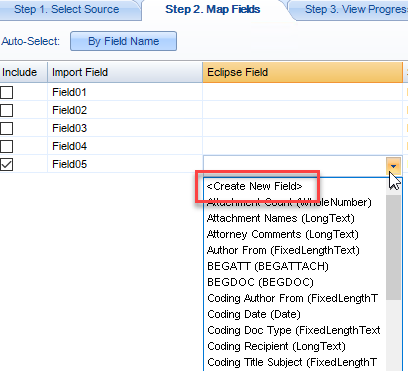
If there are no matching fields, click in the Eclipse Field column, click the down arrow and select Create New Field.
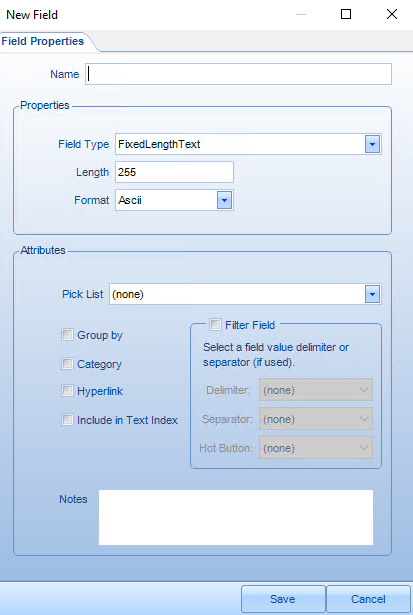
The New Field creation window will open.

-
Complete the definitions for the field. For details on field definition options, refer to Step 3: Define Database Fields.
Map Fields Using Auto-Selection
Eclipse Administration can attempt to match the fields based on the field name. For example, if the input data contains a column called IMGKEY and the case contains a field named IMGKEY, it will automatically line up the source and destination field.
To auto-select fields:
-
After completing Select the Data Source, click the Step 2. Map Fields tab.
-
To match by field name, ensure that your imported data includes field names in the header and that First line is header is selected in the Step 1 tab. In the Import Data screen, click the Step 2. Map Fields tab.
-
Click the Auto-Select By Field Name button.
-
Evaluate the matching to determine if:
-
the auto-matching does not meet your needs, and/or
-
Some fields cannot be matched (in which case, the word Select in the Eclipse Field column will be red).
-
NOTE: For auto-selected matching, make sure that one of the import fields is matched to the BEGDOC field defined for the case.
-
If importing from a Summation .DII file, make sure the Summation FULLTEXT field is matched to the Eclipse EXTRACTEDTEXT field.
-
If any problems exist, continue with "Map fields manually" next.
Map Fields Manually
To manually match the fields:
-
In the Import Data screen, click the Step 2. Map Fields tab.
-
Evaluate the Import Field listing to determine which fields will be included in the import.
-
For each field to be imported, click in the Eclipse Field column and choose the database field you want to match to the import field. The list shows the field name and type to assist you with matching.
-
Repeat step 3 for all fields to be included.

Note:
-
Make sure that one of the import fields is matched to the BEGDOC field defined for the case.
-
Selecting a matching database field automatically selects the Include option for you.
-
You will be alerted if you concatenate fields (match two or more fields to a single Eclipse field; see the following example). Ensure a delimiter is defined in Select the Data Source, step 10.
-
If importing from a Summation .DII file, make sure the Summation FULLTEXT field is matched to the Eclipse EXTRACTEDTEXT field.
-
Tips for manually selecting fields—To easily select needed fields, click in the needed Database Field and take any of the following actions:
-
Use the mouse scroll wheel to move through the field list.
-
Type the first letter of the needed field name to jump to the first field name starting with that letter
-
Press Tab to move from field to field.
-
-
Map Fields Using a Field Template
If you will be importing multiple load files separately (not as a batch), you can set up needed field mapping, save a template, then use the template to easily map fields for additional imports.
Create field template
-
On the Step 2 tab of the Import Data screen, map fields using one of the previously described procedures.
-
Click Save Field Template.
-
In the Save Template File dialog box, navigate to an appropriate location for the template, enter a template file name, and click Save. An XML-based field template is created. Field mapping and path correction data are maintained in the template.
Use field template
After creating a field template as described in the previous procedure, use it as follows:
-
On the Step 2 tab of the Import Data screen, click Load Field Template.
-
In the Load Template File dialog box, navigate to the needed template, select it, and click Open. Mapping selections and path corrections will be made according to the template.
-
Review mapping details and make changes if needed.
-
When finished, continue with Select Mapping Options.
Map Image Data and Text Files
If you are using/importing any of the following items, matching of database fields will be as discussed in the following paragraphs.
-
Image data (such as from an .LFP or .OPT file)
-
.LST file for text files
-
.DAT, .DLF, or .CSV file using a file path in the EXTRACTED TEXT field (path pointing to the location of text files)
.LFP files
Eclipse Administration will automatically define the Image Path. This selection cannot be changed. The BEGDOC field must be mapped by the user.
Optionally, if applicable, two additional fields can be mapped:
-
IM lines: If boundaries specified in IM (Load Image Master Record) lines include a “C” as shown in the following example, then a relationship will be created if you map a BEGATTACH field (and that field references the BEGDOC of the parent document):
-
OF lines: Original File (OF) for EDD Image lines correspond to NATIVE fields in Eclipse. If your .LFP file includes OF lines, you must map a NATIVE field if you want to import that information.
IM,000010,C,0,@001;IMG_0001;000010.tif;2,0
.LST and .OPT files
Eclipse Administration will automatically define the Image Path; the BEGDOC field (and others) must be mapped by the user.
.DAT, .DLF, or .CSV files
Eclipse Administration will automatically define the Image Path; the BEGDOC field (and others) must be mapped by the user.
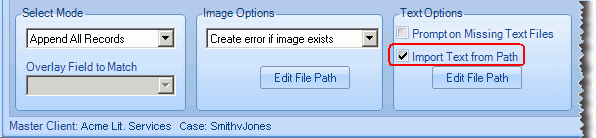
If a path is used to indicate the location of text files, the Import Text from Path option must be selected to indicate that a path is being used in place of the text itself. See the following figure.