Modify or Delete TAR Projects
This page contains the following content:
Change TAR Configuration
To change a TAR project:
-
Get started:
-
Start Eclipse and log in as an Eclipse administrator.
-
Open the case for which a TAR project is being revised.
-
In the Case View pane, click Case Administration, and then TAR Project Setup.
-
-
Click
 and make changes as follows:
-
Change Training Set batch size.
-
Change Validation Rounds sampling type and/or associated settings.
-
Change Certification Set sampling type and/or associated settings.
-
-
Click Save.
For details on these aspects of a TAR project, see applicable steps in TAR Project Configuration.
These changes will apply only to unstarted activities. For example, changes to the Training Set batch size will apply only if the training round has not been started. Changes to Validation Rounds sampling will apply to rounds that start after the changes are made.
Delete a TAR Project
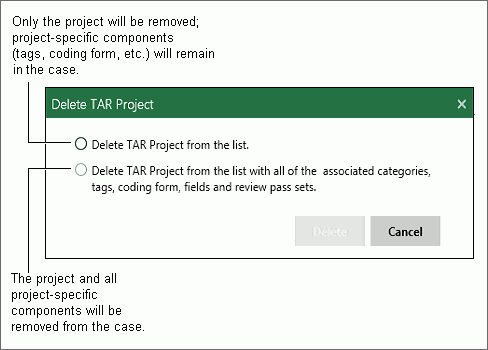
A TAR project can be deleted from the TAR project (summary) list or deleted completely. Deleting a TAR project completely deletes all aspects of the project, including associated tags (whether applied or not), coding form, fields, category set, and review passes will be deleted.
To delete a TAR project:
-
Get started:
-
Start Eclipse and log in as an Eclipse administrator.
-
Open the case containing the TAR project to be deleted.
-
In the Case View pane, click Case Administration, and then TAR Project Setup.
-
-
Click the project to be deleted.
-
Click
 and select the needed option in the resulting dialog box. See the following
figure for option details.
and select the needed option in the resulting dialog box. See the following
figure for option details. -
Click Delete.