Create a TAR Project
Preparation
TAR success begins with planning. As an Eclipse administrator, consider the following items before implementing TAR:
-
Identify the goals of the TAR review.
-
To configure a TAR project, an Analytics search index and an Analytics cluster are needed, so make sure an index and cluster have been created that will provide proper representation of the documents in the case for which TAR will be used. For details, see:
-
Create and Manage Analytics Indexes (IPRO Analytics)
-
-
Prepare guidelines for reviewers who will participate in the TAR review. Guidelines should help reviewers understand their role and the tasks they will need to perform. See Add Case Instructions, Documents, and Alerts for details on providing instructions within Eclipse.
TAR Project Configuration
To configure a TAR project:
-
Get started:
-
Review Manage TAR Projects.
-
Start Eclipse and log in as an Eclipse administrator.
-
Open the case for which the TAR project is being created.
-
-
In the Case View pane, click Case Administration and then TAR Project Setup as shown in this figure.
-
Complete basic TAR Project Settings:
-
Project Name: enter a unique name of up to 50 characters for the TAR project. Alphanumeric characters and the underscore character are allowed.
-
Project Prefix: enter a unique prefix of up to 10 characters. Alphanumeric characters and the underscore character are allowed. This prefix is used to help administrators and reviewers identify TAR components within Eclipse, including coding forms, tags, review passes, and so forth .
-
Analytic Index: select the Analytics index needed for this TAR project.
-
Cluster Set: select the IPRO Eclipse Analytics cluster needed for this TAR project. (Content Analyst)
TAR components begin with a prefix of “TAR_,” to which this entry is appended. For example, if you enter a prefix of “ABC1,” the coding form created for this TAR project will be named “TAR_ABC1.”
-
-
Scroll down in the TAR Project Settings form until the bottom of the form is visible .
-
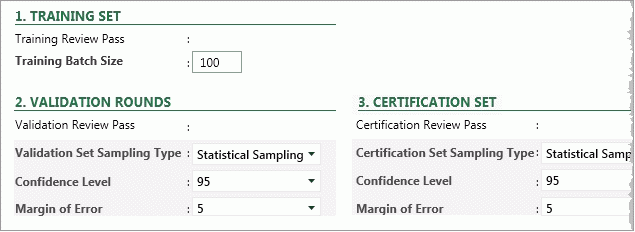
Review the default Training Set, Validation Rounds, and Certificate Set configurations (see the following figure), then take one of the following action.
-
Accept the default settings: skip to step 9.
-
Change the settings: continue with step 6 and/or step 7 as needed.
-
-
To change the batch size for the training set, enter the desired number (number of documents) in the Training Set Batch Size field.
-
To change the sampling criteria for the Validation Round, select the sampling type (Fixed Size or Statistical) and associated options as described in the table on the next page.
-
Permissions: If the coding form and review passes should be limited to certain user groups:
-
In the Permissions area (on the right side of the window), click Add/Remove Groups.
-
Select needed groups and click OK.
-
-
When the project definition is complete, click Save.
-
Optional:
If you are using IPRO Analytics, once the TAR project has been saved, you have the option to use documents that have already been coded during manual review, pre-coded, in order to train your system as opposed to using the training set. To use pre-coded documents to train your TAR project:
-
Click the
 button above the TAR Project Settings.
 -
Scroll down to the Pre-Coded Documents section.
-
In the Documents drop-down, select the saved search that contains the pre-coded documents you would like to add to your training batch.
-
In the Responsiveness drop-down, select the TAR Tag that should be mapped to the corresponding Responsiveness tag used in the selected saved search.
-
Click Add Documents.
-
Once the documents have been added to the training batch, click Save.
The pre-coded documents are put into a TAR Training batch and marked as complete. This batch must be checked-in before the system can learn from them.
-

|
|
Note: The Coding section of the screen and review pass names will be filled in automatically as the project is defined. |

|
|
Note: To make a TAR project available to all groups currently defined for the case, click Select All. The project will be unavailable to groups added after this selection (unless you add them). Do not apply security to individual TAR review passes or coding forms; control access to these components through TAR project permissions. |
 TAR
Validation/Certification Round Sampling Options
TAR
Validation/Certification Round Sampling Options