Syncing Address Books
Syncing address books is performed as part of the IPRO deployment process. You may need to periodically re-sync address books as part of IPRO maintenance tasks. If required, perform the following steps to populate the IPRO user cache from the Exchange Address Book.
As an alternative to syncing from the Exchange Address Book, you can also sync from a distribution list. This is useful if you need to sync only a subset of users in the address book.
How to Sync Users
- Log into the IPRO Administration Console.
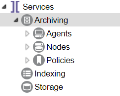
- Select Archiving.
- Select the Users Sync tab.
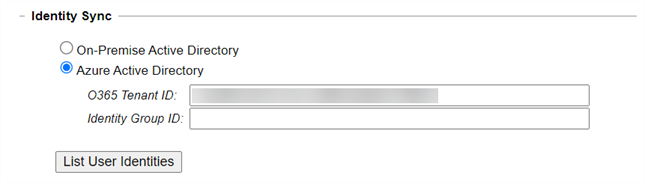
- Navigate to the Identity Sync section. Select one of the following options and configure accordingly:
- Select On-Premise Active Directory to sync against the address book or distribution list in the on-premise Active Directory. Enter the required information: AD Host, AD User, AD Password, and Identity Group Name.
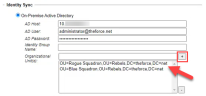
- (Optional) Sync only specific Groups or Organizational Units:
- In the Identity Group Name field, enter the AD Group to target.
- In the Organizational Unit(s) field, specify the organizations to sync against. When specified, only users and groups contained in the Organizational Unit(s) are targeted. To add an entry, enter the Organizational Unit(s) in the corresponding field and click +. When entering multiple organizations at once, separate entries using semi-colons. To remove an entry, select it and click -.
- (Optional) Sync only specific Groups or Organizational Units:
-
IMPORTANT
The Identity Sync job runs against the selected Group(s) and selected Organizational Unit(s) only.
You can use Identity Group and Organizational Unit filtering at the same time, but Group takes precedence. The Identity Group entry overrides the Organization Unit entry. - Select Azure Active Directory to sync against the address book or distribution list in the Azure Active Directory.
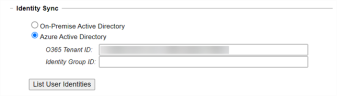
- To review your selection, click List User Identities.
- When finished, click Run Now in the User Sync section. Click Save at the bottom-left of the tab.
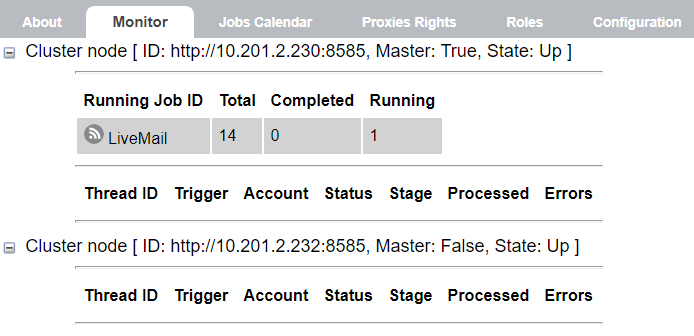
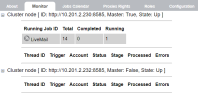
- Go to Archiving > Monitor and verify that the address book is synchronizing.
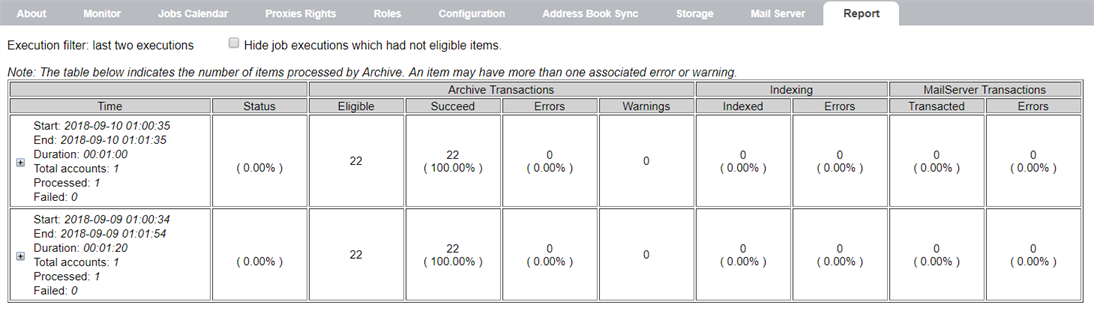
- Go to Archiving > Report to view the results of the address book synchronization.