Viewing and Interpreting Reports
Reports are useful for reviewing job results. Report views automatically collate data from the logging database. Information reported includes start/end time, duration, status, errors, and warnings. When a job is finished running against multiple accounts, the default summary report will show the cumulative statistics, in both numbers and percentages, for all accounts.
View Report Results
In the IPRO Administration Console, Job Reports are available on the main Archiving section and on the Report tab of specific jobs. Report views automatically collate data from the logging database.
To view reports on the Cluster object, click on Archiving > Reports tab.
-
The Reports tab on the Cluster object provides information about the System Address Book Sync job, the Identity Sync job, and Remediation jobs.
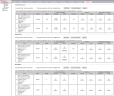
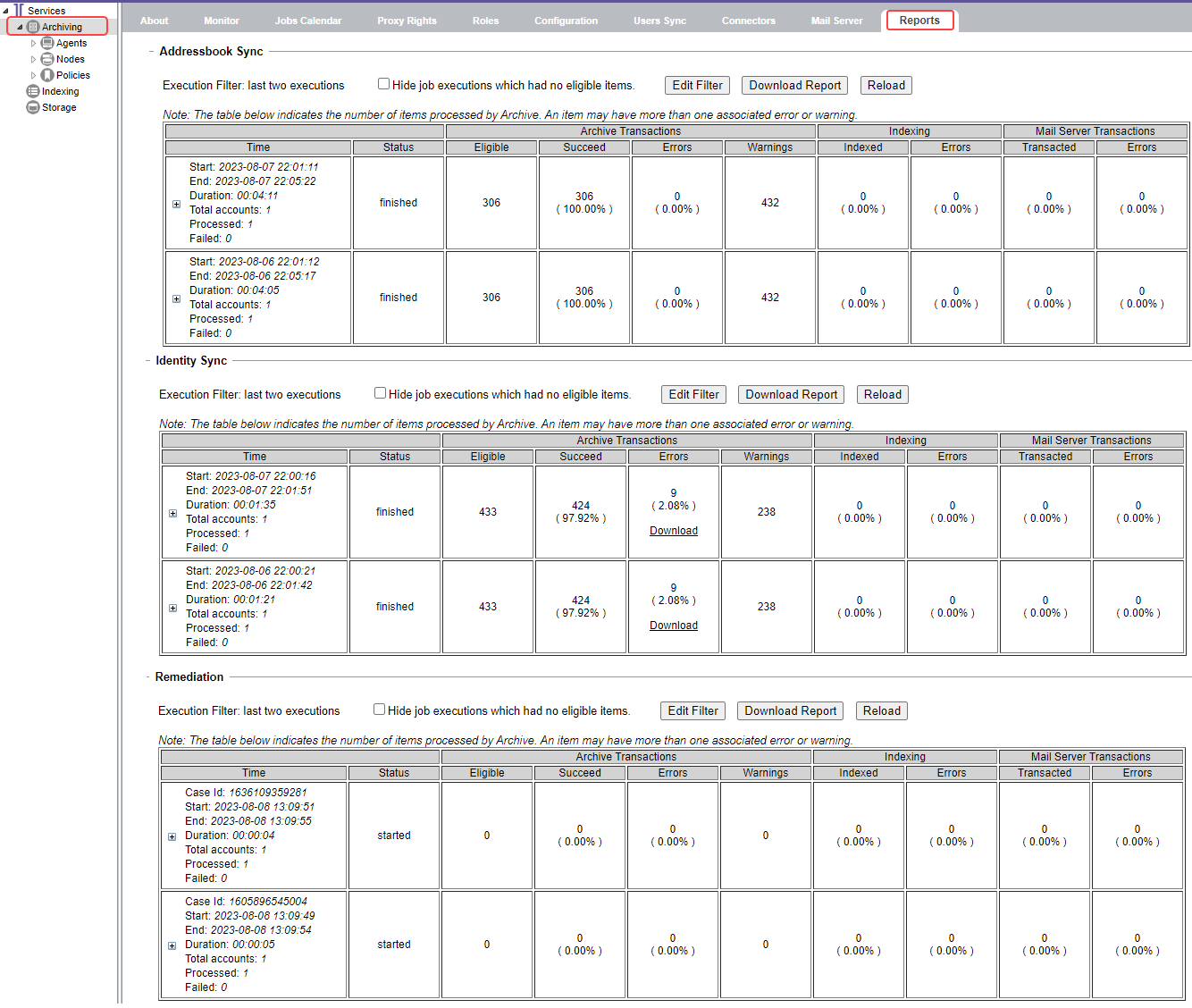
To view reports for a specific job, click on Archiving > Reports tab.
-
The Report tab of a specific job provides information on that job.


By default, when you click on the Report tab, you see summary reports from the last two executions of the job in question (assuming there have been two). If you wish to see information from older executions, click Edit Filter and select the date range for which you want to view reports.
The Edit Filter button also allows you to narrow the reporting scope down to only show data pertaining to specific users and/or only those users experiencing errors.
Interpret Report Results
See below for information on understanding report results.
 Indexing Job Results
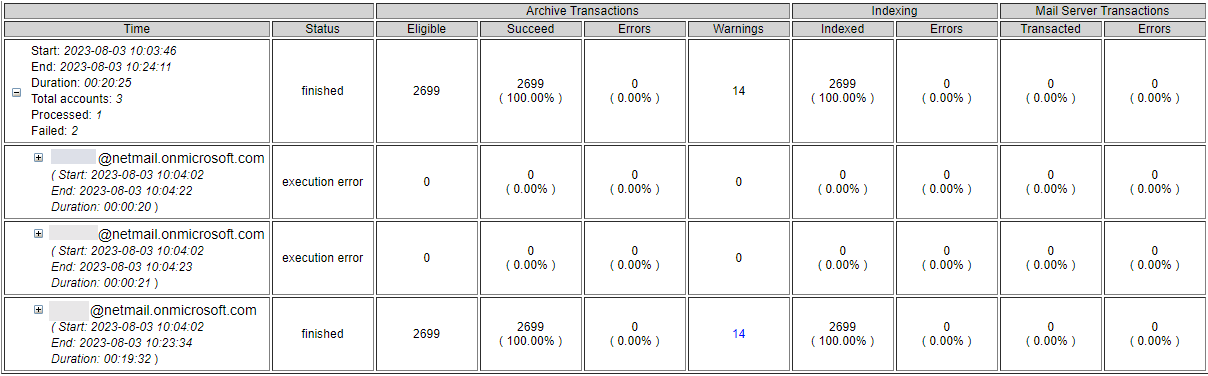
Archiving Transactions Section
|
Section |
Description |
|
Eligible |
The number of emails, calendar items, tasks, etc., that the job will attempt to process based on the policy applied. |
|
Succeed |
The number of emails, calendar items, tasks, etc. that were processed successfully. |
|
Errors |
The number of emails, calendar items, tasks, etc. that we were not able to process, and error is logged for each item. |
|
Warnings |
A warning on a message is an alert for a particular message that is not critical, but should be reviewed to ensure all data is captured properly. |
The Succeed and Errors counts combined should be equivalent to the Eligible count.
Errors in this section appear when an eligible item cannot be processed. These errors typically occur when an error on the exchange side is captured with an exception while trying to retrieve or process the item.
Indexing Section
|
Section |
Description |
|
Indexed |
The number of emails, calendar items, tasks, etc., indexed on the job. |
|
Errors |
The number of emails, calendar items, tasks, etc., that failed to be indexed. |
The Indexed and Errors counts combined should be equivalent to the Succeed count.
Errors in this section appear when an item has already been archived. This could be a communication or configuration issue. The error could be related to the content that had text that could not be extracted while processing the item. These issues may appear as warnings or errors depending on the problem.
There are no Mail Server transactions on LiveMail jobs.
For more information on viewing and downloading reports—see Viewing Reports.