Configuring Storage Devices
In ARCHIVE, Storage Devices are where you store archive data. ARCHIVE integrates organically with IPRO Archive Store. You can also use Microsoft Windows file shares.
- IPRO Archive Store is a content addressable storage (CAS) system; data is stored on the device as objects. Each object has a set of metadata which defines the properties of the data—see Backing Up Archived Files for more information on storage considerations.
- File System is used for CIFS-based access to file system shares.
How to Configure a Storage Device
- Select Archiving.
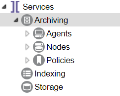
- Open the Connectors tab.
-
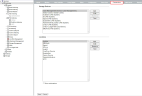
- In the Storage Devices section, click Add.
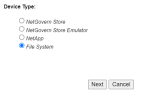
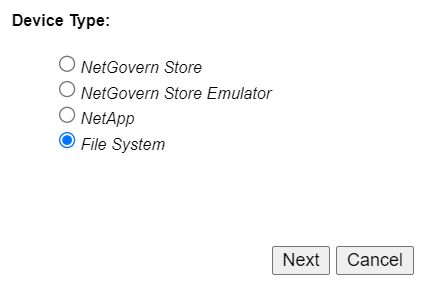
- The Device Type window opens.
-
IMPORTANT
IPRO Archive Store is displayed as 'NetGovern Store'. - Select a device type and proceed to one of the following to configure it.


How to Configure IPRO Archive Store
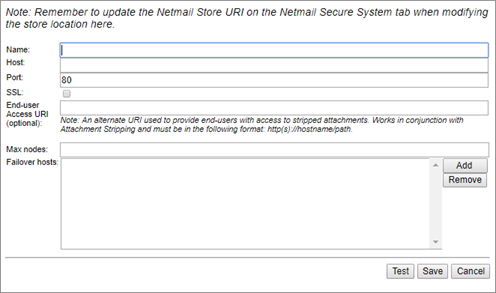
- In the Name field, enter the name of your IPRO Archive Store device.
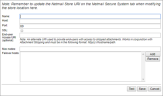
- In the Host field, enter the IP address of the server on which you installed IPRO Archive Store.
- In the Port field, enter the port number being used by IPRO Archive Store. Typically, port 80 is used to communicate with IPRO Archive Store.
- Select the SSL (Secure Sockets Layer) option to use standard security technology for establishing an encrypted link between your storage device and the ARCHIVE server; this ensures that all data passed between them remain private and integral.
- In the End-User Access URL field, specify an alternative URL for end users when they access stripped attachments in email messages.
- This works with Attachment Management and must be entered in the following format:
http(s)://hostname:port - In the Max Nodes field, enter the number of nodes of IPRO Archive Store you have installed.
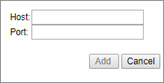
- In the Failover Hosts field, click Add to add the IP address of any configured failover hosts and the port number.
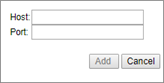
- Click Add.
- Click Test to validate the connection.
- Click Save.
How to Configure a File System Share
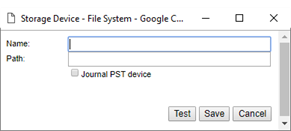
- In the Name field, enter the name of your file system share.
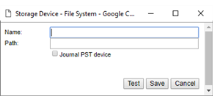
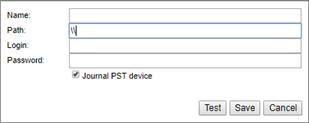
- In the Path field, enter the UNC path to the location of your file system share in the following format:
-
\\server\share-name\file_path - The Login and Password fields display.
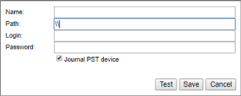
- Enter your login and password.
- Select the Journal PST Device option if your organization uses journaling in your email system.
- Click Test to validate the connection.
- Click Save.