Configuring Google Chat Connectors
Follow the steps below to include files, posts, and replies from direct conversations, group conversations, and workspace channels from Google Chat.
First, complete the prerequisites for configuring the Google Chat connector.
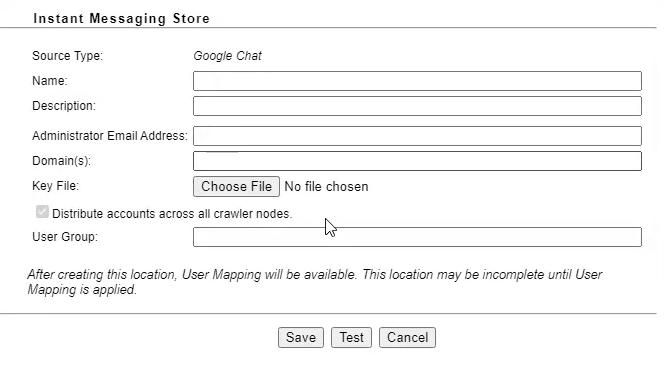
When configured, create the Live Location in the IPRO Administration Console. For the Live Location, add an Instant Messaging Store, and select Google Chat as the source location.
Next, ensure all users are mapped by performing User Mapping. Complete the configuration process by creating Indexing and Archiving jobs to crawl and archive the source data.
Indexing jobs are run to make data searchable. Indexing must be performed prior to archiving if you intend to search the archived data.
When set up is complete, indexed and archived Google Chat content can be viewed, searched, and exported from IPRO Search. The archived Google Chat content can be viewed and exported.
 Enable API access for the Google Chat API
Perform the following steps in the Google Cloud Platform Console.
-
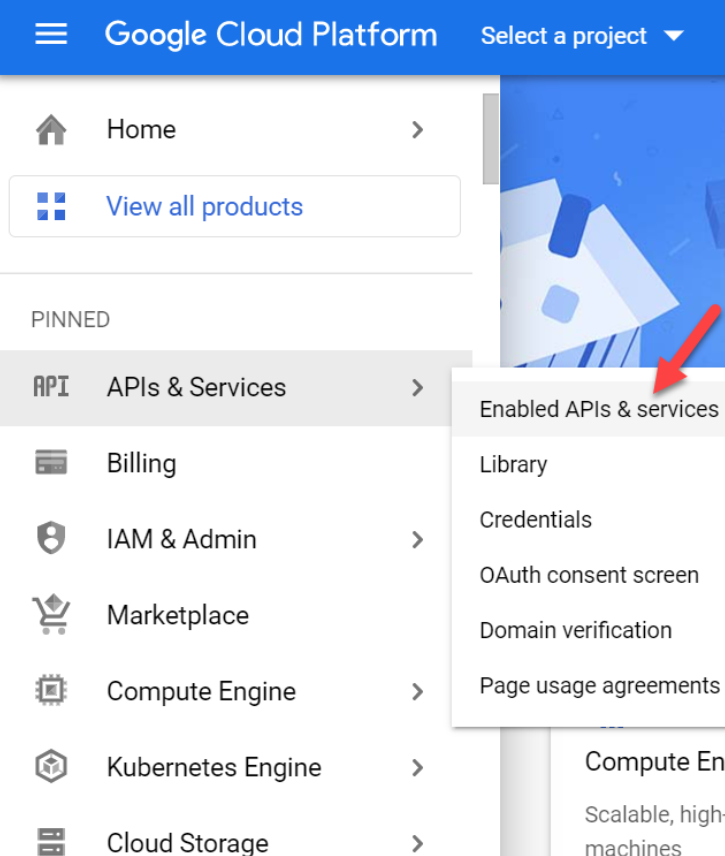
From the Google Cloud Platform home page, navigate to APIs and Services > Enabled APIs & services.

-
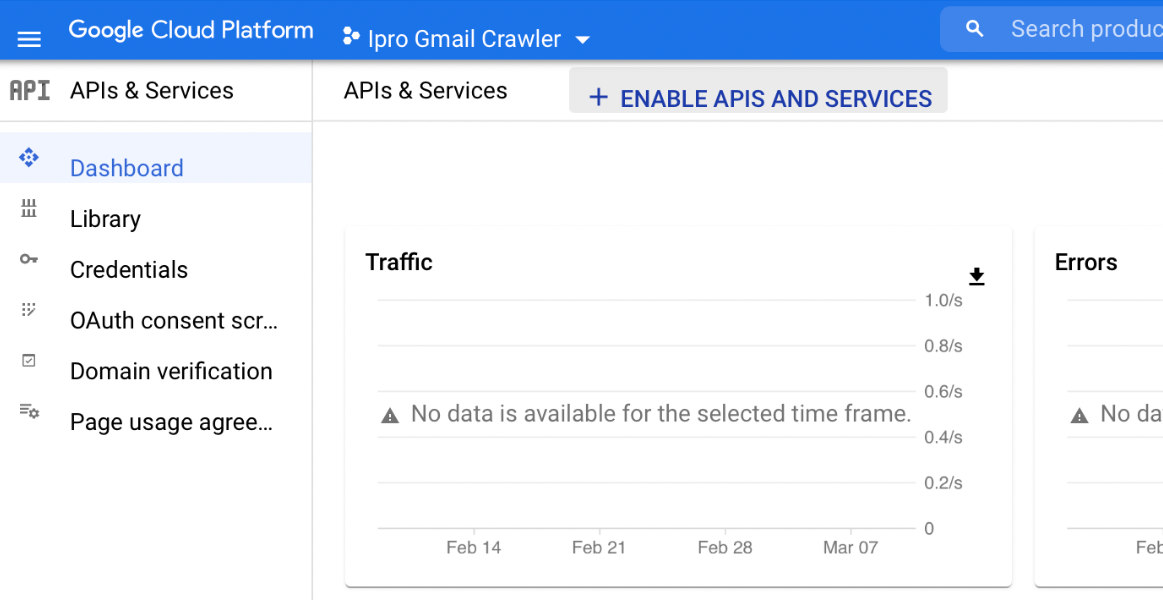
From the Enabled API & services dashboard, click Enable APIs and Services.
-
Add and enable the Google Chat APIs.
 Configure Google Chat API
Perform the following steps to configure the API.
1. Go to API & Services in Google Cloud.
2. Select Google Chat API.
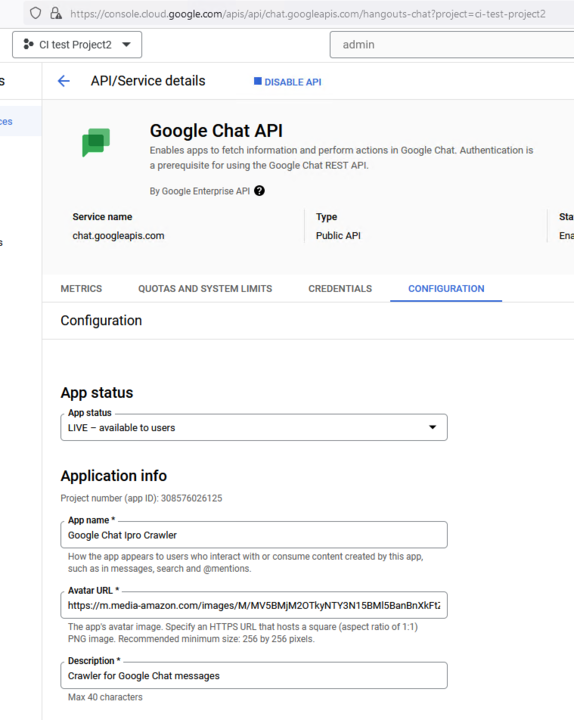
3. In API/Service details go to CONFIGURATION tab.
4. Fill the mandatory fields (*).
a. Application info
i. App name - e.g. Google Chat IPRO Crawler
ii. Avatar URL – e.g. e.g. https://m.media
amazon.com/images/M/MV5BMjM2OTkyNTY3N15BMl5BanBnXkFtZTgwNzgzNDc2NjE
-@._V1_CR132,0,761,428_AL_UY268_CR82,0,477,268_AL_.jpg
iii. Description – e.g. Crawler for Google Chat messages
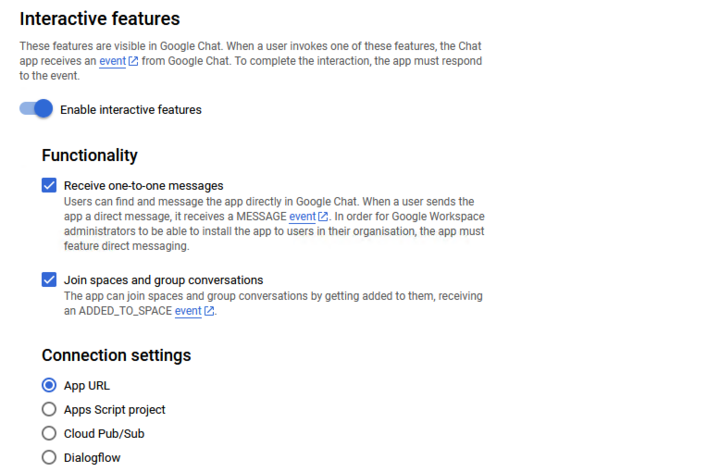
b. Interactive feature
i. Functionality
• Enable interactive feature – ON.
• Receive one-to-one messages – checked.
• Join spaces and groups conversations – checked.
ii. Connection Settings
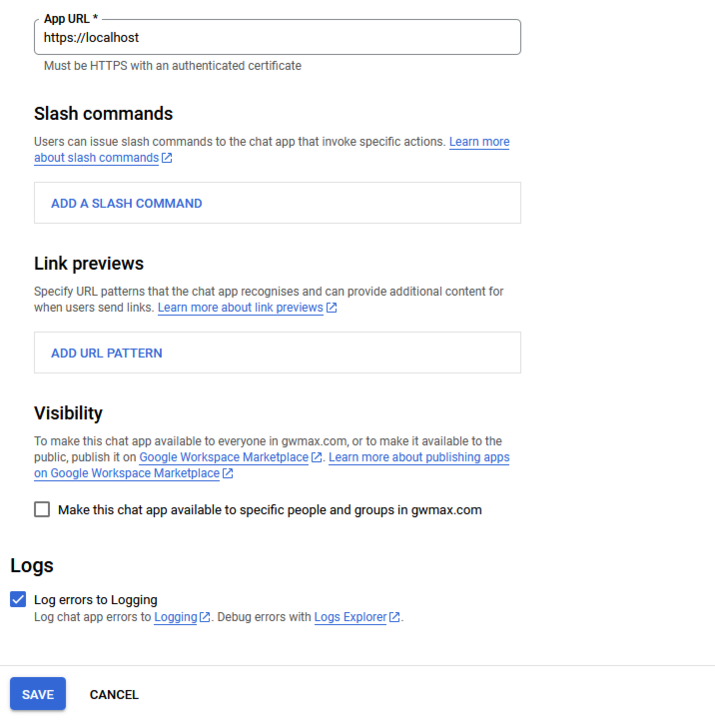
• App URL– checked.
• App URL text field – must be https://localhost.
c. Logs
i. . Log errors to Logging – checked.
Delegate domain-wide authority to the Service Account
To delegate authority to use the existing Service Account which was created when Gmail was authorized.
-
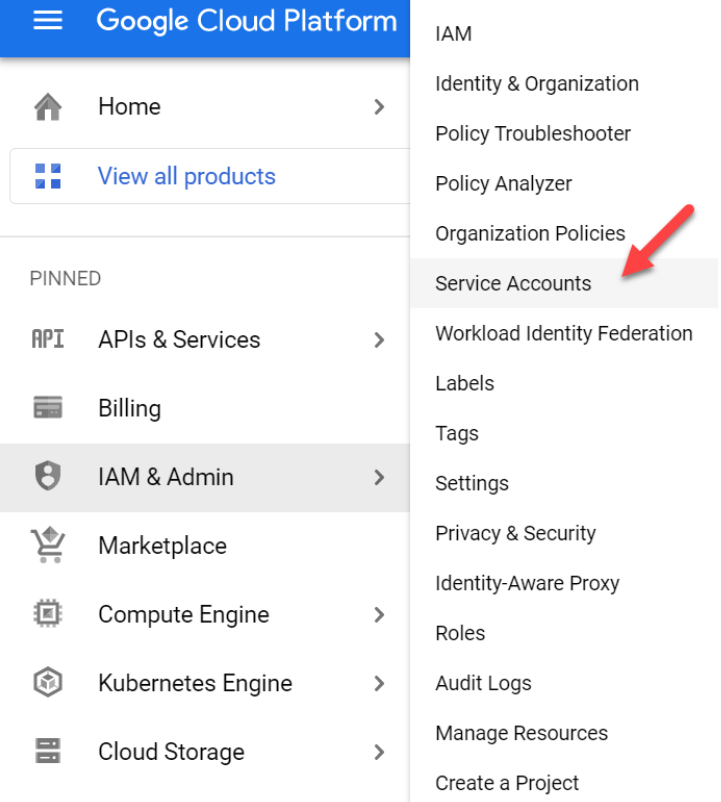
To grant Google Chat authority to the Service Account, navigate to the Service Accounts section. From the Google Cloud Platform home page, go to IAM & Admin > Service Accounts.

-
Select the previously created Service Account email address from the email addresses listed.
-
Take note of the value populated in the Unique ID box of the account used for Gmail.
-
The Unique ID value is used as the Client ID required to delegate authority to the Service Account.
-
From the G Suite Domain Admin Console, navigate to Main menu > Security > API Controls.
-
In the Domain-wide Delegation pane, select Manage Domain Wide Delegation.
-
Find your Service Account by the Client ID.
-
Click Edit..
-
In the OAuth scopes (comma-delimited) field, add the following list of scopes:
-
https://www.googleapis.com/auth/chat.memberships
-
https://www.googleapis.com/auth/chat.messages
-
https://www.googleapis.com/auth/chat.messages.readonly
-
https://www.googleapis.com/auth/chat.memberships.app
-
https://www.googleapis.com/auth/chat.memberships.readonly
-
https://www.googleapis.com/auth/chat.messages.reactions
-
https://www.googleapis.com/auth/chat.messages.reactions.readonly
-
https://www.googleapis.com/auth/chat.spaces
-
https://www.googleapis.com/auth/chat.spaces.readonly
-
-
Click Authorize.
 how to configure the google chat connector
You must have completed the prerequisites for configuring the Google Chat connector in IPRO. You can contact your Support Representative for further details on the connector features, system requirements, and pre-configuration process.
Perform the following steps in the IPRO Administration Console. Administrator rights are required.
-
Log into the IPRO Administration Console.
-
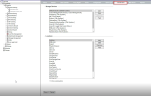
Select Archiving.
-
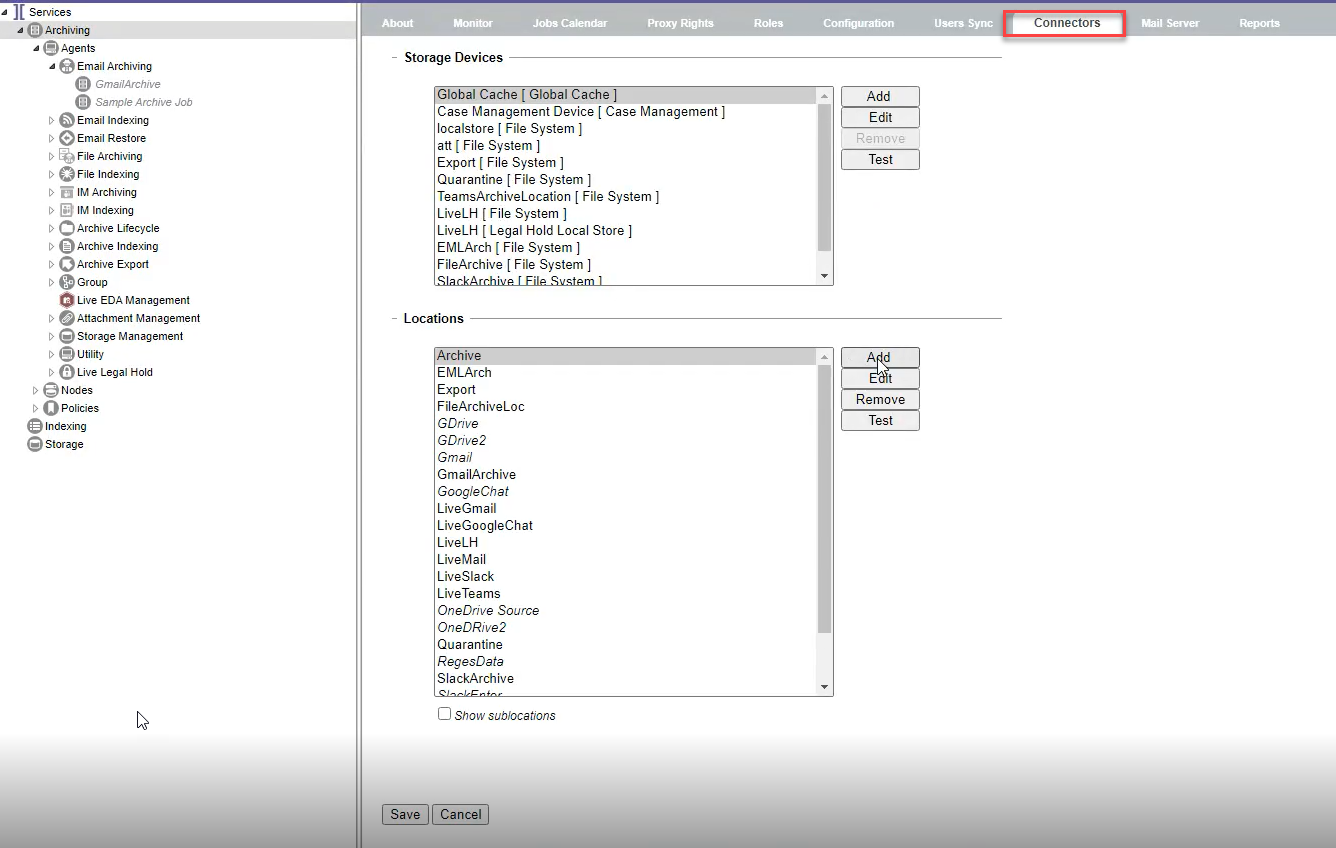
Open the Connectors tab.
-
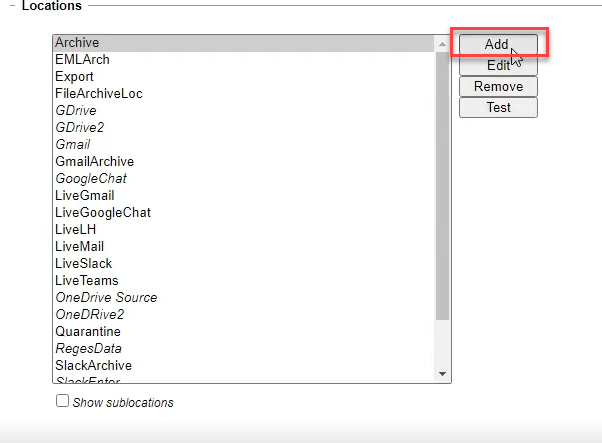
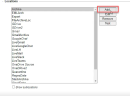
Navigate to the Locations section. Click Add.
-
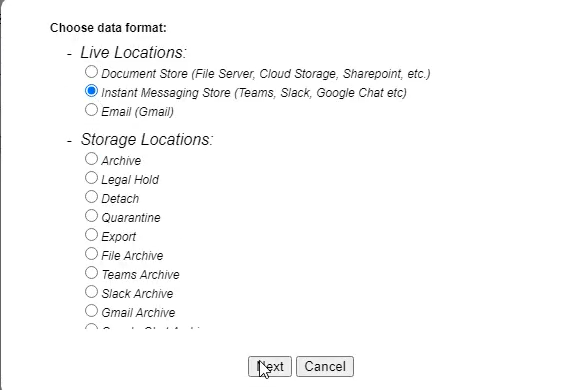
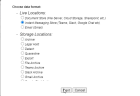
Click on Live Locations to expand, select Instant Messaging Store.
-
Click Next.
-
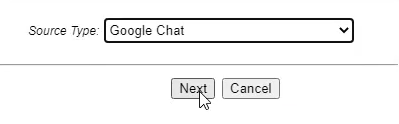
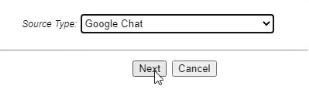
Select Google Chat as the Source Type. Click Next.
-
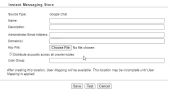
The Instant Messaging Store window displays.
-
In the Name field, enter a relevant name for the live location.
TIP
Choose a location name that is meaningful to the users and reviewers who will be accessing the archive data. The name is also used by the indexing service. To change the location name, a new location must be created and its data reindexed. -
Enter the User ID you wish to index.
-
Enter the Domain(s) you wish to index.
-
Add the relevant Key File.
-
(Optional) Enable Distribute accounts across all crawler nodes. This is checked by default for a better balancing of the indexing workload.
-
(Optional) Enter the User Group. The User Group setting allows you to carve out a subset of account members from the configured AD group. Only their Google Chat content will be indexed and made available.
IMPORTANT
When the Google Chat source location has been indexed, it is no longer possible to exclude content from certain users. If you want to control which users' Google Chat data is indexed, you can create user sub groups. A separate index location must be created for each group. -
(Optional) Click Test to verify the Audit Path connection.
-
Click Save.
-
At the bottom of the Connectors tab, click Save.
IMPORTANT
Following connector and location configuration, perform User Mapping. For more information—see User Mapping. For detailed steps—see Configuring User Mapping.