Configuring Gmail Archiving
You can archive emails and attachments in Gmail. To make archived Gmail content available, configure an Email Archiving job.
IMPORTANT
To perform searches on archived Gmail content, configure and run an Email Indexing job first—see Configuring Gmail Indexing. An Index Job is not required if you only want to archive Gmail data for compliance reasons, and do not intend to search the data.
To perform searches on archived Gmail content, configure and run an Email Indexing job first—see Configuring Gmail Indexing. An Index Job is not required if you only want to archive Gmail data for compliance reasons, and do not intend to search the data.
NOTE
It is not necessary to create a policy to guide this job.
It is not necessary to create a policy to guide this job.
How to Configure a Gmail Archiving Job
- Log into the IPRO Administration Console.
-
Select Archiving > Agents > Email Archiving.
- At the bottom-left of the License tab, click Create.

- Select Gmail from the Source Type drop-down menu.
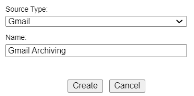
- Give the job a meaningful name and click Create.
-
TIP
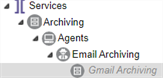
For consistency and as a best practice, give it the same name as the policy that you previously set and intend to use. Then append the name with the job frequency. You can also add the data location. - The newly created job appears under Email Archiving. Click on it.
- Open the Criteria tab.
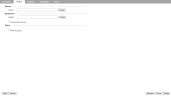
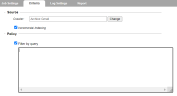
- Navigate to the Source section. In the Crawler field, use Find to identify the Gmail Index Location you previously created. Click OK.

- In the Destination field, click Change to adjust the output location. Use Find to identify the Gmail Archive Location you previously created. Click OK.

- You can enable Incremental Archiving to ensure data is archived based on the account check point stored on the mail box.

- In the Policy section, you can enable Filter by query. Selecting this option will allow you to enter a policy query in the field below.
- Click Save.
- Open the Job Settings tab.
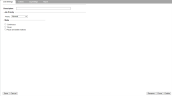
- Enter a meaningful Description. You can enter the name of the archive job.
- Set the appropriate Job Priority. You can choose between Low, Normal, and High. By default, the Priority is Normal.
- Select the Mode:
- Continuous: Indexes operate on a continual basis without interruption. The index keeps up to date with all changes in the location.
- Pause: Stops indexing. Once the initial index is built, there is no need to continue running it.
- Pause and delete indexes: Stops indexing and deletes the existing index.
- Click Save.
- Logging provides you with detailed job logs that can assist with job troubleshooting, if needed. In the Log Settings tab, configure the desired log settings:
- Disable Detailed Logging (Default): Deactivates logging.
- Enable Logging: Activates logging for troubleshooting purposes.
- Enable Logging Only for the Next Run: Activates logging the next time the job is run, and then automatically returns logging to ‘disabled’ state.
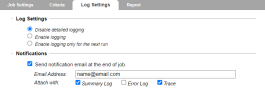
- You can also have email Notifications sent at the completion of the Gmail Archive job, along with attachment options.

- For further information on logging, see Configuring Logging.
- (Optional) In the Report tab, check on the progress of the Gmail Archive job.
For further information on reports, see Viewing Reports.


NOTE
This setting is useful in scenarios where multiple jobs are running concurrently and you want to control which job takes priority with respect to thread allocation. The job priority you select determines which job in the queue is selected next by the Job Manager process, which is responsible for allocating queued job threads to available thread slots on the archive nodes. Prioritization is categorized according to user account. For example, you may want to assign higher priority to crawling files created by VIP users. If a normal priority job is already running and using all available job threads, setting the priority to high and executing it will direct any freed threads to be used on the new high-priority job. This feature works in conjunction with load balancing in order to control crawling job distribution.
This setting is useful in scenarios where multiple jobs are running concurrently and you want to control which job takes priority with respect to thread allocation. The job priority you select determines which job in the queue is selected next by the Job Manager process, which is responsible for allocating queued job threads to available thread slots on the archive nodes. Prioritization is categorized according to user account. For example, you may want to assign higher priority to crawling files created by VIP users. If a normal priority job is already running and using all available job threads, setting the priority to high and executing it will direct any freed threads to be used on the new high-priority job. This feature works in conjunction with load balancing in order to control crawling job distribution.

