VM Deployment
IPRO Virtual Machine packaging and deployment represents IPRO's continued commitment to improving customer experience. VM packaging and deployment aims to minimize deployment time, improve the upgrade process, reduce human error, and ensure a consistent operating environment for all users. VM packaging and deployment methodology encapsulates pre-installed IPRO components within a VM template image that can be cloned to scale and configured with the appropriate IPRO components based on the designated node type. The steps below outline the basic workflow for the VM deployment process.
Step 1. System Prep
-
VM packaging and deployment introduces new changes to firewall rules to support the new deployment methodology. As of OPEN DISCOVERY version 2022.11+ there are notable changes to the Windows Firewall configuration to allow communication between IPRO nodes. Please see the changes noted in the diagram below. The following ports will need to be allowed through local, virtual, and public firewalls as noted.
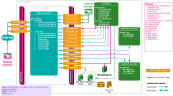
Private firewall rules represent the rules between the internal servers themselves, and also between the internal servers and the IIS server in the DMZ. The ports that must be allowed are as follows.
Private Firewall Rules:
-
TCP 5985/5986 In/Out (Powershell, WinRMhttp/s)
-
TCP 8300 In/Out (Consul Server ie. EAS, AUTH, ECS)
-
TCP 8301 In/Out (Consul Server and Client)
-
UDP 8301 In/Out (Consul Server and Client)
-
TCP 40 In/Out (CFS - node detection)
-
UDP 40 In/Out (CFS - node detection) (local firewall) (*clients will broadcast on UDP 40 and Server will communicate on TCP 40)
-
TCP 5443 In/Out (Warp)
-
TCP 444 In/Out (Netmail APID)
-
TCP 1433 In/Out (SQL)
-
TCP 6379 In/Out (Redis)
-
TCP 9000 In (IPRO File Upload Service)
-
TCP 9200 In/Out (Elastic Search)
-
TCP 9800 In/Out (IPRO Auth service)
-
TCP 5101/5160/5150 In/Out (IPRO eCapture Integration Service)
-
TCP 10900 In/Out (IPRO Analytics)
-
TCP 17243 In/Out (IPRO User Notification Webhook Service)
-
TCP 5100 In/Out (dtSearch (existing customers may use 50100 for dtSearch new customers may use 5100 to tighten the port range if not in use))
-
TCP 51206 In (IPRO File Mounting Service)
A Powershell script to remotely create the windows firewalls rules using a list of machine names is available from IPRO Support upon request.
-
-
Manage GPO Settings for Domain Service Account:
-
Grant the domain account running the IPRO services the 'log on as a service' permission. See Enable Service Log On for details.
-
Grant the domain account running the ecapture workers the ability to log on automatically after an automatic restart. See Winlogon Automatic Restart Sign-On (ARSO) for details.
-
Ensure the domain username running each IPRO service is a member of the local administrators group on each IPRO Node. (From elevated command line: net localgroup [group] [domainname\username] /add) (ie. net localgroup administrators domain.local\john /add)
-

Step 2. VM Prep (Before Cloning)
-
Receive delivery of IPRO VM Image from IPRO.
-
Copy VM image to VM image library or location of choice accessible and operable by Virtual Machine Manager or Hyper V Manager.
-
Import VM into Hypervisor (register in place) for the purpose of creating a VM template that can be cloned.
-
*Hyper V – create a VM with virtual hard disk. \Virtual Hard Disks\Win-Gen-2019-Base-R11.vhdx
-
{OPTIONAL- Create hardware profiles for each component to assign during clone creation}.
-
Production Spec Reference: `System Requirements.
-
Minimum testing specs: 6CPU 8 GB RAM for single node/ 4CPU 8 GB RAM multi-node.
-
-
{Create with Static IP and Static Mac} (static MAC with DHCP reservation will suffice).
-
-
- After the VM has been created, start the VM.
- *Connect to the VM, create a new local administrator password, and install third-party prerequisites:
-
Uninstall MAPIExchange. This may be done by running the following command in a command prompt choco uninstall exchangemapicdo -y”
This step may be necessary as a prerequisite for installing Office 2016 32-bit. -
Install IBM Notes 9.0.1 Basic + FP 10.
-
Install Office 2016 32 bit.
-
*(Customers are responsible for installing IBM Notes where applicable and MS Office supported versions. Licensing does not allow IPRO to ship pre-installed third party, licensed, applications.)
- Install SSL certificate to IIS Or copy .PFX formatted SSL certificate to desktop and import during installation.
-
Certificate Requirements:
-
WildCard Certificate issued to *.[domain].com from trusted certificate authority (ie. GoDaddy, Verisign).
-
Certificate FriendlyName ( *.mydomain.com ie: *.iprotech.com ) is required by IPRO Web Components.
-
Certificate Subject (ie: *.iprotech.com) is required by UserNotificationWebhookService.
-
- OPTIONAL - Apply any Organizational System Prep such (anti-virus, monitoring, etc.).
- Create internal firewall “allow” rules for ports listed in .
- Set Chrome as default browser:
-
Right click the “setup” shortcut on the desktop.
-
Select “open with” and select “Chrome”
-
Select the “always use this app” option and click “OK”.
-
Close the browser. Do not proceed in the browser at this time.
- *Set Outlook as default mail client in registry if Lotus or other Groupwise clients are installed after Office. If Outlook is not detected as the default mail client, the Worker will throw an error on startup. (Setting the default mail client in the Windows UI will only set for 64 bit mail client not the 32 bit outlook mail client).
-
Path: HKEY_LOCAL_MACHINE\SOFTWARE\WOW6432Node\Clients\Mail
-
Key Name: (Default)
-
Type: REG_SZ
-
String Value: Microsoft Outlook
- Create template from VM.
- Clone VM template as a new VM as many times as required for infrastructure (one VM for each existing VM).
-
Minimum IPRO for OPEN DISCOVERY node requirements (in order of configuration):
-
1 - IIS (may include Auth)
-
1 - ECS
-
1 - EAS
-
1 - EWK
-
1 - JMA
-
1 - IAS
-
- Start and log into VMs with Domain account and Join VM to Domain and apply any remaining organizational System Prep.
- Add Domain Service Account to Local Admin group; RDP group if applicable.
Step 3. Installation Prep (Upgrade/Migration Only)
Installation Prep
-
Ensure all jobs are in a complete status. Jobs must be complete and not paused as they will not be migrated to the new redis database.
-
Create VM Checkpoints now.
-
Create SQL Database Backups now.
-
Upgrade IPRO Config Databases using latest available IPRO Ease and SQL Generator (available on my.ipro.com) on pre-existing Web server. Case databases may be upgraded at this time but take longer to upgrade and may be done in parallel with the installation once the new version of OPEN DISCOVERYweb has been installed. The application must be authorized in order to upgrade review databases. Ease will throw an error when loading the environment and will fail to display the review databases if the system is not authorized.
-
If setting up a new Auth server - launch the existing Authorization Manager and copy Client ID and Serial Number for use in a later step. Deactivate current IPRO Authorization in Authorization Manager and disable the IPRO Auth Service in Windows Services. (C:\Program Files\Ipro Tech\IPRO Auth Server\IproAuthManager.exe)
-
Application Cutover - Stop all IPRO websites in IIS. Close Admin, Controller, Queue Manager and all Worker apps. Stop and disable Windows services on respective component machines in the environment. This will prevent any component on the old system from connecting to the existing databases. If possible, leave the VMs running to maintain access for backing up configuration files (see below).
-
OPTIONAL - Obtain Mount Image Pro activation key that is currently in use. This will be required to re activate Mount Image Pro on a new machine. Deactivate Mount Image Pro license on virtual dongle from "C:\Program Files\GetData\Mount Image Pro v6\LicenseManager.exe" on current Mount image pro machine(File Mounting Server). Use the same key during installation of new mount image pro instance on ECS template. Not supplying a Mount Image Pro key will default to OSFMount as forensic file mounting software. MIP is most commonly enabled for processing .AD1 file types.
-
Database cleanup - Using SQL Management Studio or DBquery.exe, make the following updates to the eCapture Config database:
-
Deactivate current QueueManager, remove current workers, remove references to existing hostnames and remove current component references:
UPDATE [eCapConfig].[dbo].[QueueManagerRegistry] SET [Active] = 0
DELETE [eCapConfig].[dbo].[WorkerRegistry]
DELETE [eCapConfig].[dbo].[SystemProperties] WHERE FieldName LIKE '%address%'
DELETE [ADD_DB].[Enterprise].[InstalledComponent]
-
-
Update DNS/Firewall with new IP address of IIS Host for IPRO URL.
Gather Existing Configuration Values
OPTIONAL - Gather existing configuration values in one place.
-
The following steps are optional and for convenience. They will not affect the upgrade. The purpose of this step is to organize pertinent information describing the current environment configuration that may be used as reference during setup of the new configuration.
-
Prepare to run BackupExistingConfiguration.ps1 scripts:
-
The three scripts below should be copied to each existing machine, either manually or using step “c” below.
-
They are located on the new VM base image at this path - C:\Program Files (x86)\Messaging Architects\Netmail WebAdmin\etc\scripts\setup\Migration\
-
BackupExistingConfiguration.ps1
-
ConfigBackupUtilities.ps1
-
ConsolidatePertinentBackupData.ps1
-
-
The Powershell CopyConfigBackupsToOldVMs.ps1 can be used to copy the three files to a list a VMs. The script has a “source” parameter that is hardcoded to the Netmail path on the base image, but can be altered to any location by editing the script via Notepad or Powershell ISE.
-
Copy the script to the Web-Auth Node. Navigate to the file’s properties and Unlock the file to prevent permissions issues.
-
Run the script in PowerShell as Administrator.
-
Enter the Windows user (without a domain) and password.
-
Enter the old VM names into the VM list, one at a time, hitting the Enter button each time. When no more VMs are to be entered, do not provide any input and just hit Enter.
-
The files will be copied to the user's \Downloads folder on each of the old machines.
-
-
-
Log in to each of the old machines and execute the BackupExistingConfiguration.ps1.
-
This step will build a text file in one centralized location that can be used to copy and paste some input values in to the configuration screen during application configuration.
-
Verify the backups exist at the UNC location.
-
-
On one of the old existing VMs, from the Downloads folder where the three .ps1 scripts are located, launch Powershell (in order to view any errors that may be encountered) as Administrator.
-
Execute the ConsolidatePertinentBackupData.ps1 using the UNC location of the backup files as the input path.
-
It may be required to install PSini module for Powershell in order for ConsolidatePertinentBackupData.ps1 to succeed. To install PSini run this command in the Powershell console:
[Net.ServicePointManager]::SecurityProtocol = [Net.SecurityProtocolType]::Tls12
Install-Module PsIni
-
If the old VM environment had more than 1 worker, there may be multiple copies of service_account.txt file - find them and delete all but one.
-
-
This will generate a ConsolidatedBackupData.txt in the UNC path containing relevant configuration data for the environment to be decommissioned.
-
#CopyConfigBackupsToOldVMs.ps1
#Copies scripts from new Vms to Old Vms that will backup pertinent environment values.
#The old VM environment must be online.
#Copy script text below to a .ps1 file and execute in powershell as an administrator on a new VM. This will copy the files from the source VM (where the backup scripts exist and the copy script is executed) to the old VMs (where the backup scripts can be executed from.)
param (
[Parameter(Mandatory = $true)][string]$WindowsUserName,
[Parameter(Mandatory = $true)][string]$Password,
[Parameter(Mandatory = $true)][string[]]$VMCollection,
[Parameter(Mandatory = $false)][string]$SrcFile = "C:\Program Files (x86)\Messaging Architects\Netmail WebAdmin\etc\scripts\setup\Migration\2021.9.2\*"
)
$UserName=$WindowsUserName
$secureDomainPassword = ConvertTo-SecureString -String $Password -AsPlainText -Force
$domainCreds = New-Object System.Management.Automation.PSCredential($UserName, $secureDomainPassword)
$Destination = "C:\Users\$UserName\Downloads"
ForEach ($VM in $VMCollection){
Write-Host $VM
$Session = New-PSSession -ComputerName $VM -Credential $domainCreds
Copy-Item $SrcFile -Destination $Destination -ToSession $Session -force -recurse
}
Step 4. Application Configuration
| Package(s) | Possible number of Node(s) | eCapture only | Review Only | OPEN DISCOVERY |
|---|---|---|---|---|
| EAS - QC/Controller [eCapture Only] |
1..n | x | ||
| IIS - Web Server (IPRO Authorization + Eclipse Service + OPEN DISCOVERY Service + OPEN DISCOVERY Web) * ++ |
1 | x | x | x |
| ECS - QM/OPEN DISCOVERY/FileMounting/Relativity Import/Ease + Redis |
1 | x | x | x |
| EWK - eCapture Worker |
1..n | x | x | x |
| EAS - QC/Controller + Eclipse Admin [Review Only or OPEN DISCOVERY]] |
1..n | x | x | |
| JMA - Platform Agent (worker) |
1..n | x | x | |
| IAS - Analytics Service + dtSearch [Review Only or OPEN DISCOVERY]] |
1 | x | x |
Multi Node Configuration
Order of Configuration:
-
WEB-AUTH
-
ECS
-
EAS
-
EWK ( EWK, JMA, and IAS can be configured in parallel. JMA and IAS not required for eCapture-only installations)
-
JMA
-
IAS
1. Web-Auth Node
Please do not proceed unless a current checkpoint exists for all virtual machines.
All machines in the new environment will need to be reverted to this checkpoint should any errors be encountered during initial configuration.
IPRO Identity Server, IPRO Enterprise Web, IPRO Enterpise Service, IPRO Permissions service, IPRO Configuration Service, IPRO Logging Service, IPRO AUTH Service*, IPRO Platform API, IPRO Platform Web, System Events and Commands, User Notifications Webhook Service Configuration:
The IPRO Web and Auth node can be configured one time within an IPRO environment for purposes of hosting the IPRO Website, Authorization Service(*optional) and supporting web components.
To Start Configuration:
-
While logged into Windows as the designated service account, click on the “Setup” shortcut on the Desktop to launch the Configuration Wizard.
-
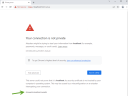
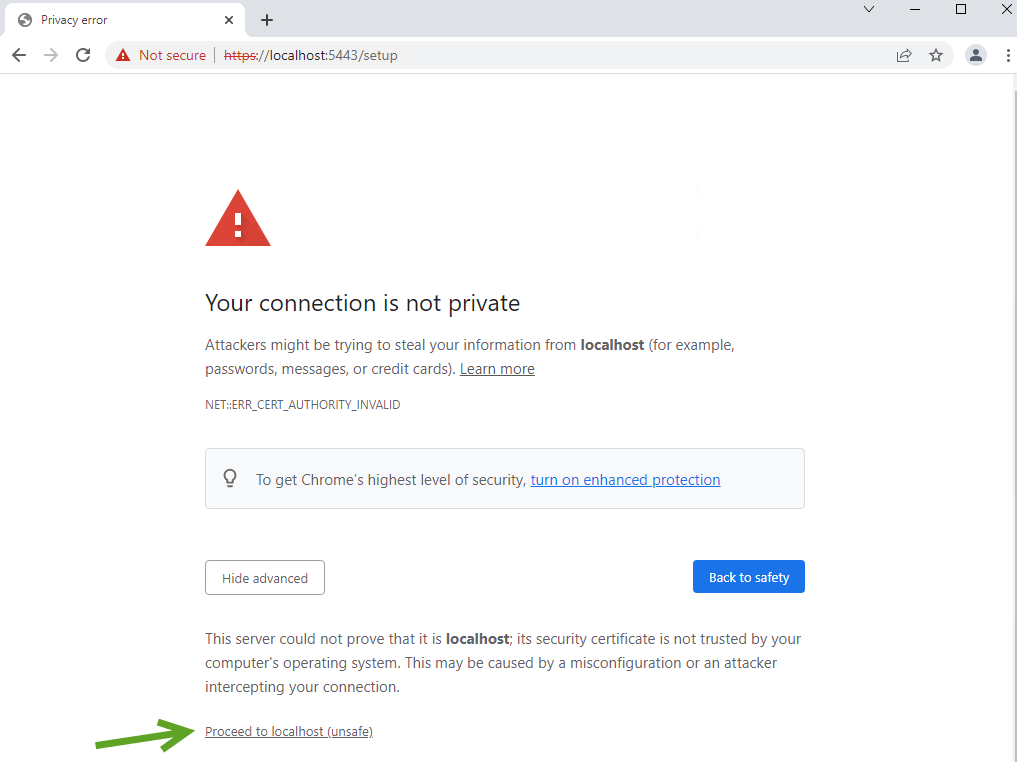
If prompted with a security error, proceed to the webpage anyway:
-
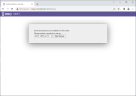
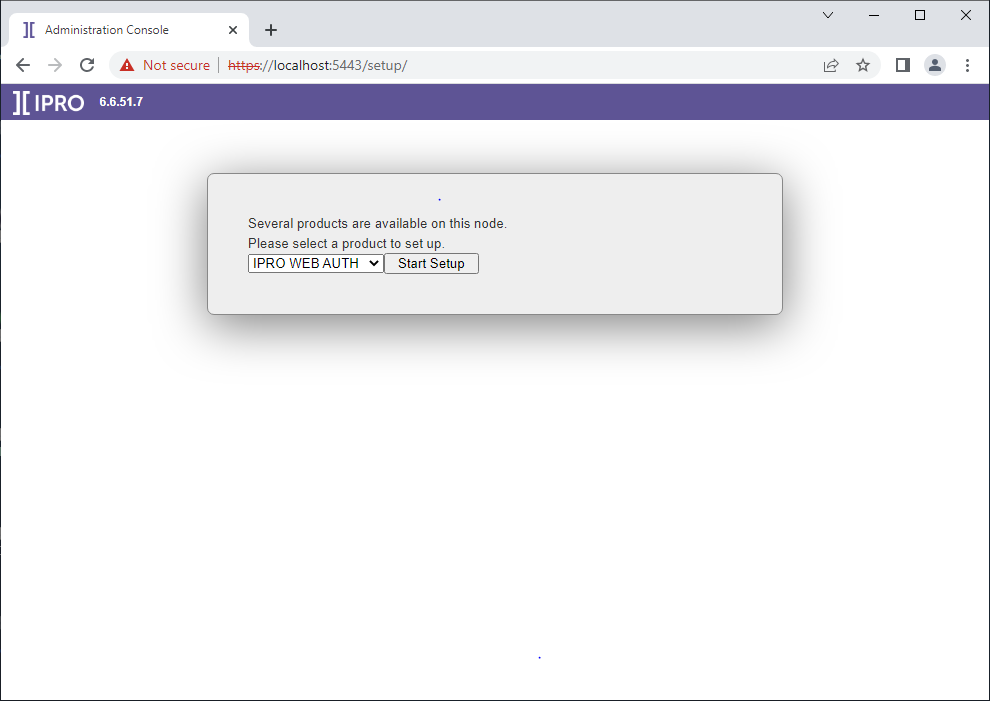
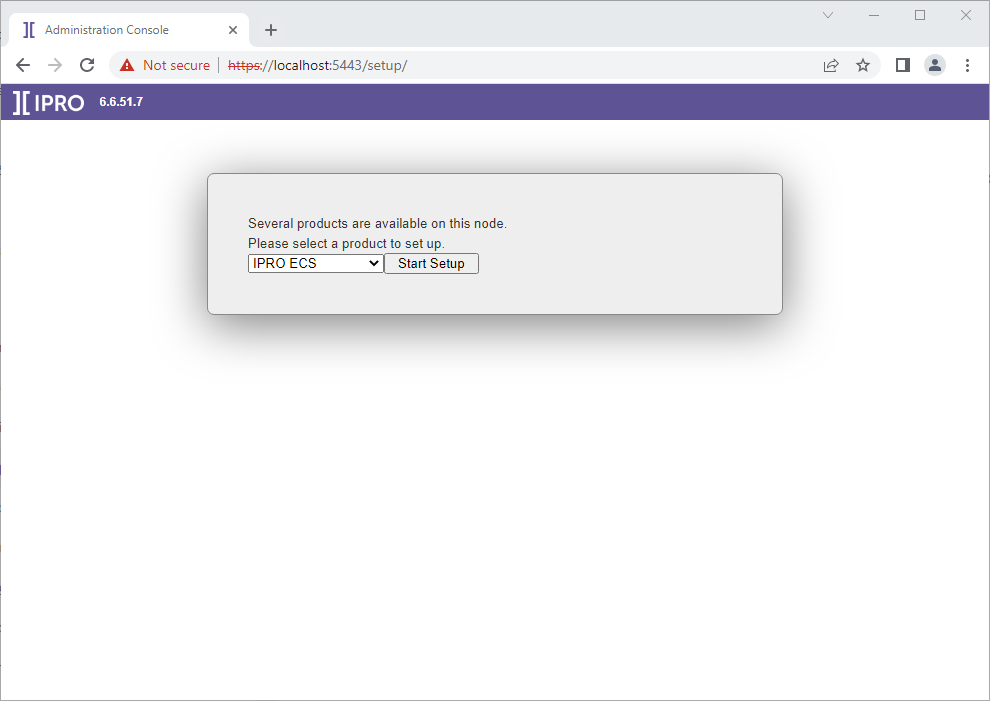
Click on the drop down list and select IPRO WEB AUTH. click “Start Setup” when ready to proceed.
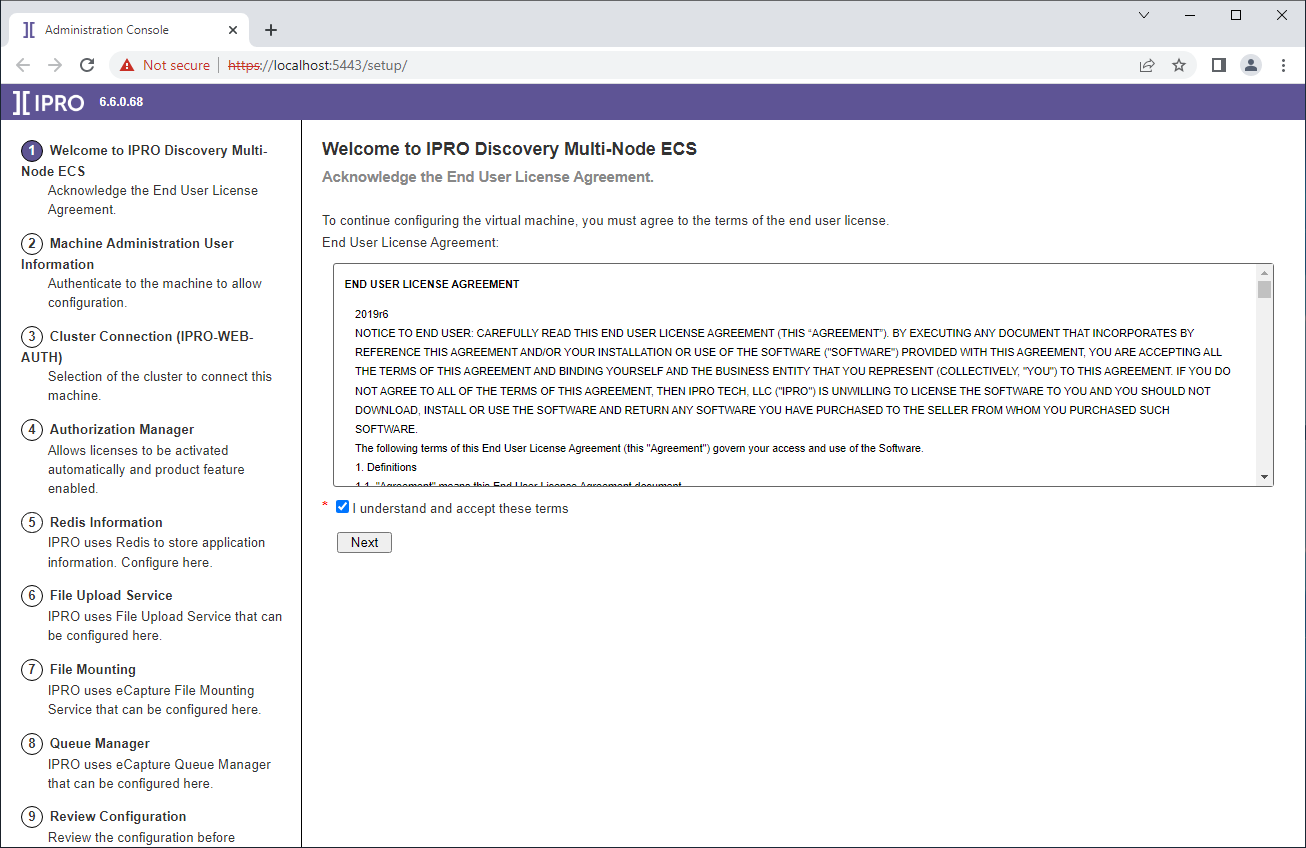
-
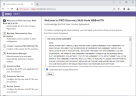
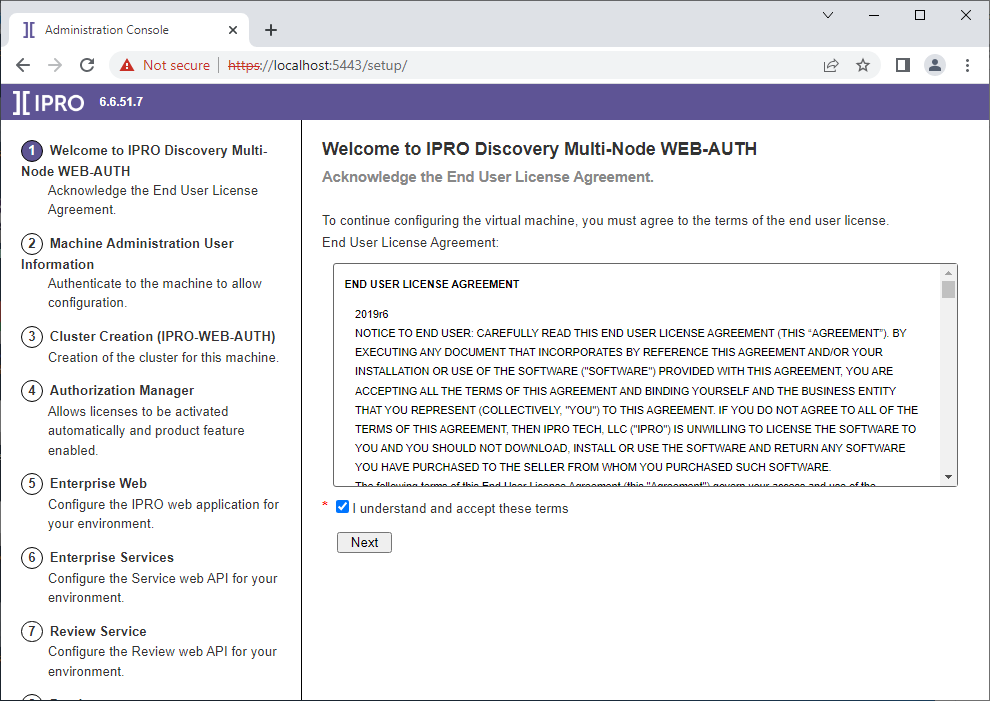
Agree to the End-User License Agreement and click “Next.”
-
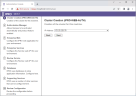
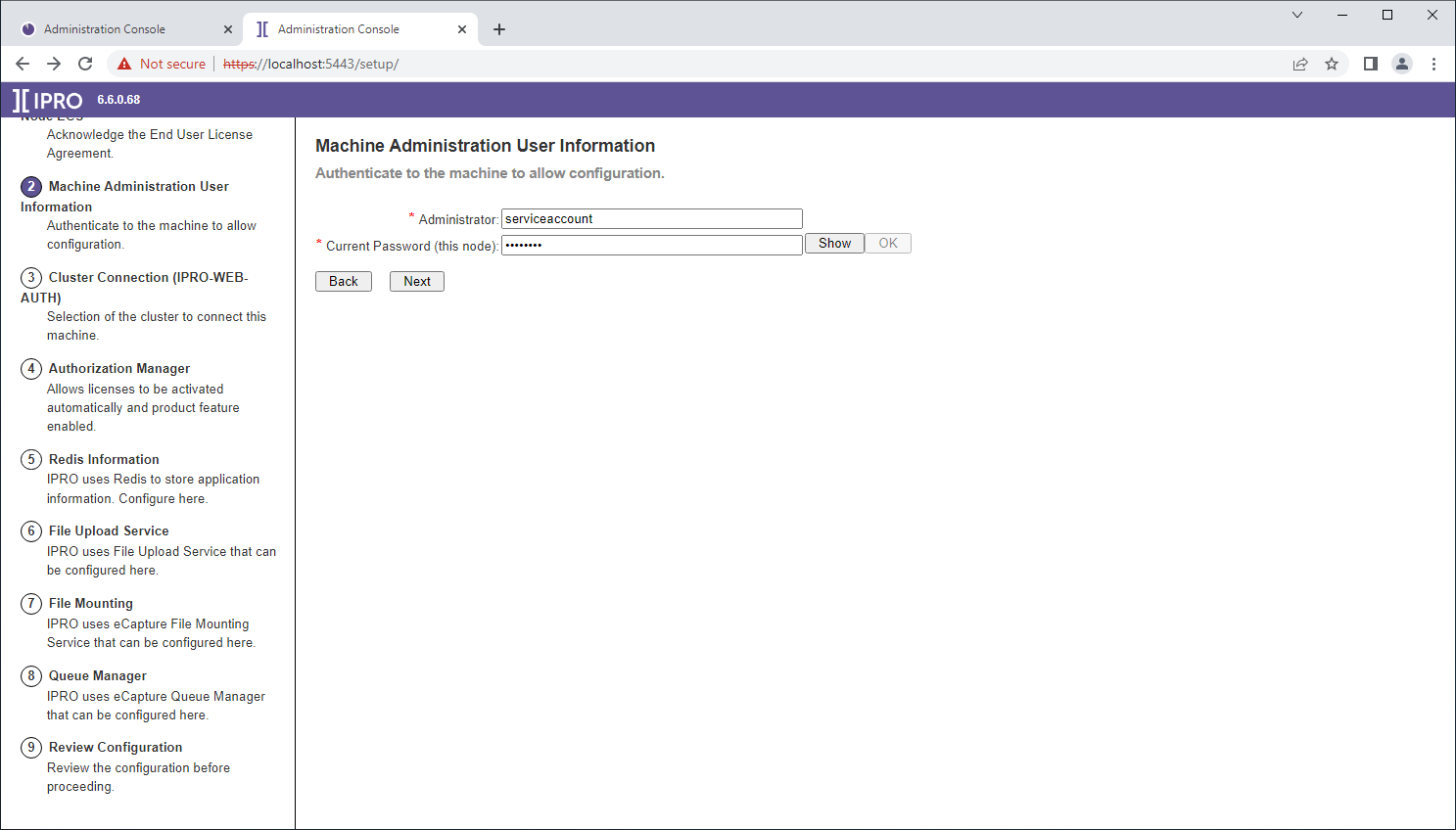
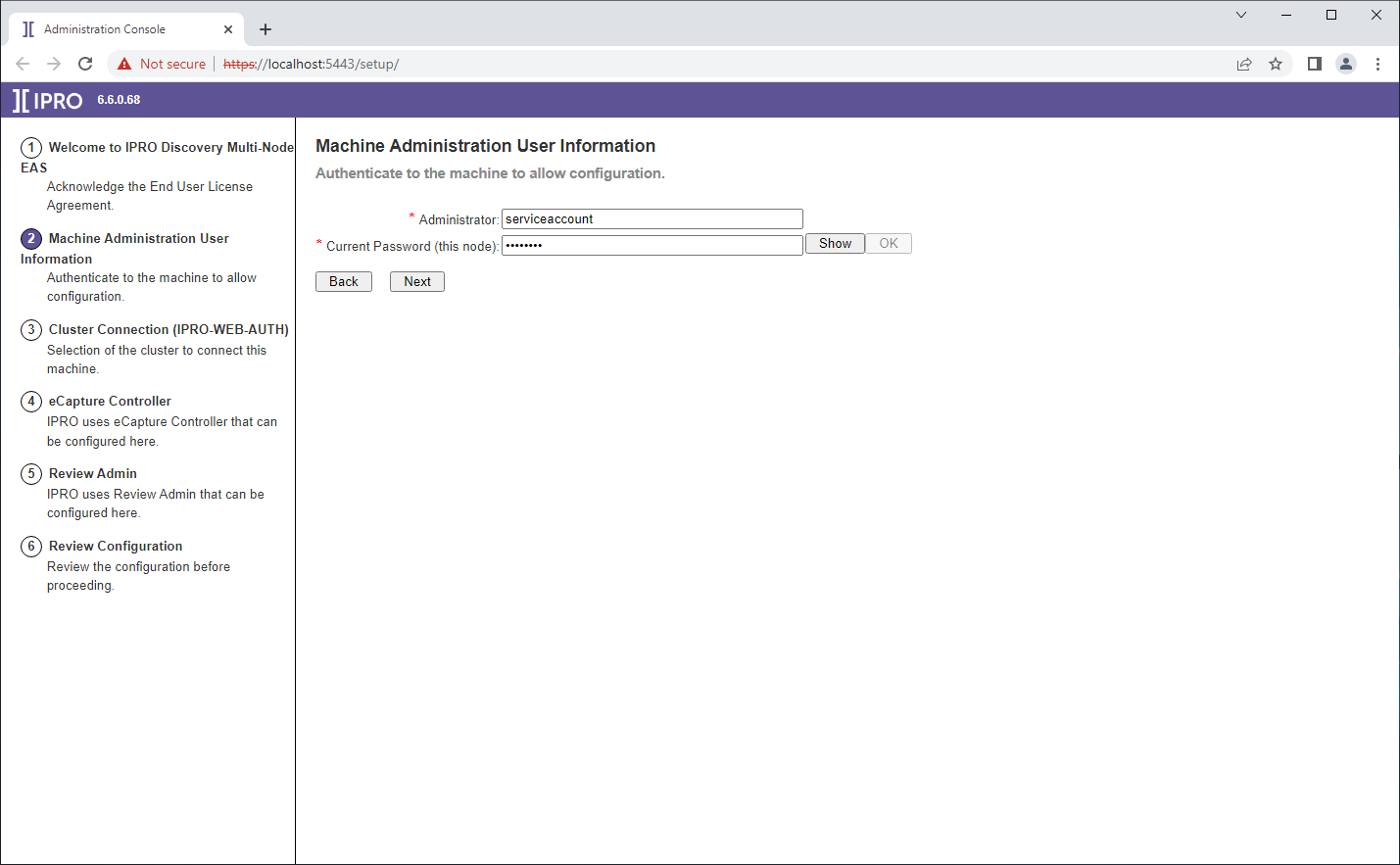
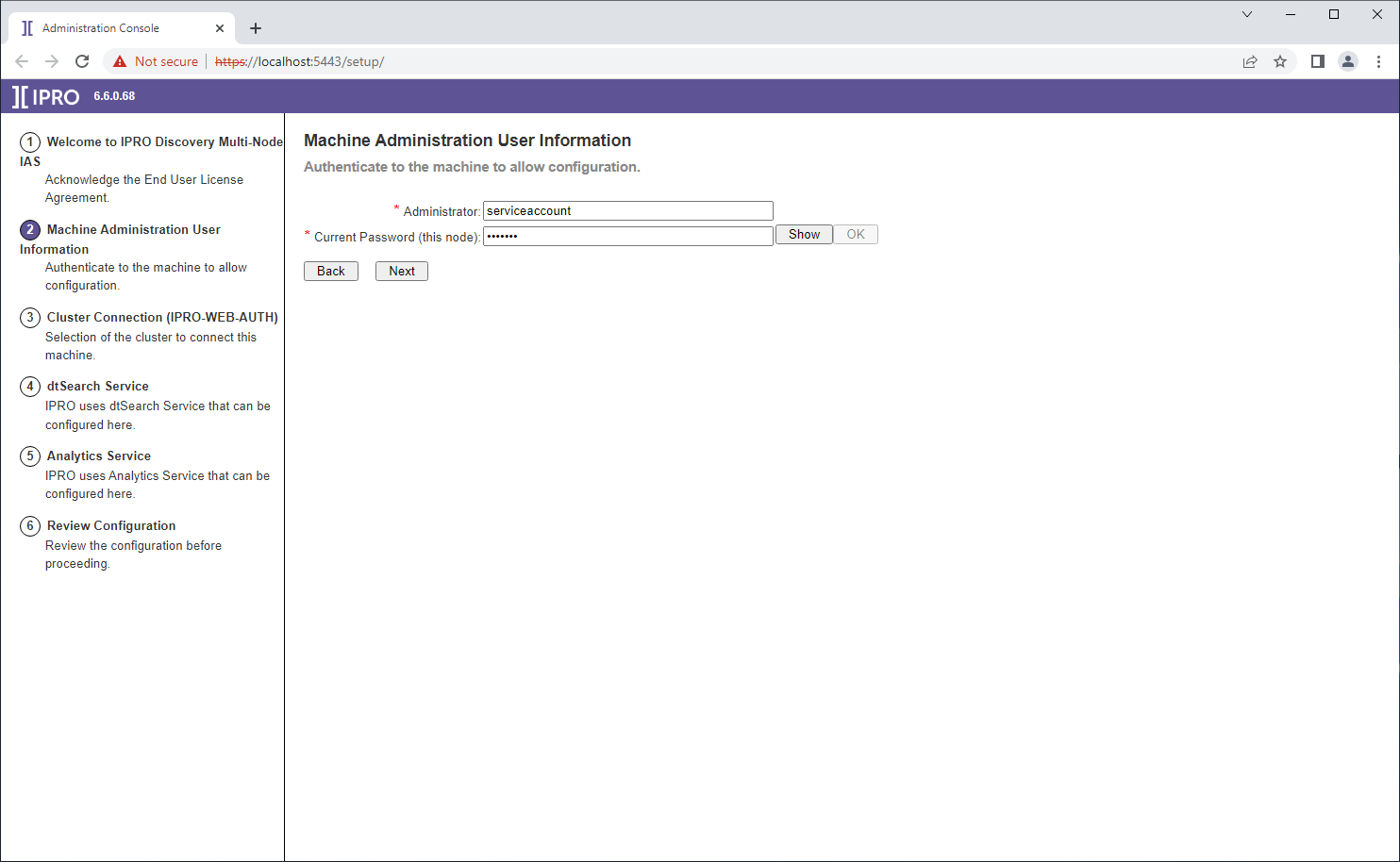
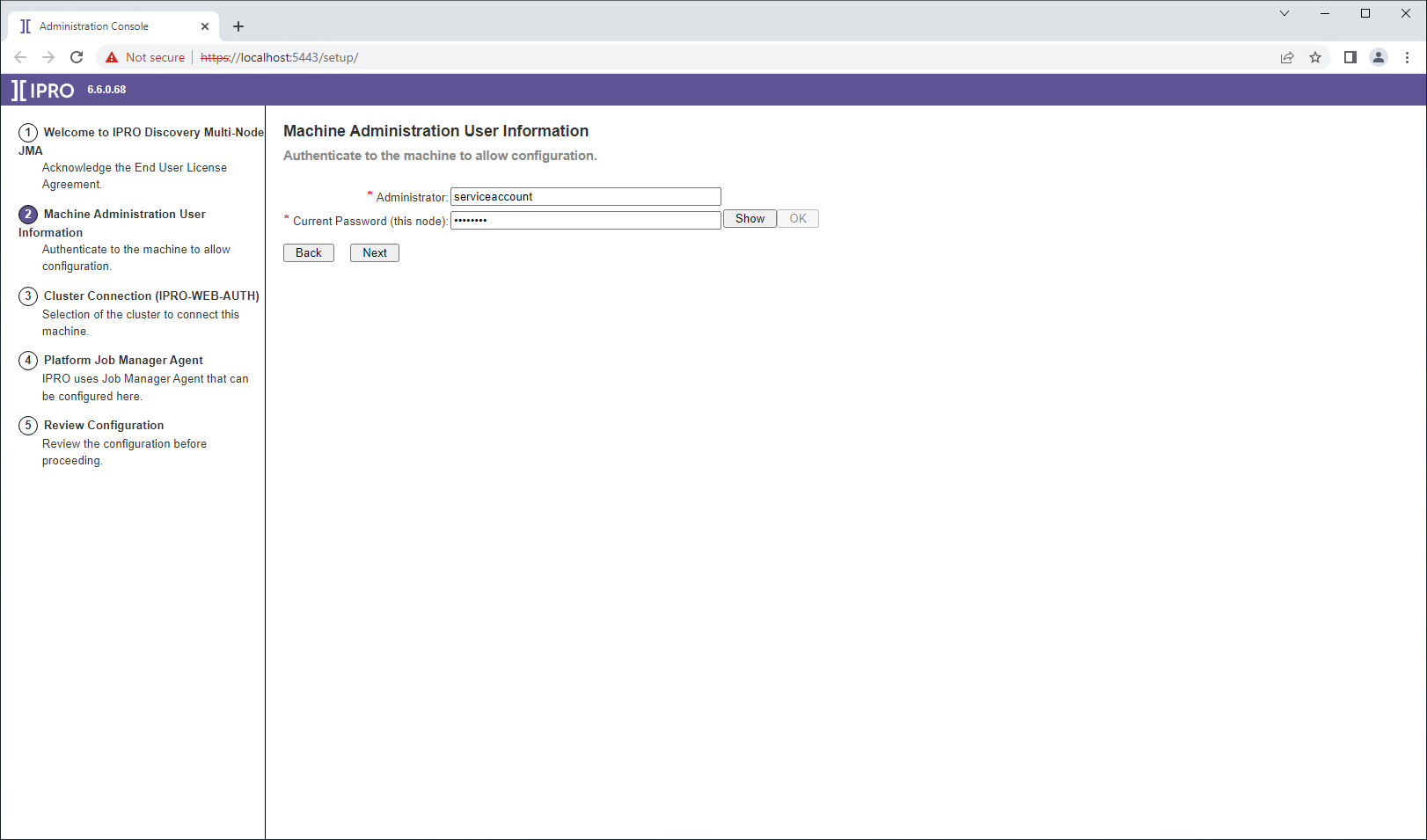
Enter the domain service account username and password that is also a member of the local Administrators group. Validate the password by clicking "Verify", then click "Next".
-
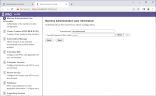
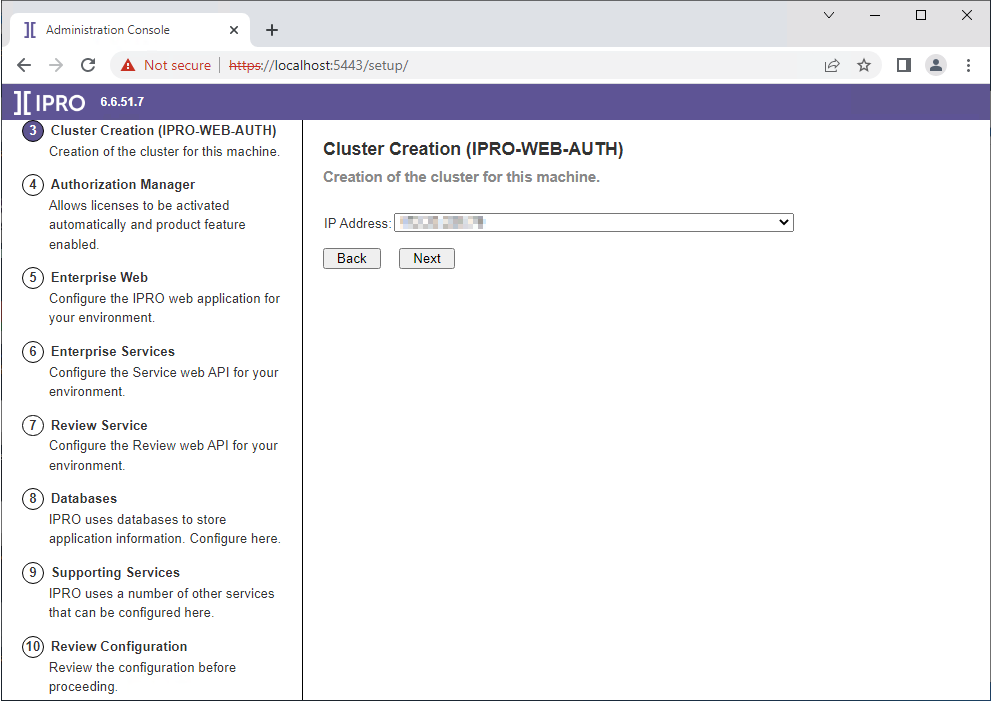
CFS cluster creation. The IPRO WEB AUTH Node will establish a cluster for which other subsequent components will join during configuration to read and pre-populate configuration input data, reducing manual input. The detected IP address will be used as input to join the cluster in subsequent configurations.
-
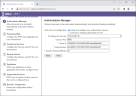
Input the IPRO Authorization Client ID and Serial Number for new license activation. To forgo Auth service installation and connect to an existing Authorization server, select “Connect to existing authorization service” and input the IP address of the Auth server node.
-
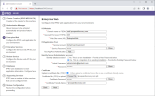
Configure the IPRO Web URL and port, domain service account, IPRO administrator account credentials, SSL certificate and Netgovern Web URL (aka Search URL, aka the 8443 one). For new installations this will set the administrator@iprotech.com password to the password entered. For migrations, select “Yes. This is a Migration of an existing installation” and use the current IPRO administrator username and password. If an SSL certificate has not been preloaded in IIS on the machine and available by Friendly name, then choose a .pfx file to be loaded and enter the certificate password and friendly name.
-
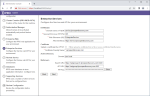
Configure the IPROOPEN DISCOVERY Service (formerly ADD Service, formerly Nucleus) with SSL and active directory domain.
-
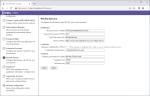
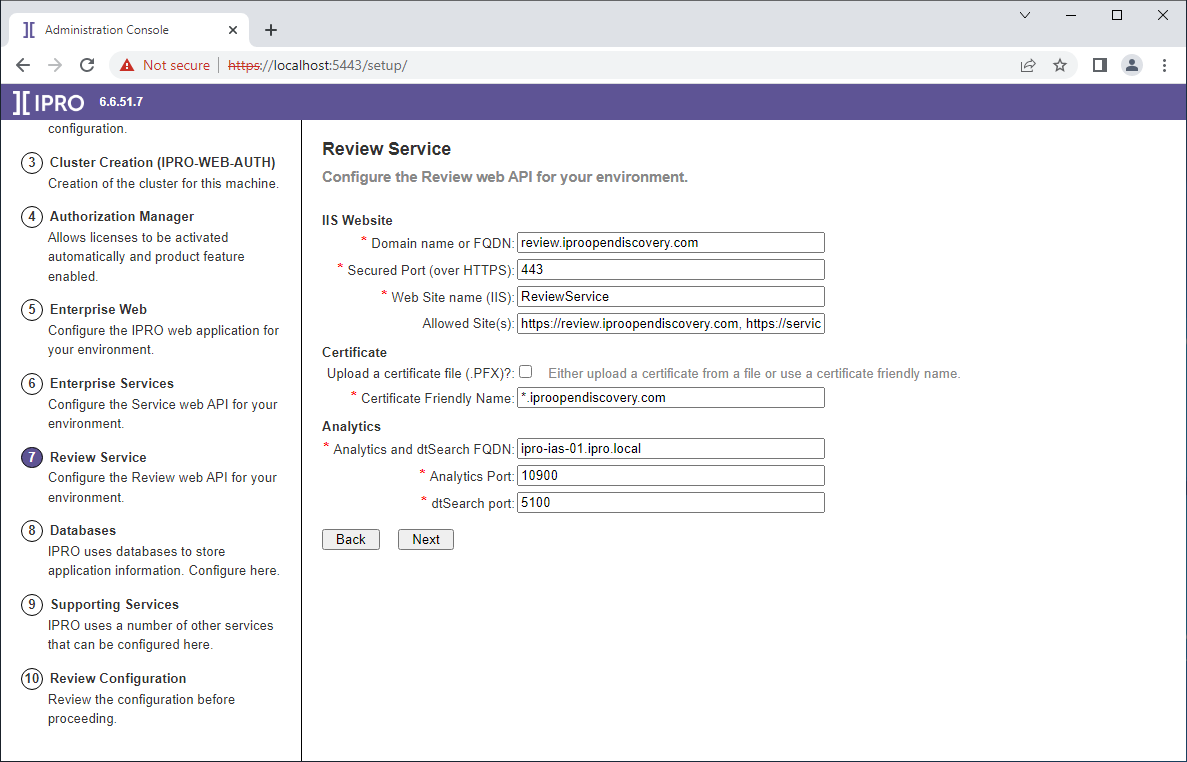
Configure Review Web with SSL, Analytics Service and dtSearch Service located on what will be the IAS node. Click "Next."
-
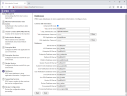
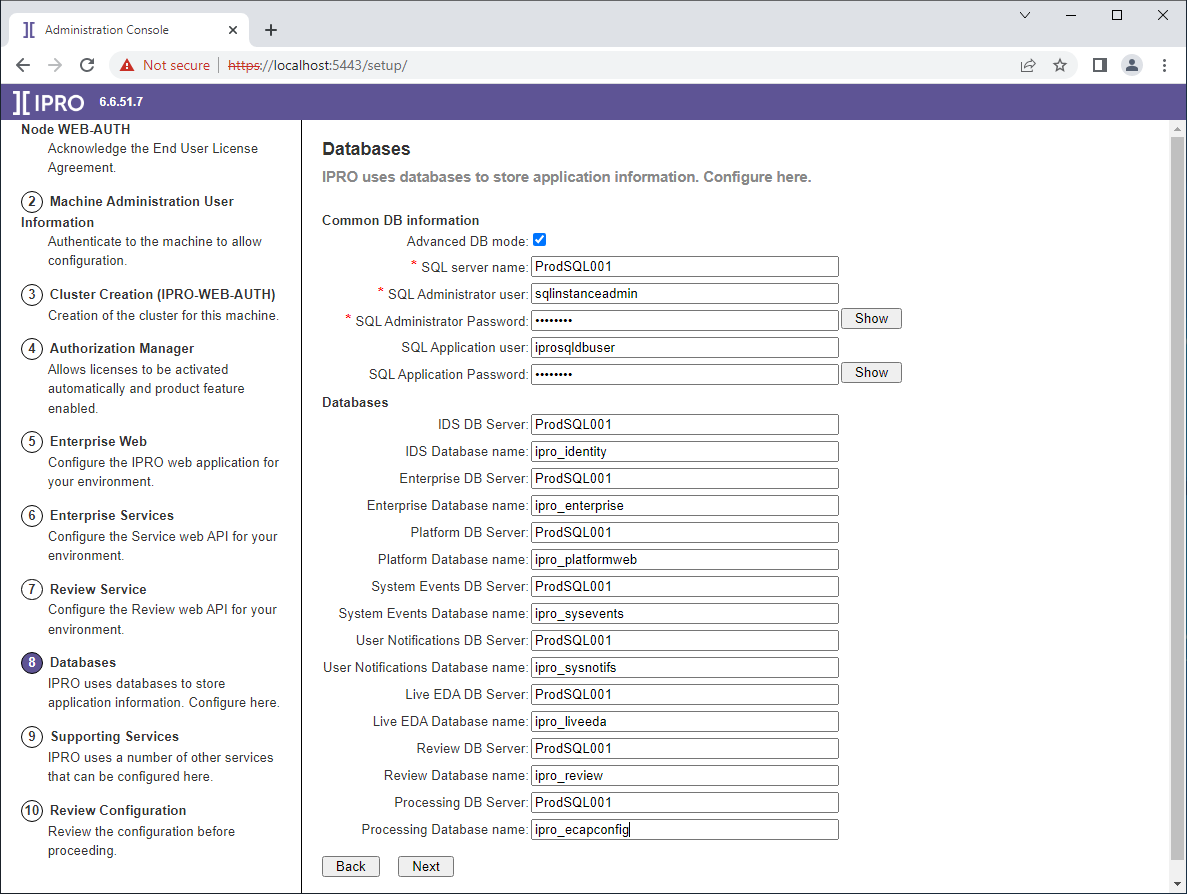
For new installations, input the SQL Server name, SQL Administrator username and password. This can be different from the SQL account the application uses. If it is the same account as the application SQL account then the SQL application user and password fields can remain empty. Populate a database prefix value. New databases will be created using the prefix and hard coded suffix values such as Prefix-val_ENT for Enterprise Database, Prefix-val_ECC for eCapture Config database, etc. For Migrations, or pointing to existing databases, select “Advanced DB Mode” and populate the SQL server and database names for each respective database. (These will be written to Consul to be read from later automatically so it only needs to be done once.)
-
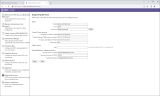
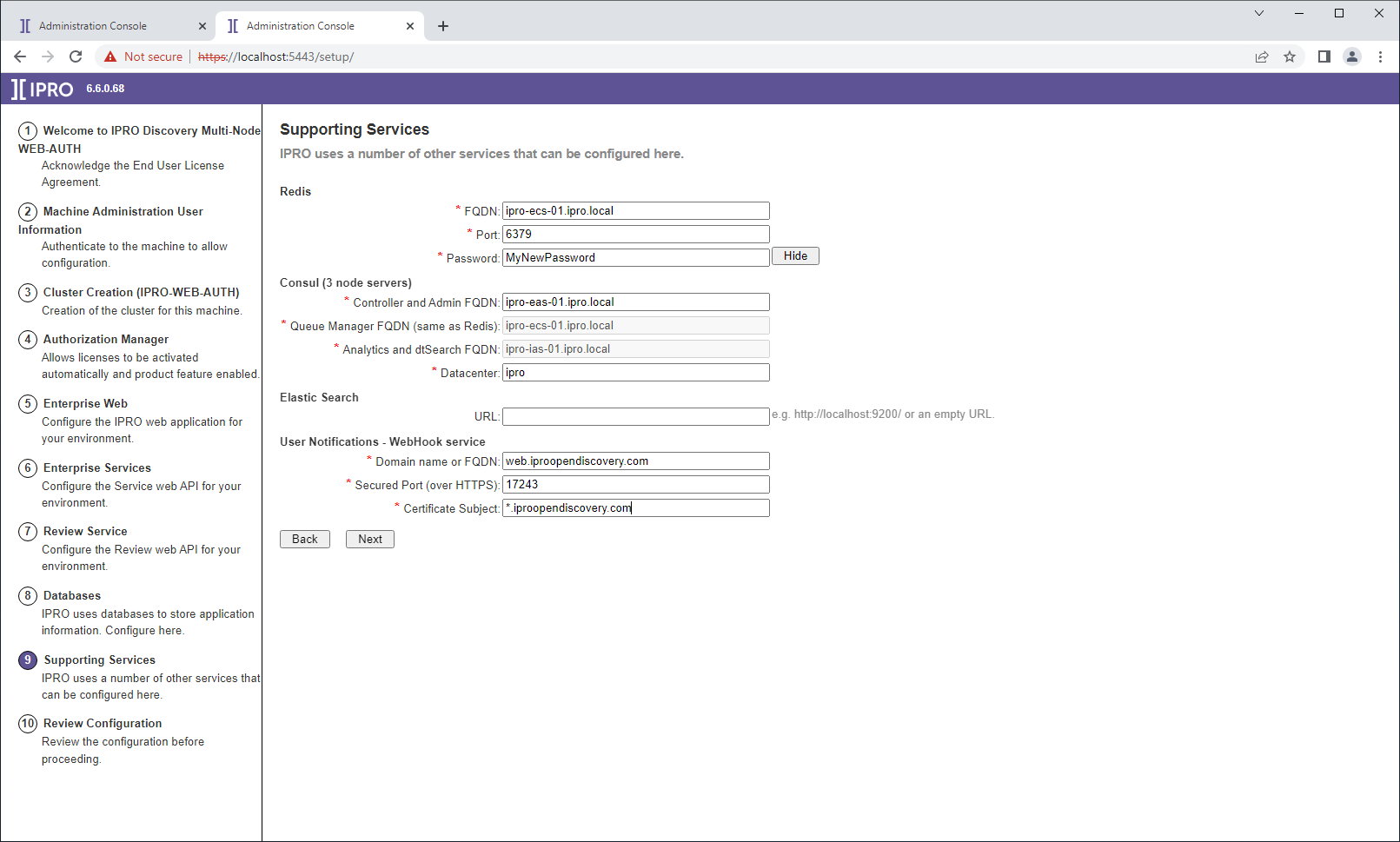
Input the Redis server (ECS Node) host name, and create a new Redis password. Input the three nodes as follows:
-
Controller and Eclipse Admin = EAS node hostname
-
Queue Manager = ECS Node hostname
-
Analytics and dtSearch = IAS Node hostname
-
Datacenter will be the name of the Consul Cluster. Consul service and Consul template service are preinstalled on the base image. These services are used to store and write key/value pair data within application config files on servers running Consul service and Consul Template service respectively. The EAS, IAS, and ECS nodes will become a “highly available” server Consul cluster that will be joined by the remaining nodes as clients upon configuration.
-
-
On the final screen, review all field inputs. Go back and make changes where necessary.
Please do not proceed unless a current checkpoint exists for all virtual machines.
All machines in the new environment will need to be reverted to this checkpoint should any errors be encountered during initial configuration.
IF the configuration fails for any reason after the cluster creation step has completed, there is no way to undo the cluster creation without rolling back all machines in the cluster.
-
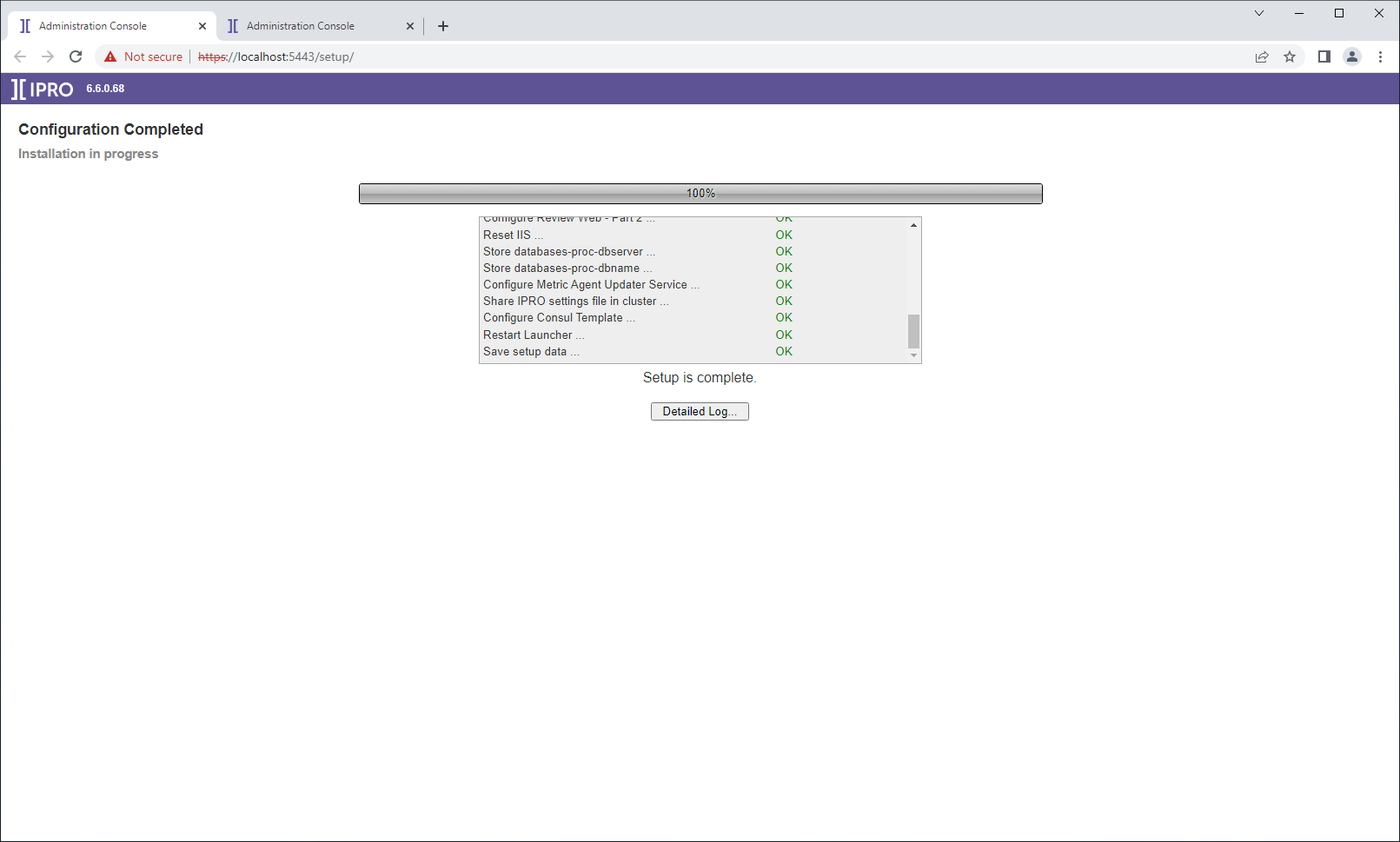
Click “Proceed” when ready to begin the automated configuration.


2. ECS Node
IPRO eCapture Queue Manager, Integration Service, Redis, File Mounting service , File Upload service Node Configuration:
The ECS Node can be configured one time within an IPRO environment.
To Start Configuration:
-
While logged into Windows as the designated service account, click on the “Setup” shortcut on the Desktop to launch the Configuration Wizard.
-
Click on the drop down list and select IPRO ECS. click “Start Setup” when ready to proceed.
-
Agree to the End-User License Agreement and click “Next.”
-
Enter the domain service account username and password that is also a member of the local Administrators group. The domain name is inferred here and does not need to be entered. All other domain account input fields will require the domain (ie. domain\serviceaccount).
-
Validate the password by clicking “Verify,” then click “Next.”
-
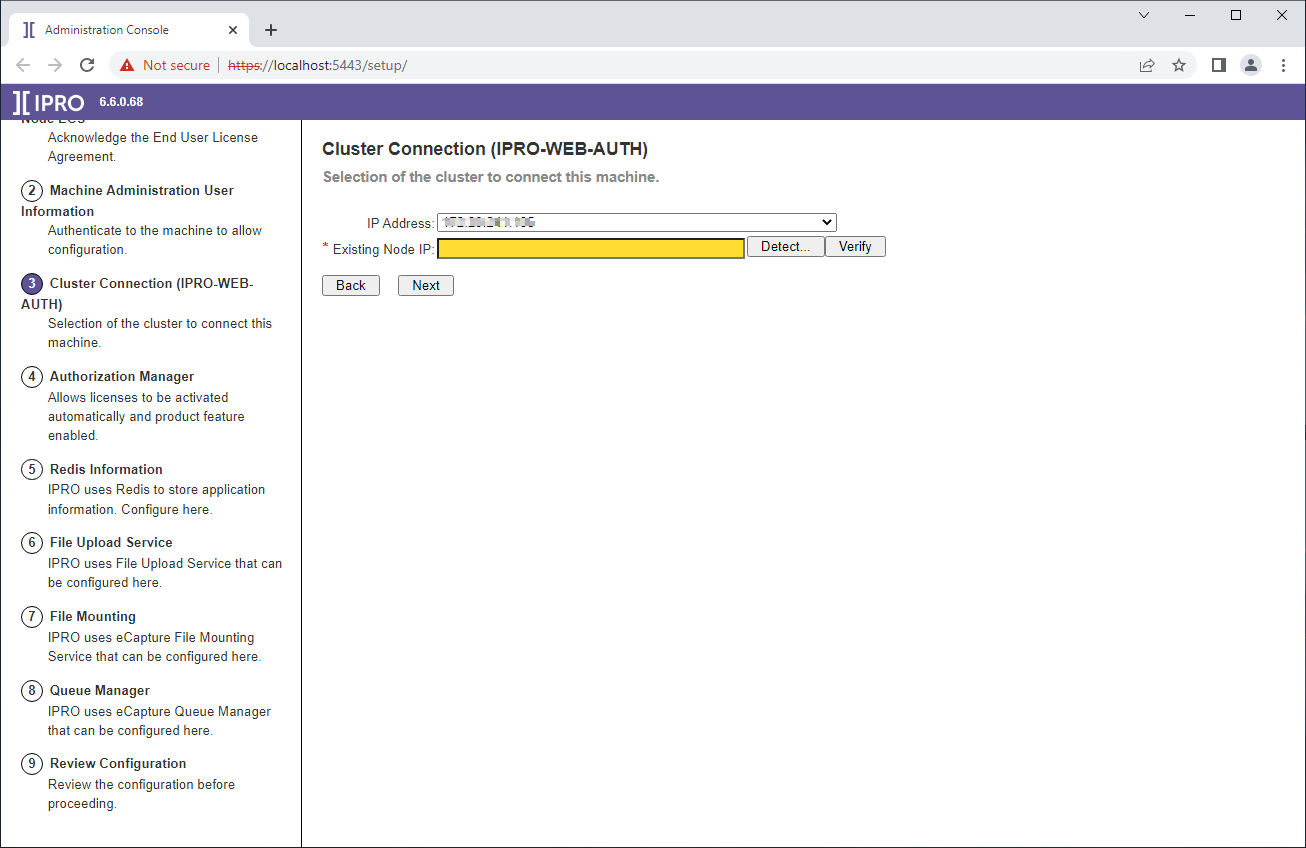
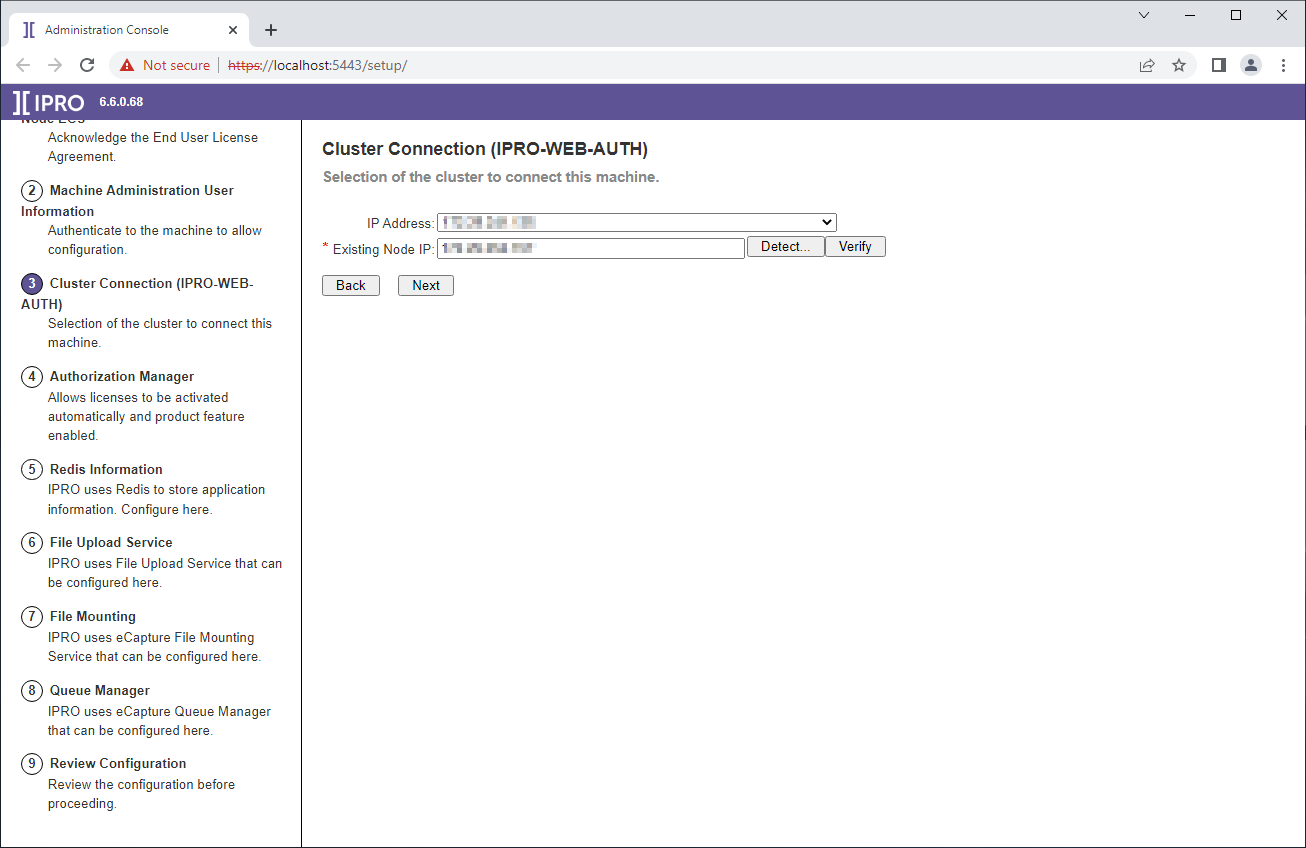
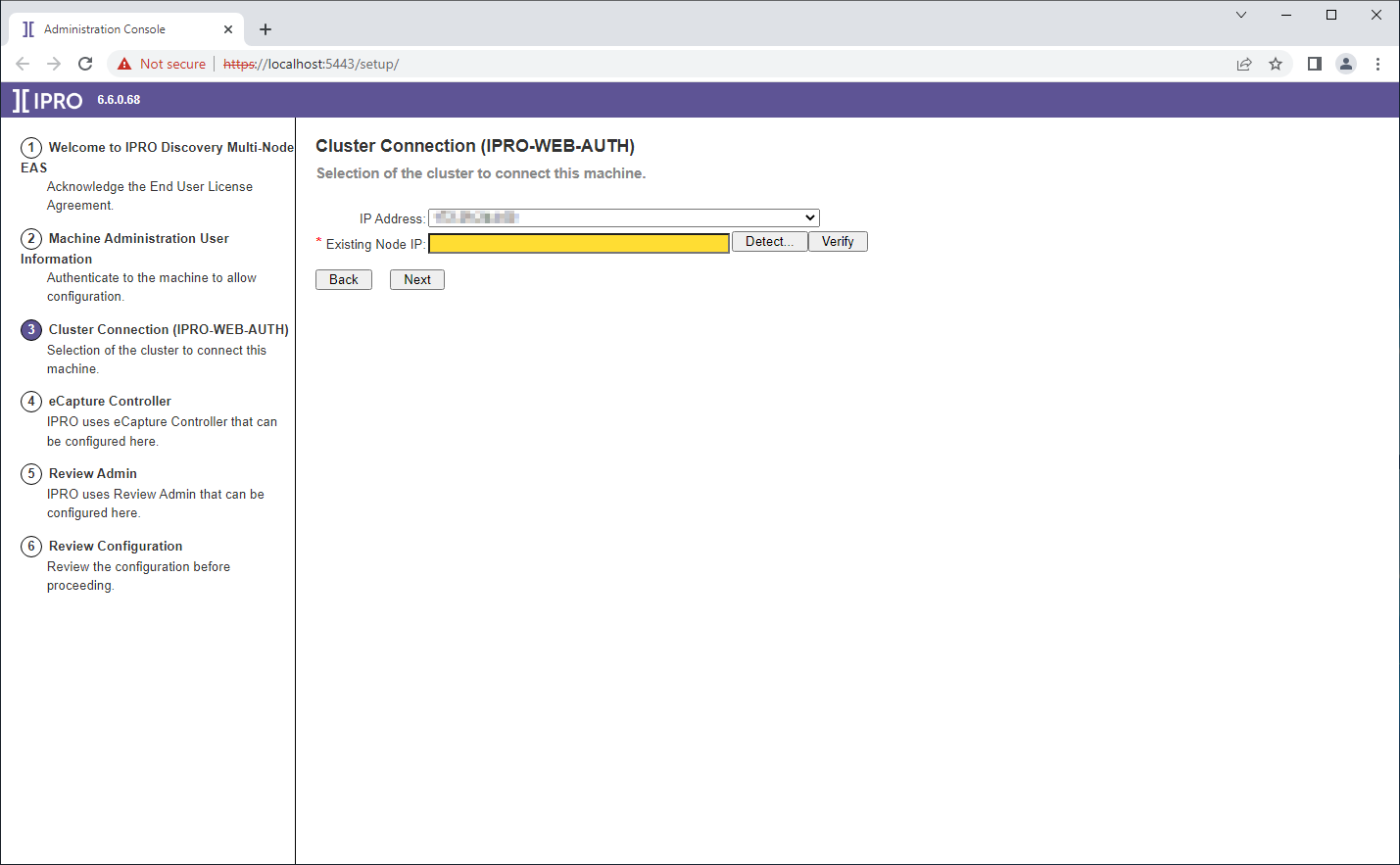
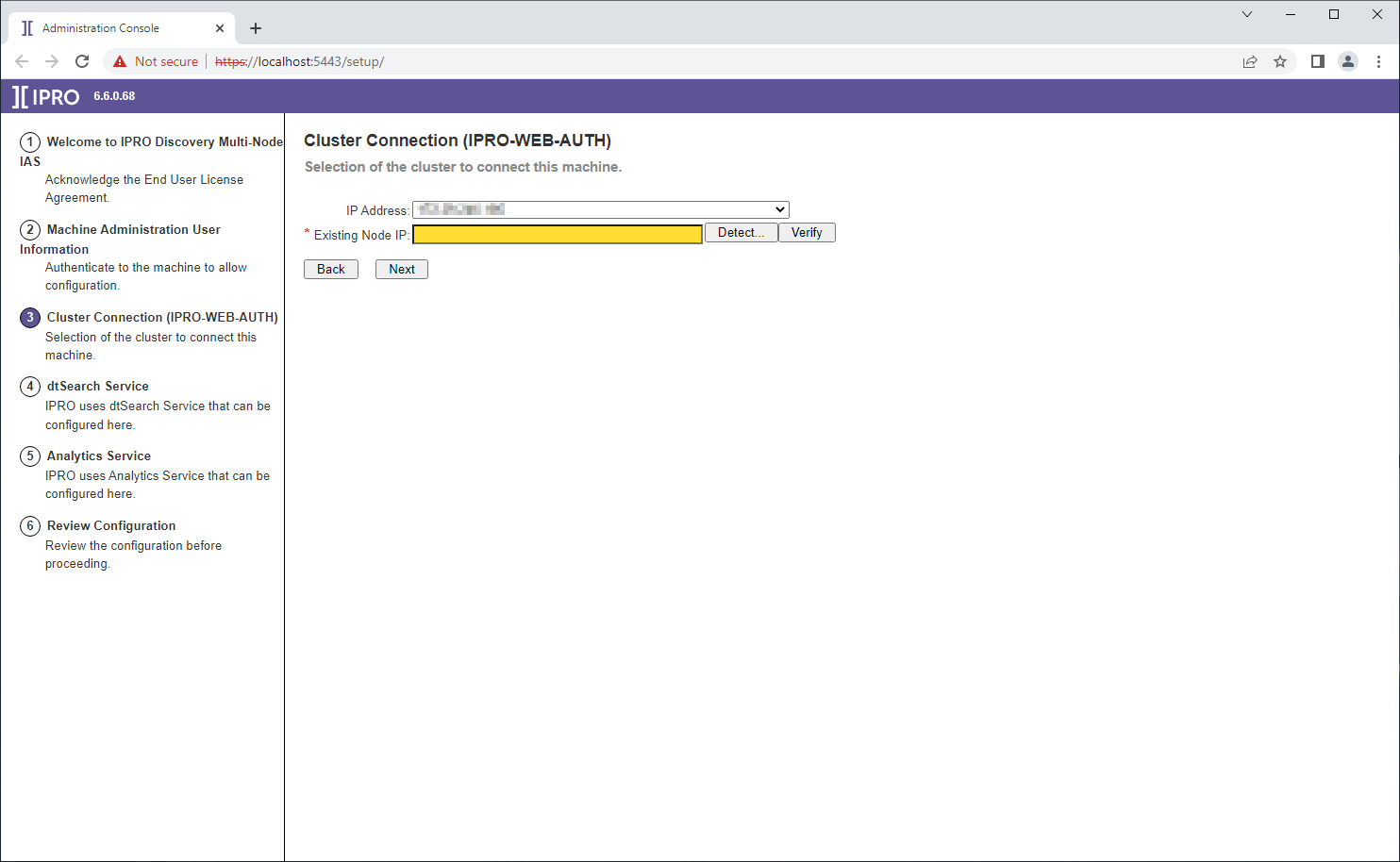
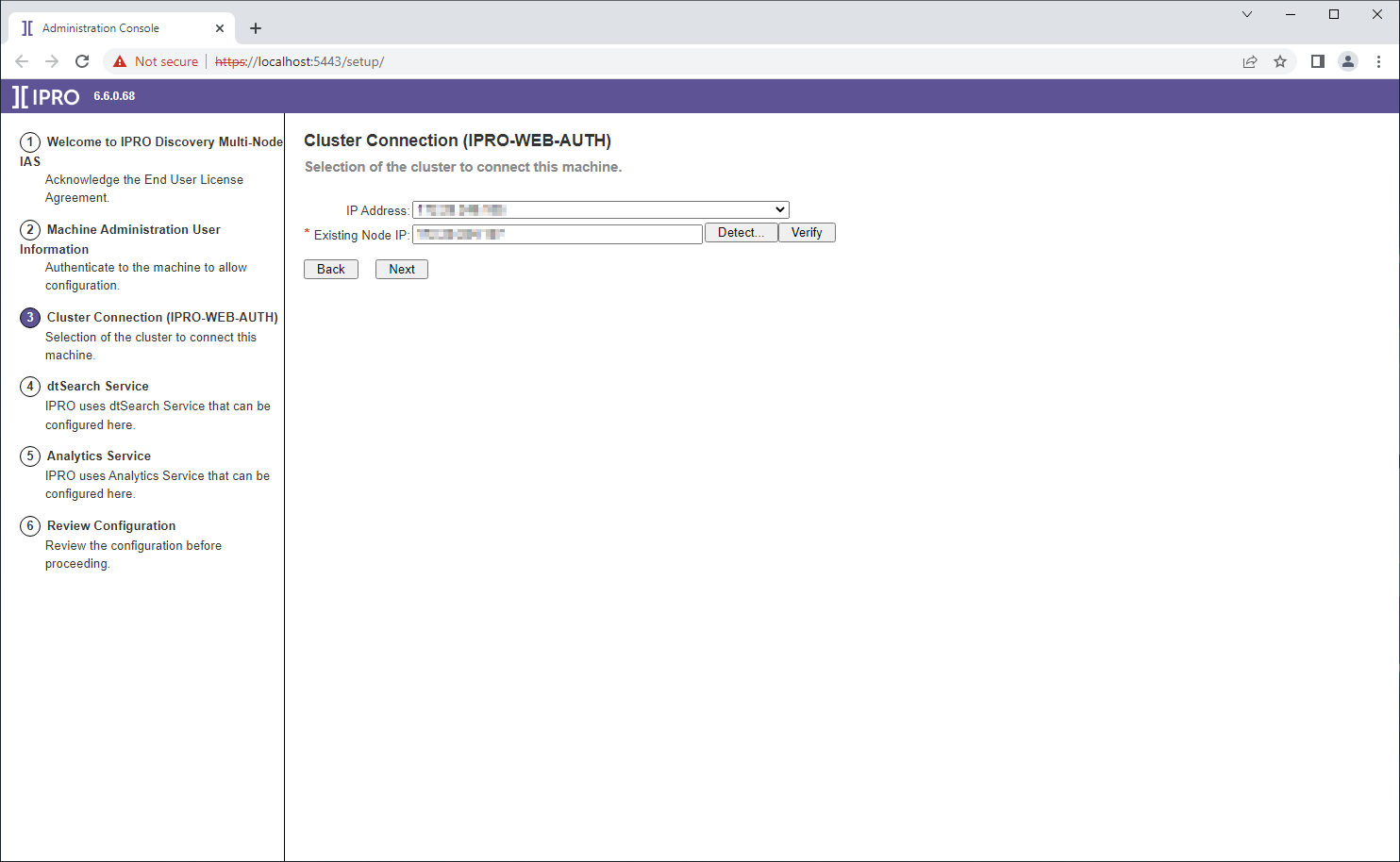
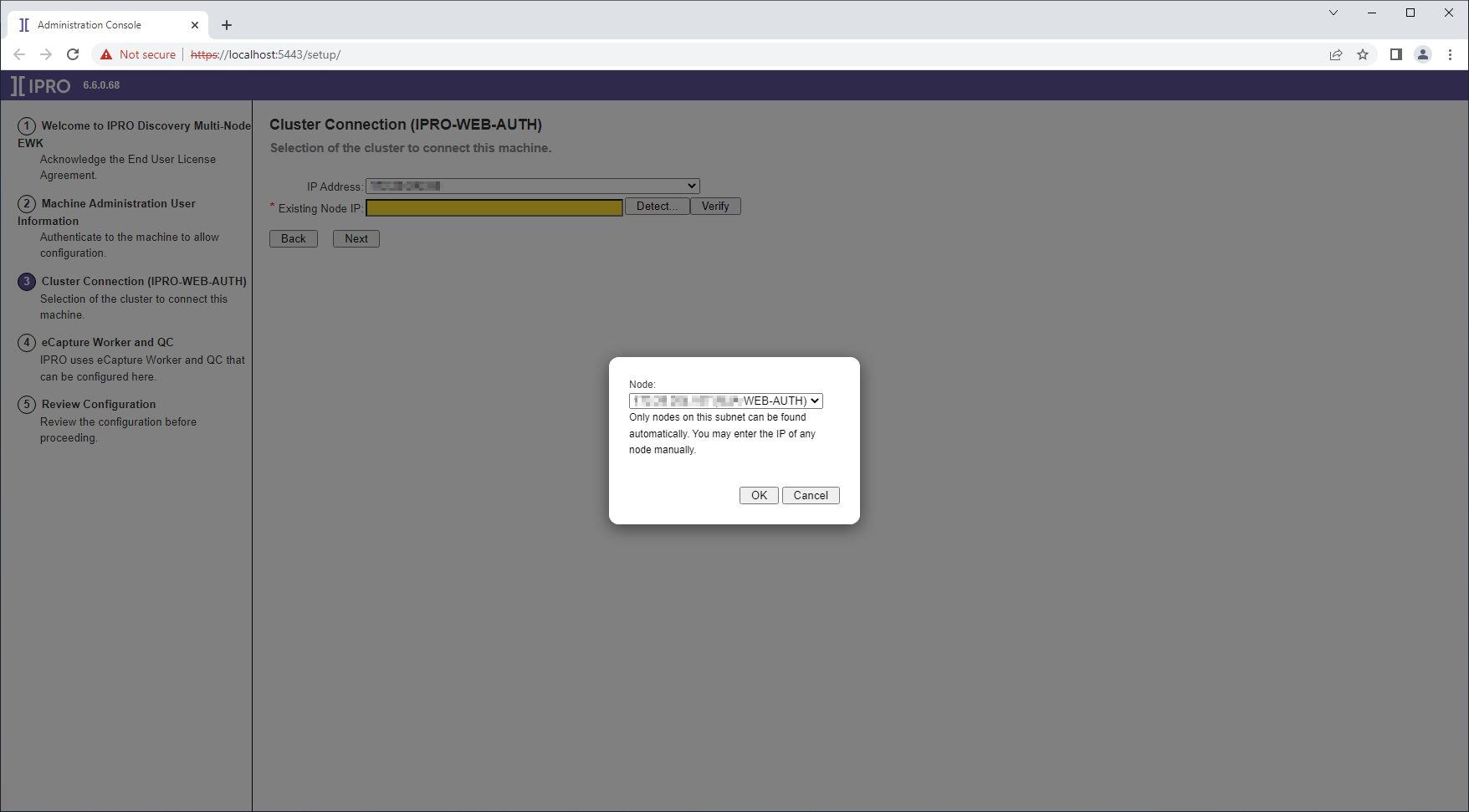
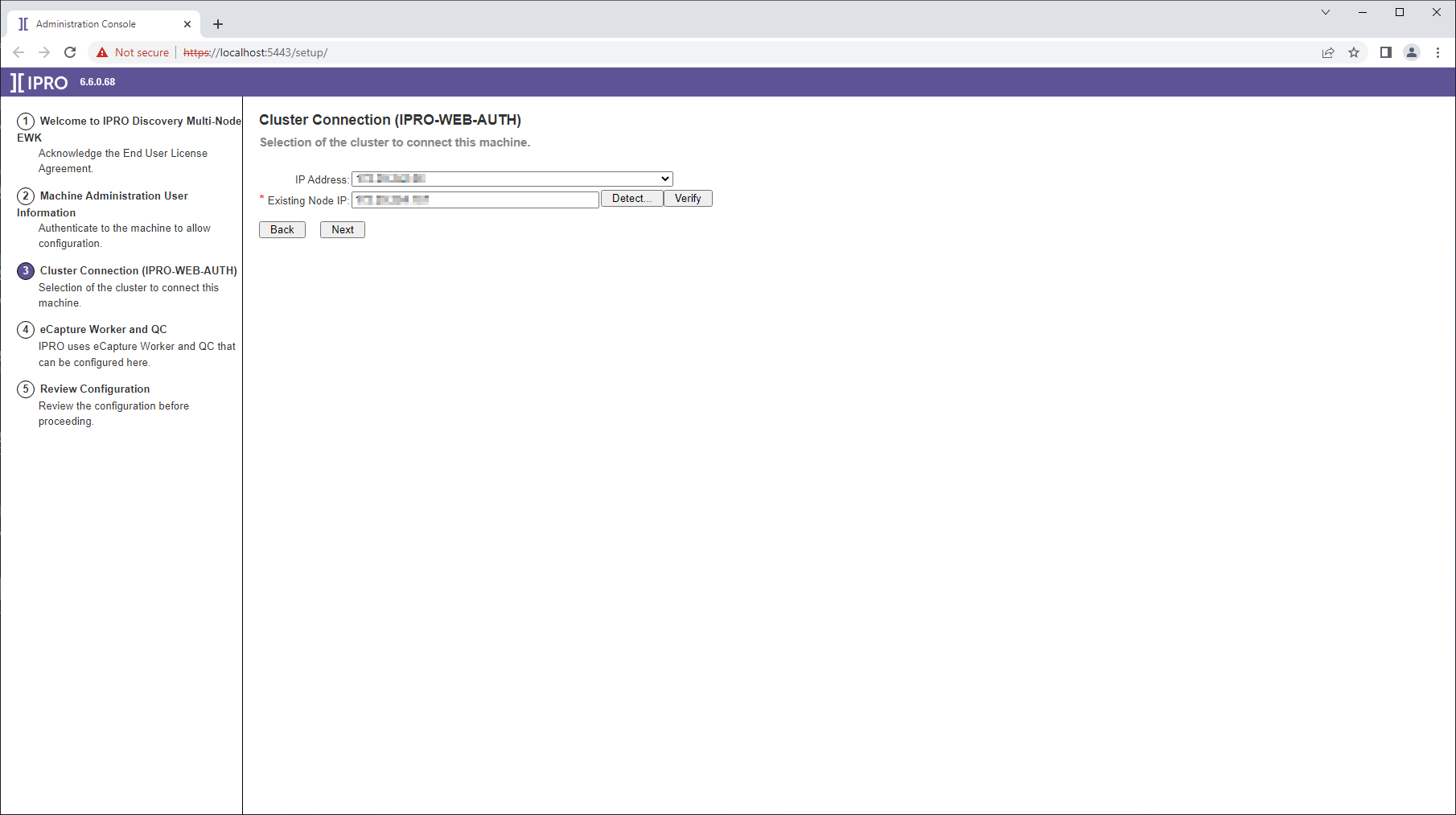
Connect the ECS node instance to the CFS cluster. Select or enter the IP address of the machine hosting the CFS cluster (WEB-AUTH) then click "Next".
-
The ip address of the current node is detected and displayed in the IP Address field.
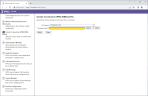
-
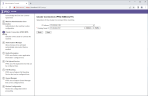
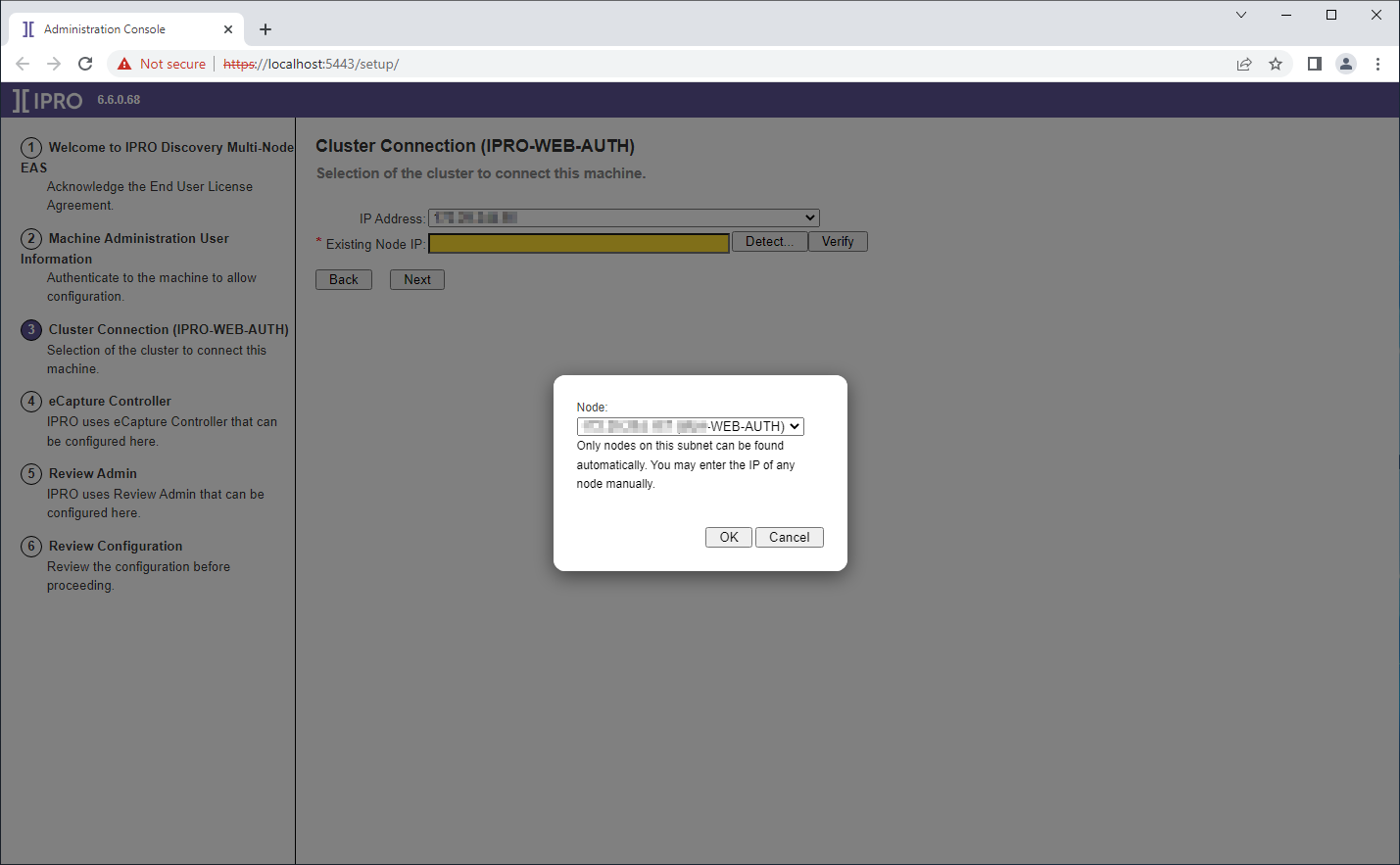
Click “Detect” to automatically detect the cluster server node (IPRO-WEB-AUTH). Select the detected IP address and continue.
-
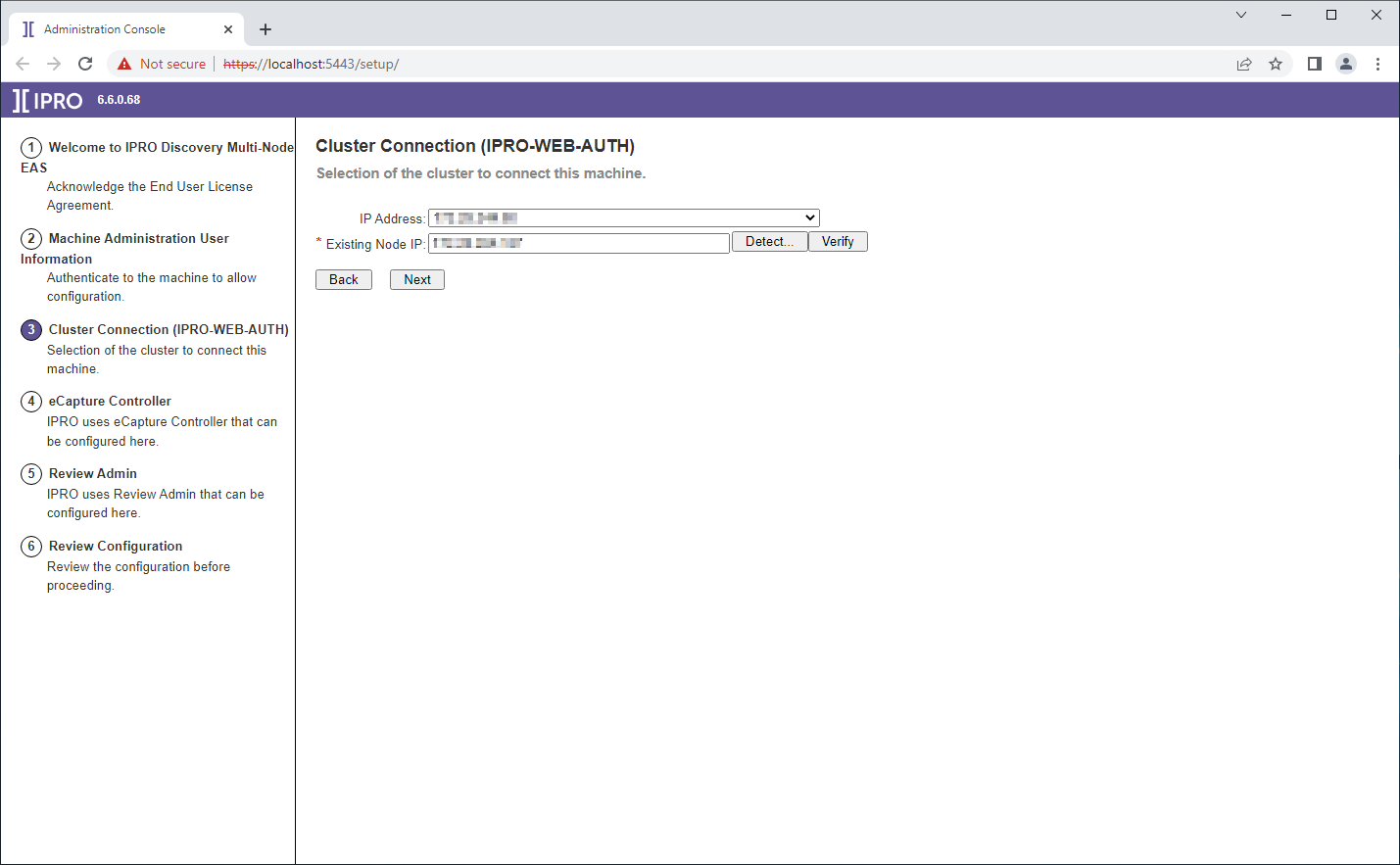
If detection fails, manually enter the IP address of the IPRO-WEB-AUTH node and click “Verify.” When auto detection fails this usually means that the CFS server is in the DMZ and the current node will need to use port 5443 to join the cluster. After the IP Address is entered, once the field loses focus or when the verify button is clicked, the port will be automatically added to the end of the ip address and then the connection validated.
-
-
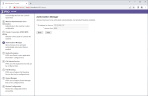
The Auth service IP and port should populate automatically. This value, like others to follow, will be pulled from the Consul cluster key/value store. Click “Next.”
-
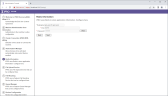
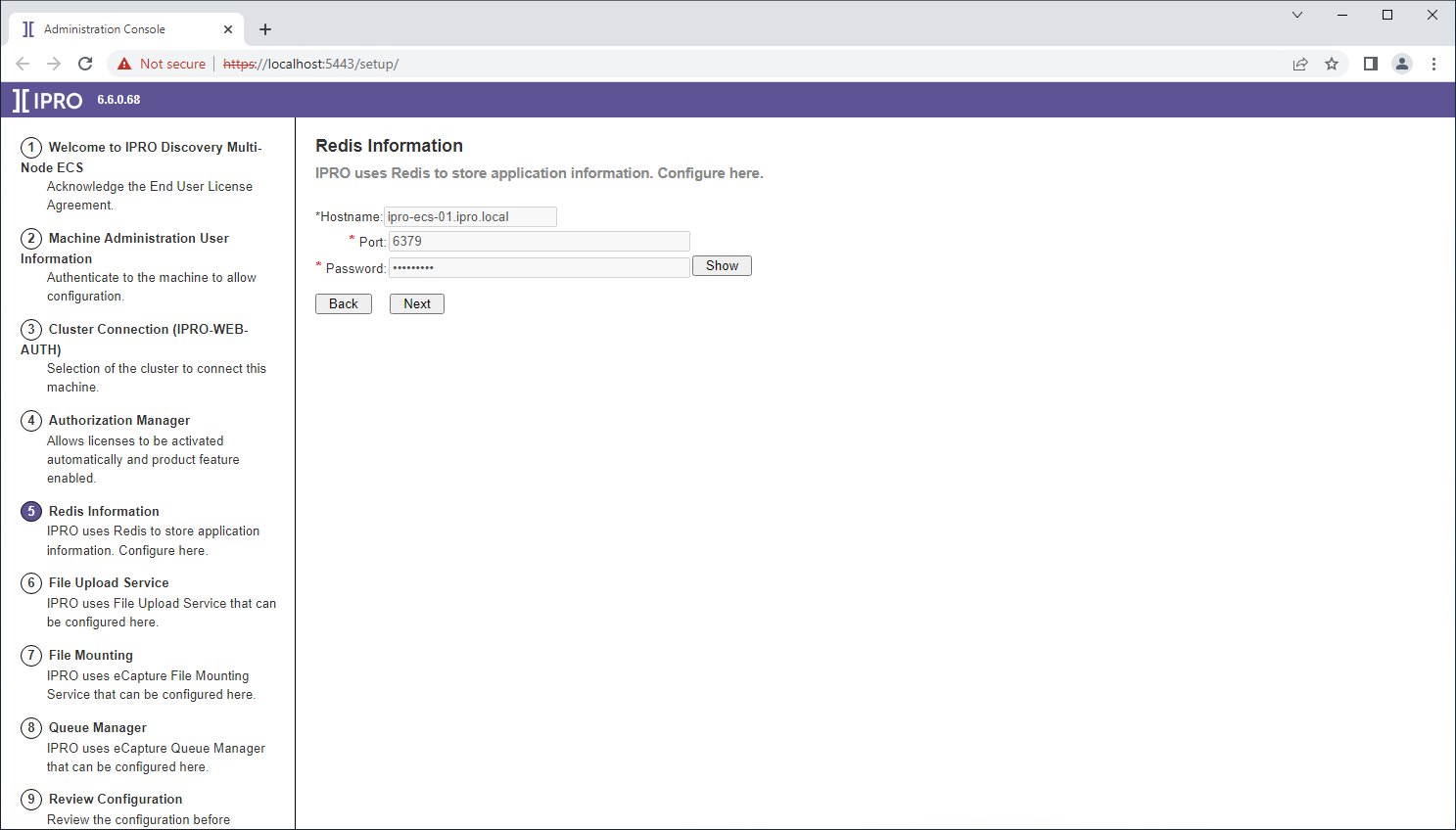
The Redis connection information should populate automatically. Click “Next.”
-
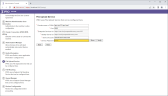
The File upload service host name will be auto-detected and the default port can be used. Enter the Windows Domain account username and password that will be used to run the IPRO File Upload Service. Click “Verify” to validate the password, then click “Next.”
-
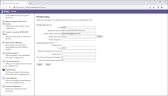
Input the IPRO Administrator username and password. This value is not stored in Consul for security purposes. Click “Next.”( A Mount Image Pro Key may be entered in order to activate MIP for processing .AD1 forensic image files. OSF mount will be the default forensic file mounting tool if MIP is not activated. Relativity import service is an optional service that is used to push direct exports from IPRO Processing to Relativity. The IPRO Relativity Import Service (available on myIPRO) should be installed on the same machine as the Relativity Desktop Client application.)
-
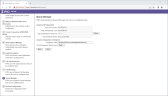
Input the eCapture integration directory path. Click “Test” to validate the directory exists. Click “Next.”
-
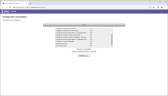
Review the summary page for any mistakes and then click “Proceed” when ready to begin the automated configuration.



3. EAS Node
IPRO eCapture Controller and Eclipse Admin Node Configuration:
The IPRO eCapture Controller and Eclipse Admin node can be configured multiple times within an IPRO environment for purposes of managing the eCapture processing queue and administrative IPRO Review features.
To Start Configuration:
-
While logged into Windows as the designated service account, click on the “Setup” shortcut on the Desktop to launch the Configuration Wizard.
-
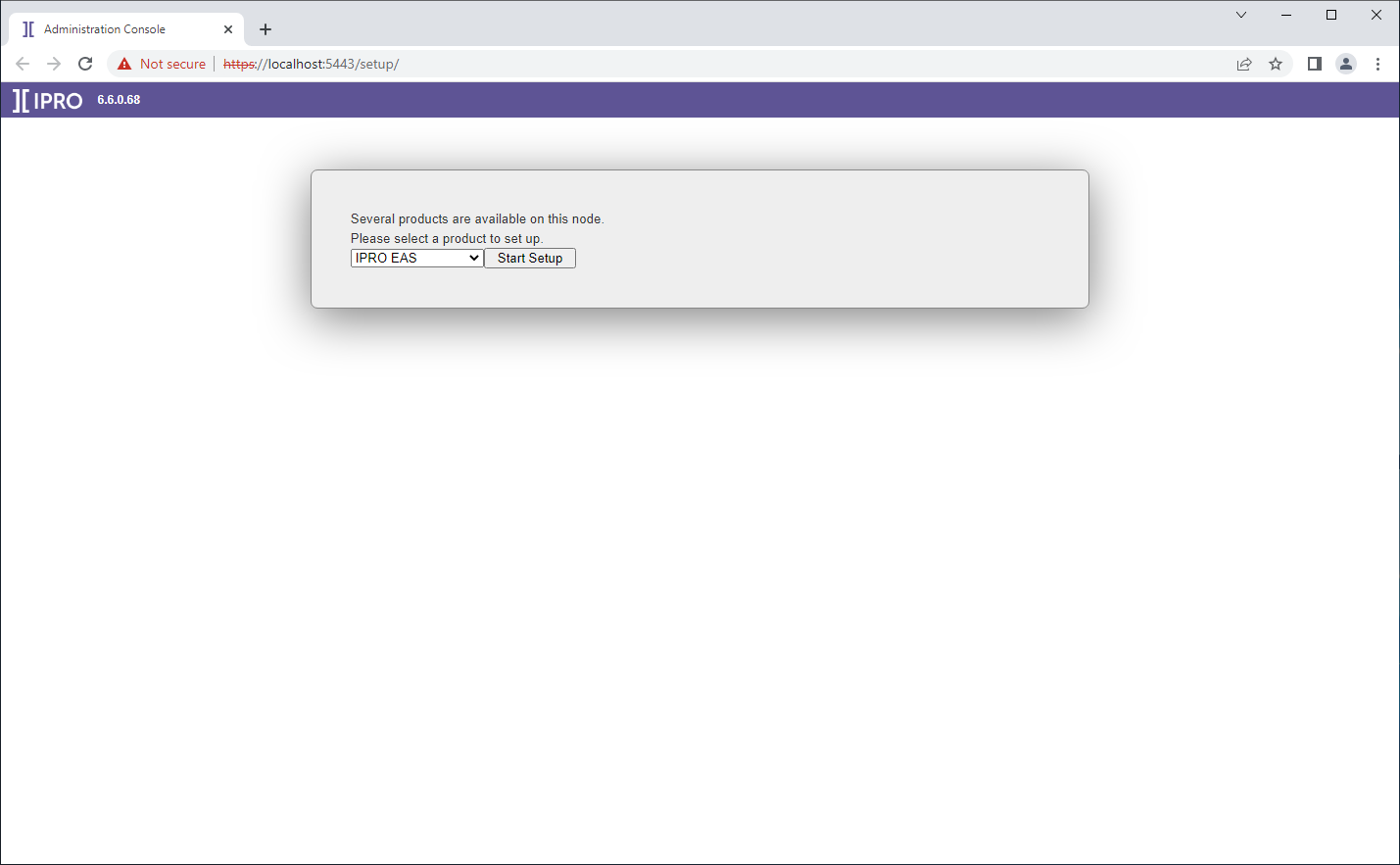
Click on the drop down list and select IPRO EAS. click “Start Setup” when ready to proceed.
-
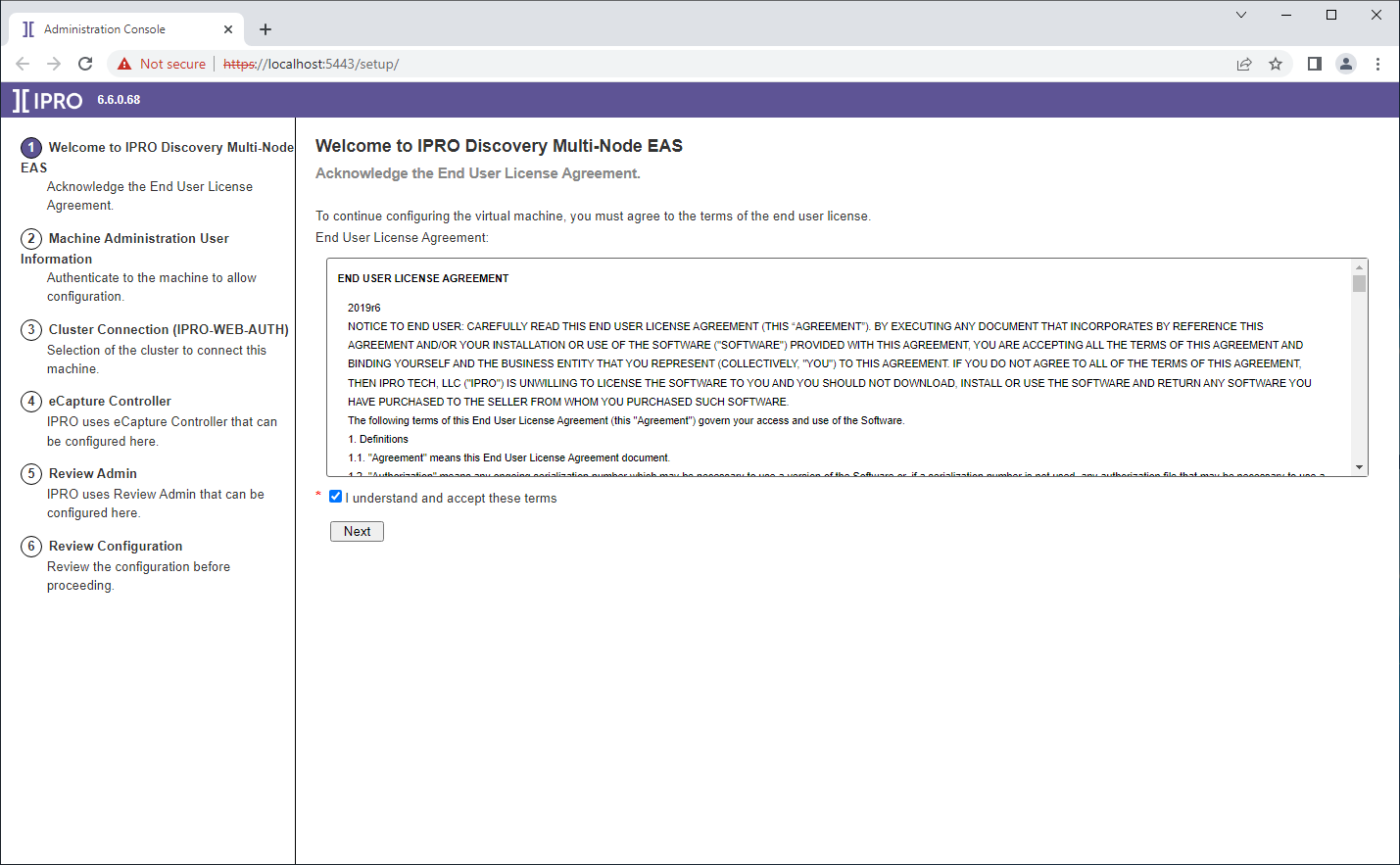
Agree to the End-User License Agreement and click “Next.”
-
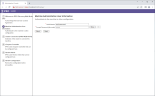
Enter the domain service account username and password that is also a member of the local Administrators group. The domain name is inferred here and does not need to be entered. All other domain account input fields will require the domain (ie. domain\serviceaccount).
-
Validate the password by clicking “Verify,” then click “Next.”
-
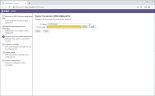
Connect the EAS node instance to the CFS cluster. Select or enter the IP address of the machine hosting the CFS cluster (WEB-AUTH) then click “Next".
-
The ip address of the current node is detected and displayed in the IP Address field.
-
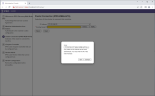
Click “Detect” to automatically detect the cluster server node (IPRO-WEB-AUTH). Select the detected IP address and continue.
-
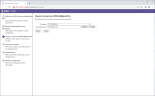
If detection fails, manually enter the IP address of the IPRO-WEB-AUTH node and click “Verify.” When auto detection fails this usually means that the CFS server is in the DMZ and the current node will need to use port 5443 to join the cluster. One the IP Address is entered when the field loses focus or when the verify button is clicked, the port will be added to the end of the ip address and then the connection validated.
-
-
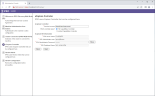
Choose Full or limited Controller Input the Windows Domain account under which the Ecapture Controller will run. During the configuration a new console session will be started under the account that is designated in this field to run the eCapture worker. Database information will populate automatically.
-
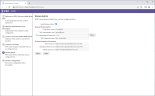
If installing Review Admin, Click “Install Review Admin” and click “Next.”
-
Review the input summary page and correct any mistakes. Click “Proceed” when ready to begin the automated configuration.


4. IAS Node
IPRO Analyitcs and dtSearch service configuration:
The IPRO Analyitcs and dtSearch service node can be configured one time within an IPRO environment for purposes of IPRO analytics and review searching capabilities.
To Start Configuration:
-
While logged into Windows as the designated service account, click on the “Setup” shortcut on the Desktop to launch the Configuration Wizard.
-
Click on the drop down list and select IPRO IAS. click “Start Setup” when ready to proceed.
-
Agree to the End-User License Agreement and click “Next.”
-
Enter the domain service account username and password that is also a member of the local Administrators group. The domain name is inferred here and does not need to be entered. All other domain account input fields will require the domain (ie. domain\serviceaccount).
-
Validate the password by clicking “Verify,” then click “Next.”
-
Connect the IAS node instance to the CFS cluster. Select or enter the IP address of the machine hosting the CFS cluster (WEB-AUTH) then click “Next".
-
The ip address of the current node is detected and displayed in the IP Address field.
-
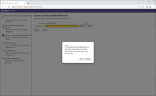
Click “Detect” to automatically detect the cluster server node (IPRO-WEB-AUTH). Select the detected IP address and continue.
-
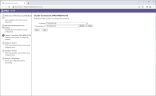
If detection fails, manually enter the IP address of the IPRO-WEB-AUTH node and click “Verify.” When auto detection fails this usually means that the CFS server is in the DMZ and the current node will need to use port 5443 to join the cluster. After the IP Address is entered, once the field loses focus or when the verify button is clicked, the port will be added to the end of the ip address and then the connection validated.
-
-
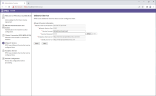
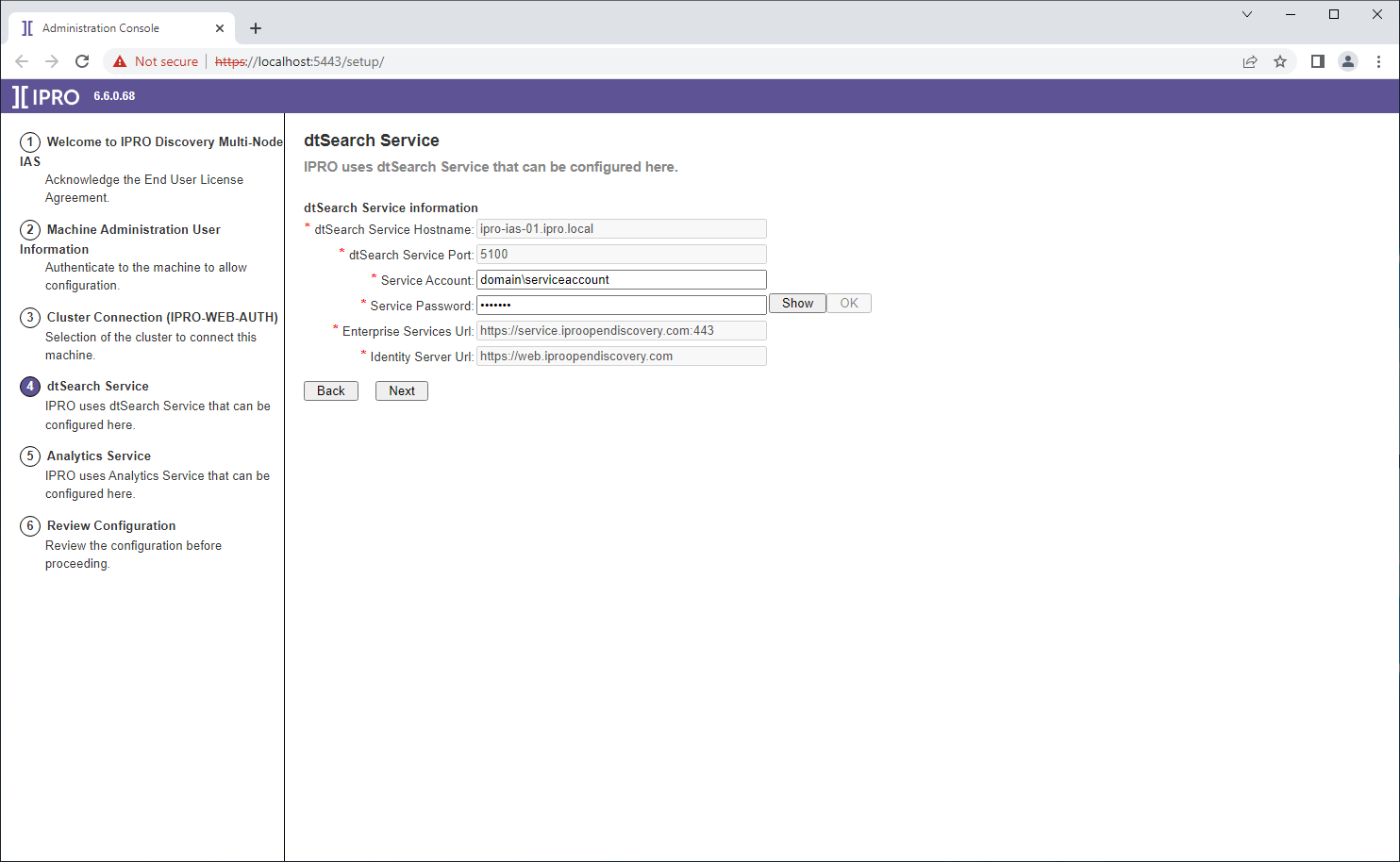
The dtSearch connection information will populate automatically. Click “Verify” to validate the service account password. Click “Next.”
-
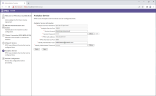
The Analytics service connection information will populate automatically. Click “Verify” to validate the service account password. Enter the IPRO Administrator username and password. This information is not stored in Consul. Click “Next.”
-
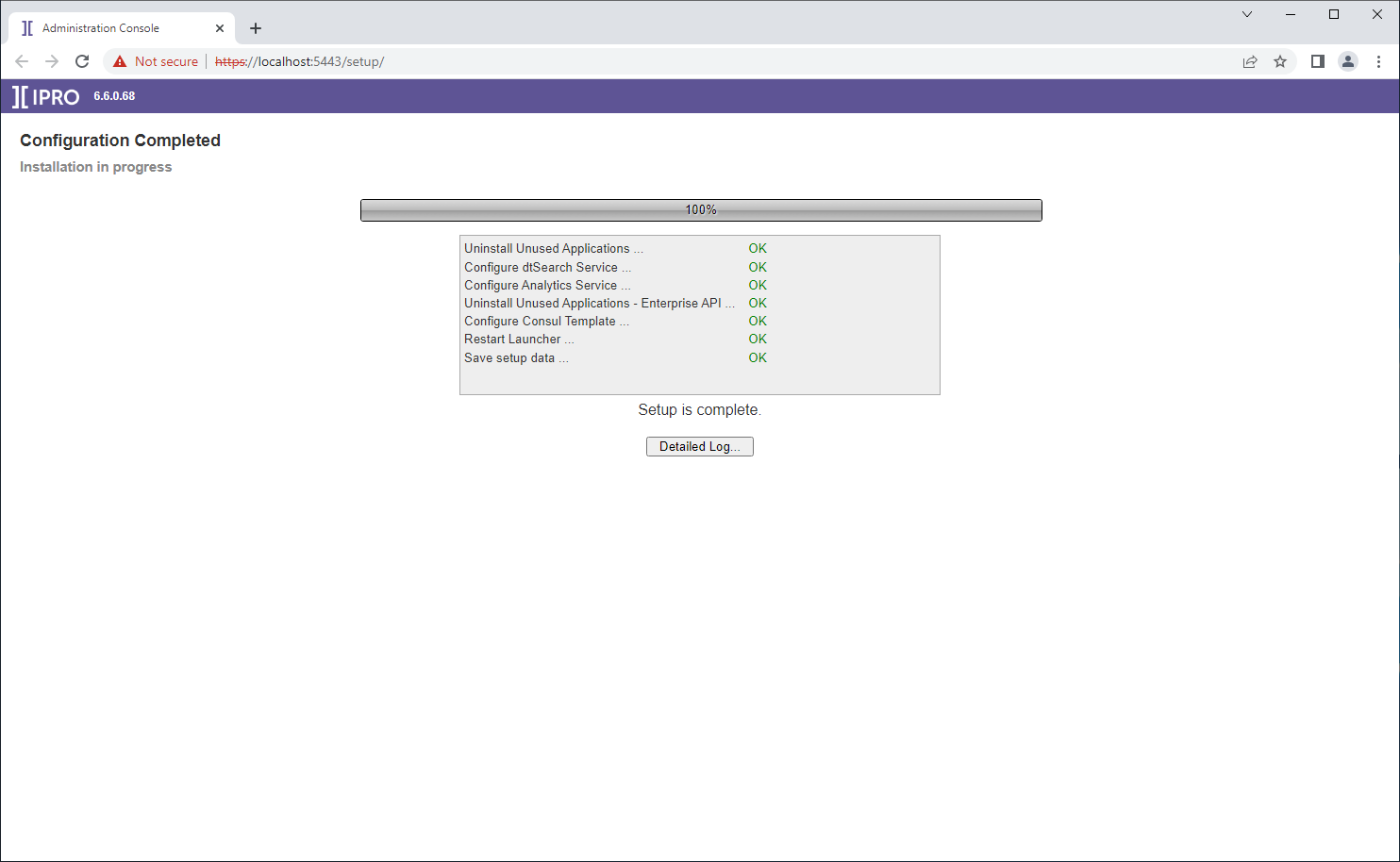
Review the input summary page. Go back and correct any mistakes. Click “Proceed” when ready to continue to the automated configuration.




5. JMA Node
Job Manager Agent Configuration:
The IPRO Platform Job Manager Agent node can be configured multiple times within an IPRO environment for scaling purposes. Job Manager agent performs work for Review and Batch Review related tasks.
To Start Configuration:
-
While logged into Windows as the designated service account, click on the “Setup” shortcut on the Desktop to launch the Configuration Wizard.
-
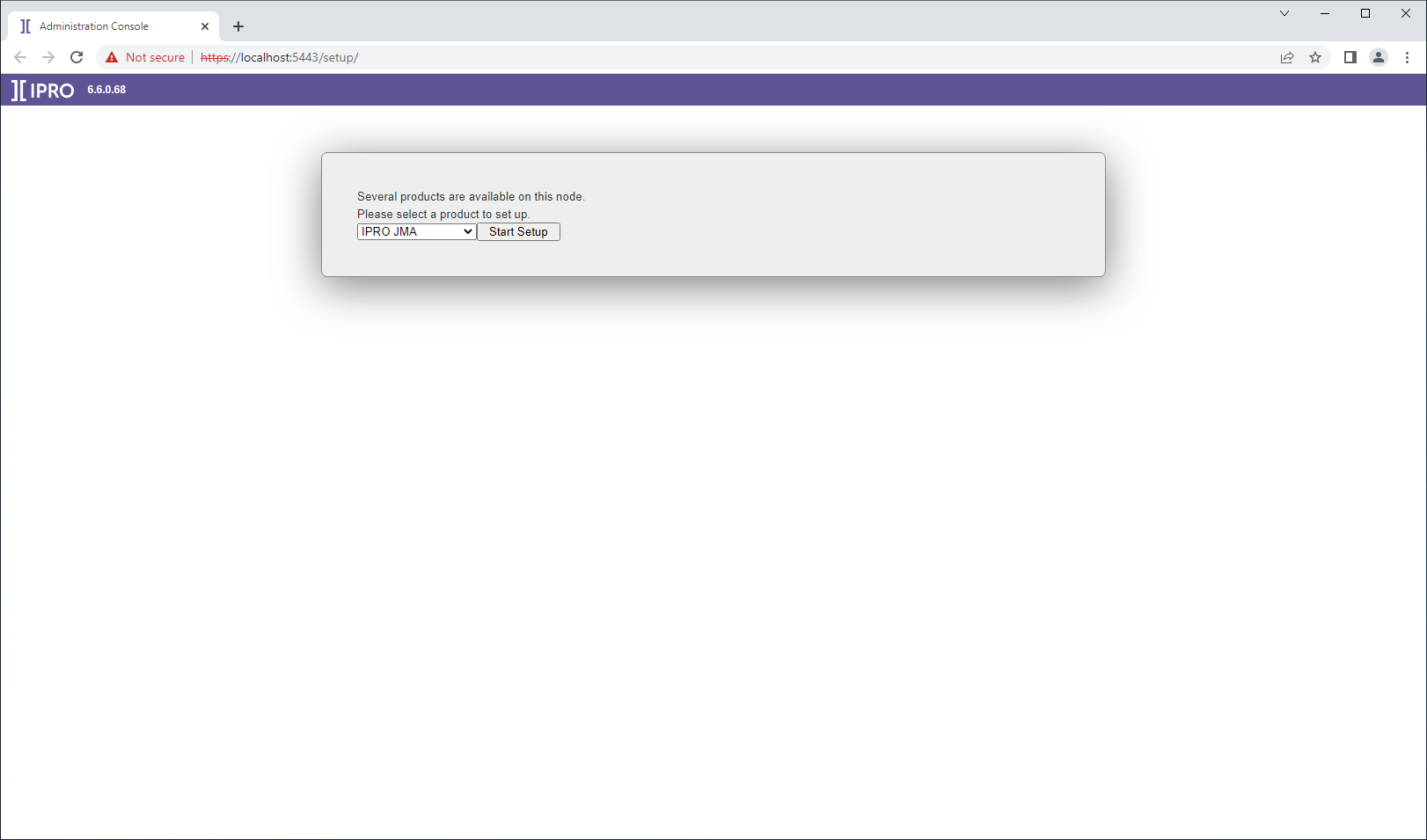
Click on the drop down list and select IPRO JMA. click “Start Setup” when ready to proceed.
-
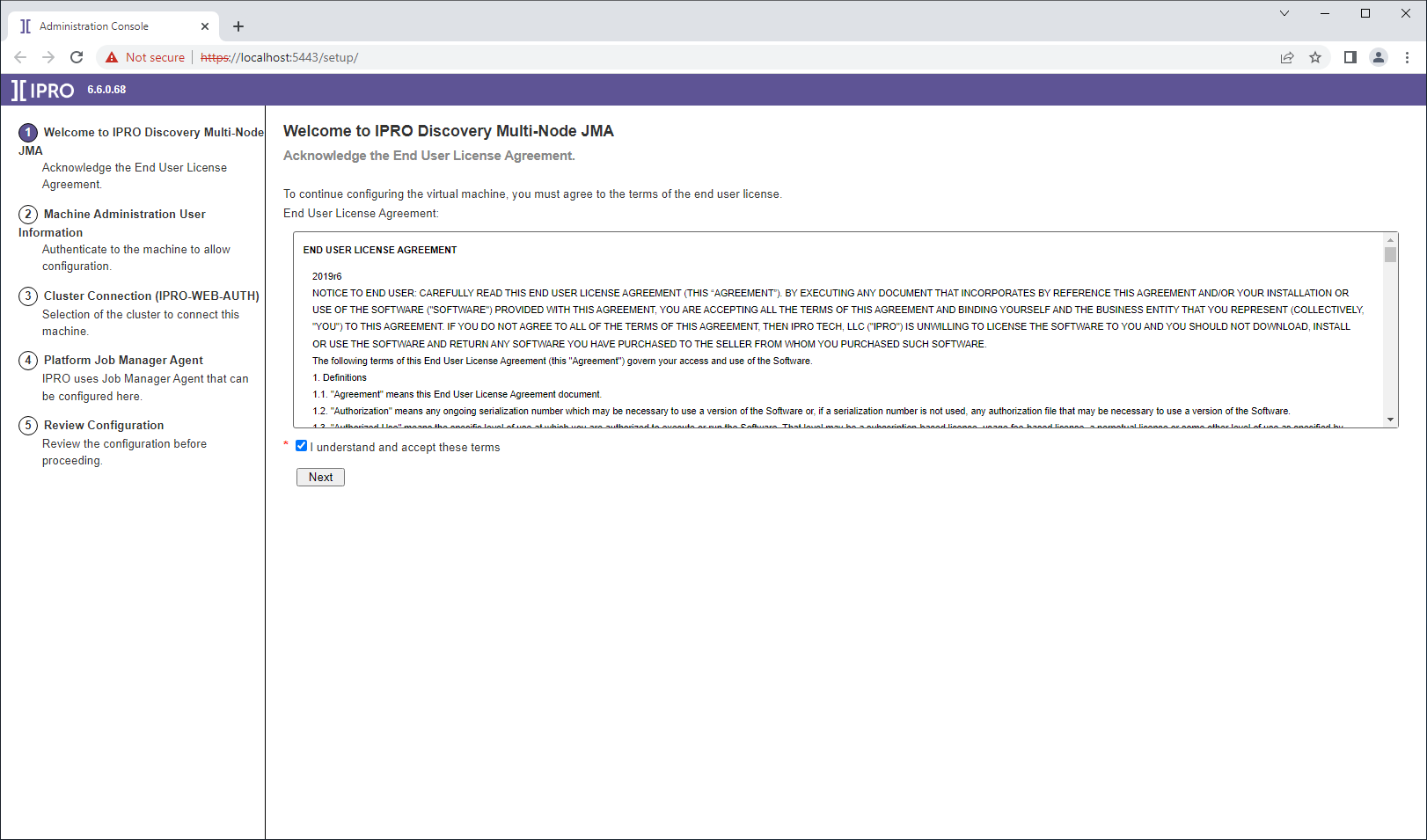
Agree to the End-User License Agreement and click “Next.”
-
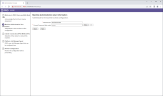
Enter the domain service account username and password that is also a member of the local Administrators group. The domain name is inferred here and does not need to be entered. All other domain account input fields will require the domain (ie. domain\serviceaccount).
-
Validate the password by clicking “Verify,” then click “Next.”
-
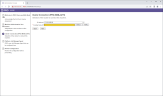
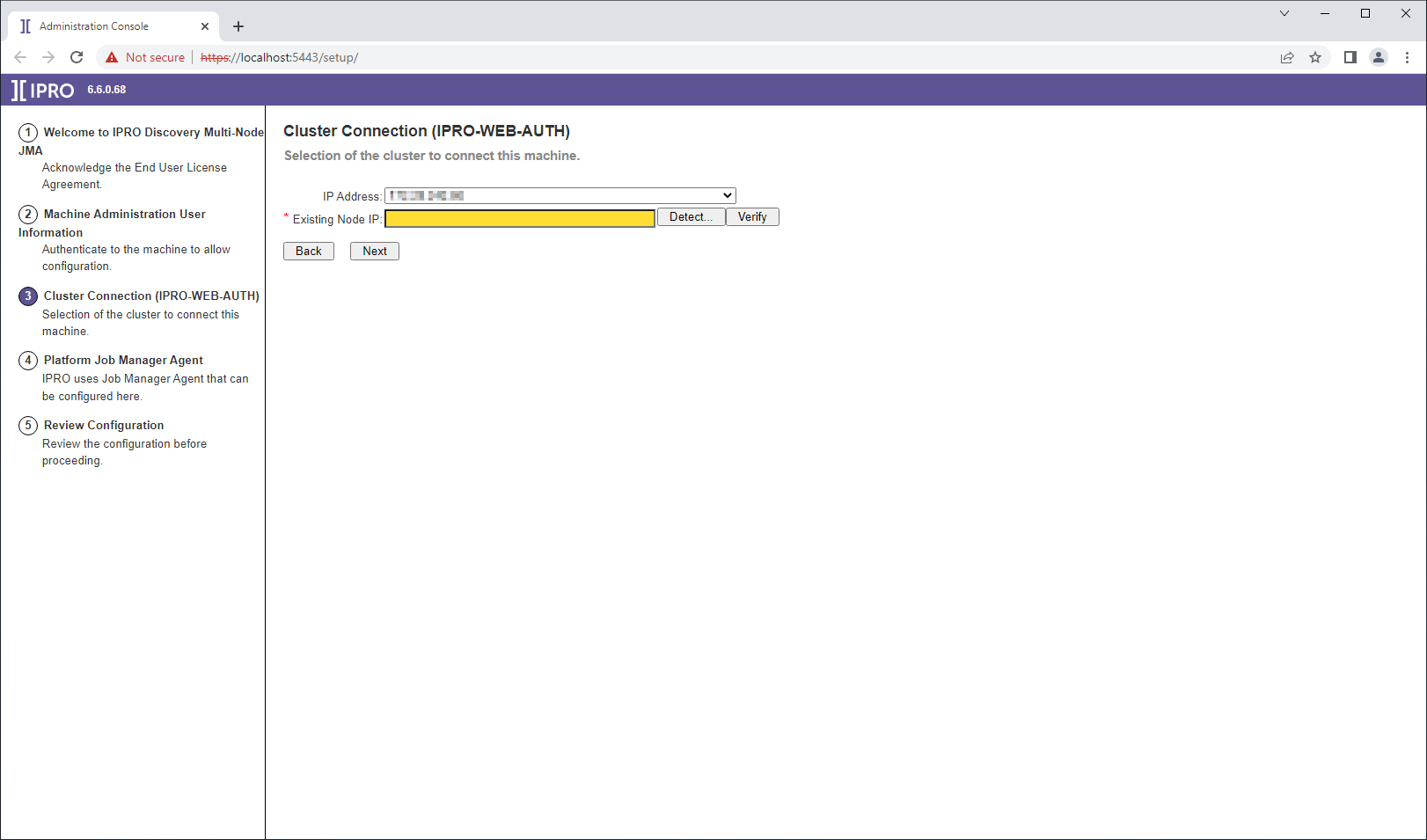
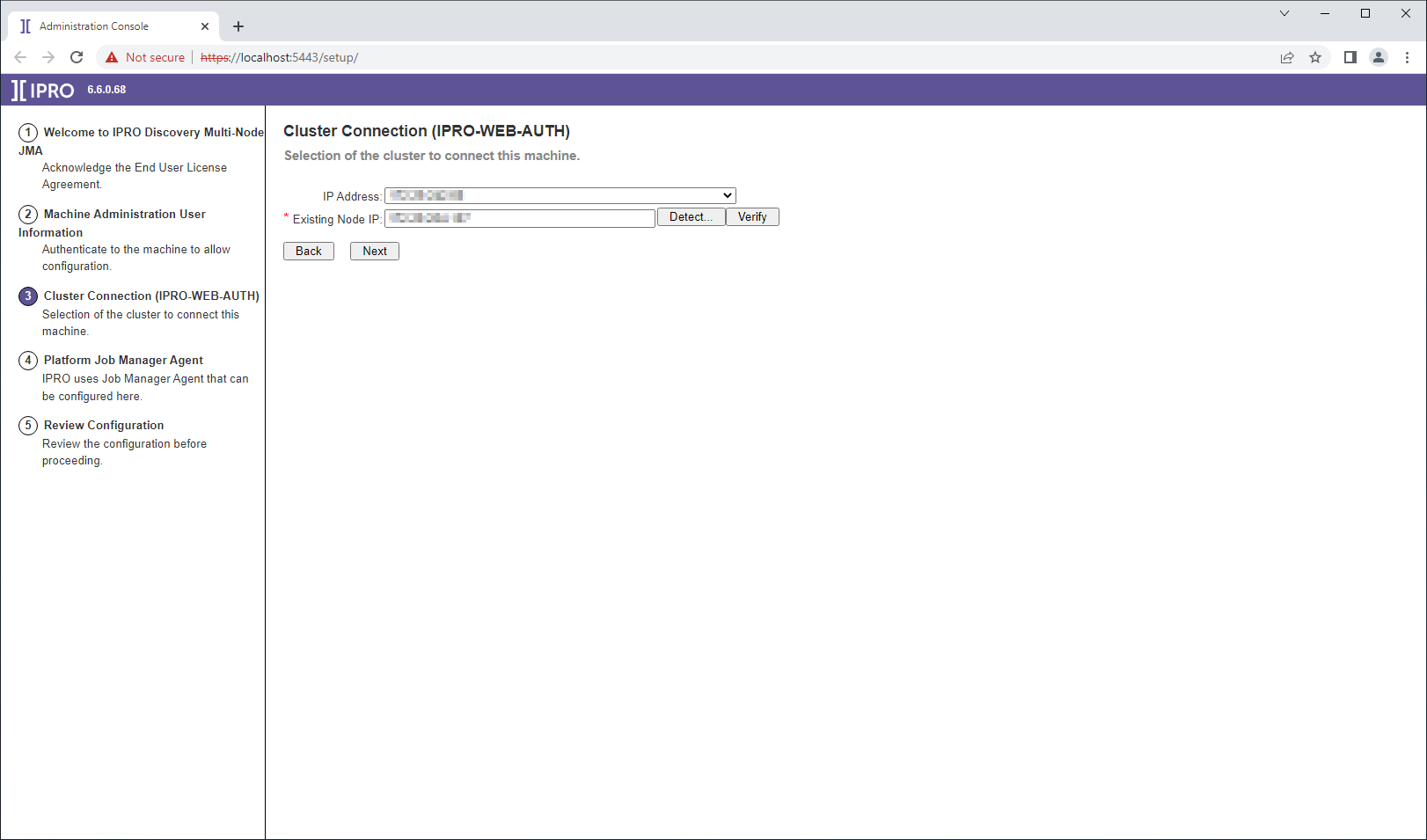
Connect the JMA node instance to the CFS cluster. Select or enter the IP address of the machine hosting the CFS cluster (WEB-AUTH) then click “Next".
-
The ip address of the current node is detected and displayed in the IP Address field.
-
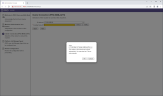
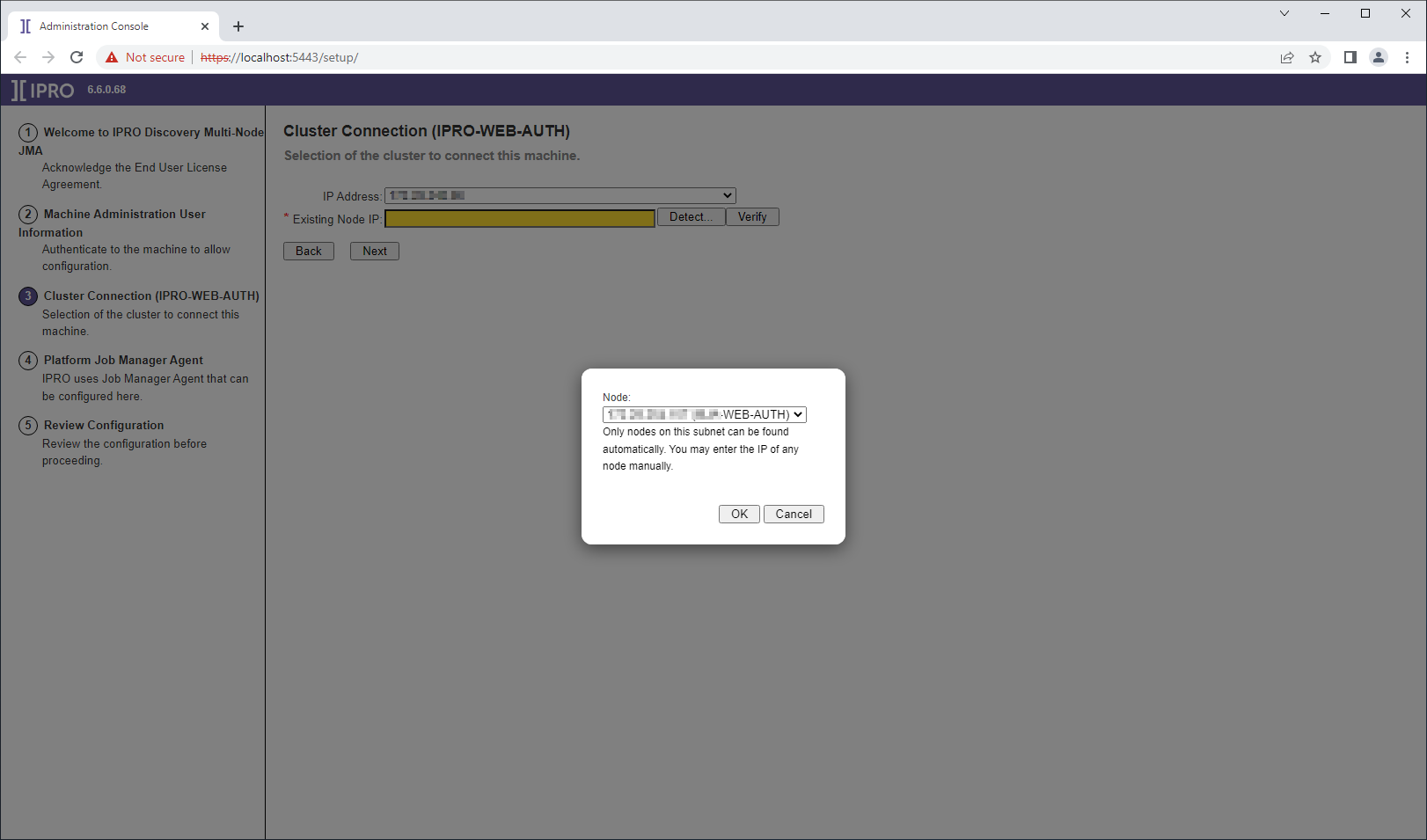
Click “Detect” to automatically detect the cluster server node (IPRO-WEB-AUTH). Select the detected IP address and continue.
-
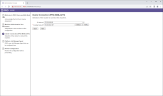
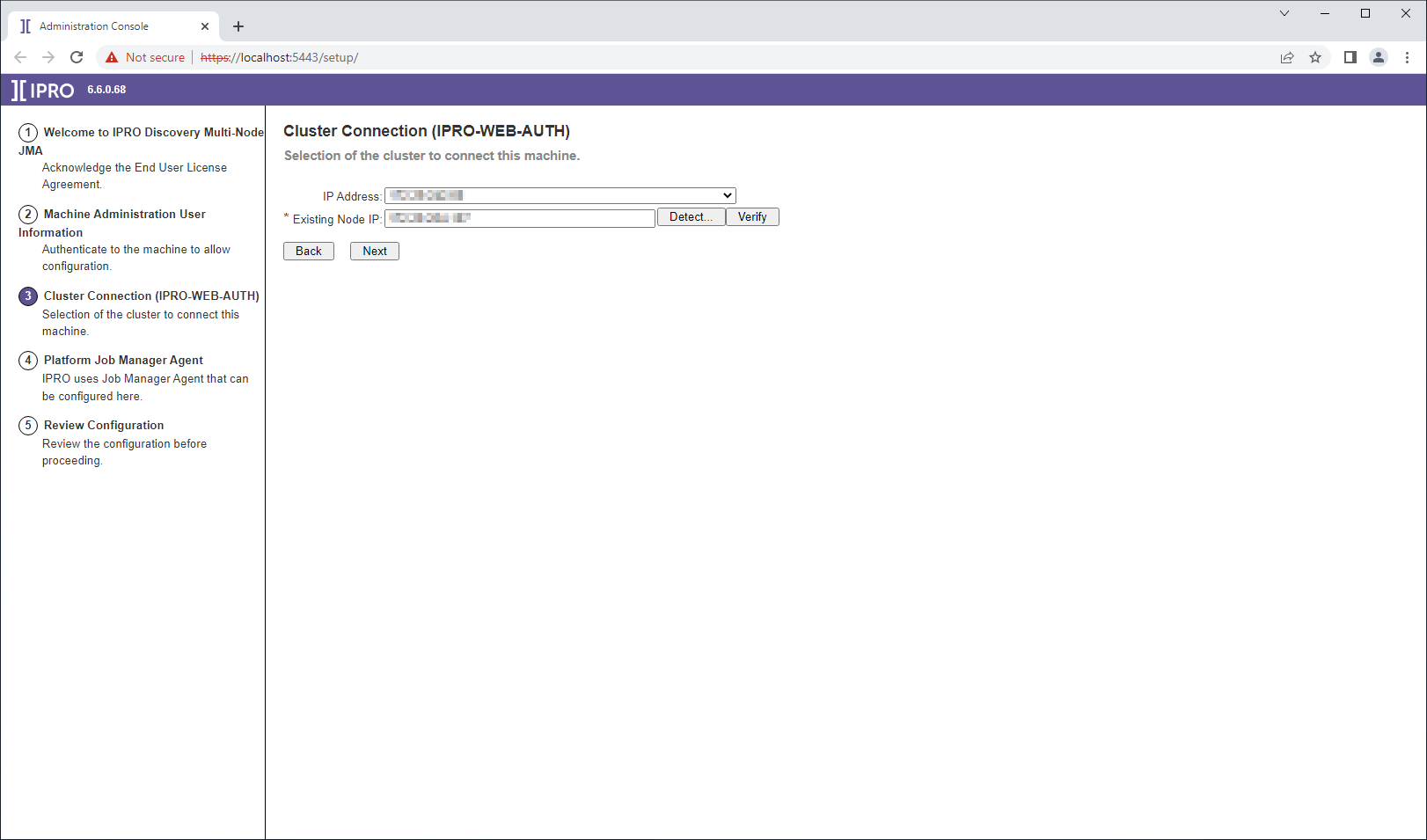
If detection fails, manually enter the IP address of the IPRO-WEB-AUTH node and click “Verify.” When auto detection fails this usually means that the CFS server is in the DMZ and the current node will need to use port 5443 to join the cluster. After the IP Address is entered, once the field loses focus or when the verify button is clicked, the port will be added to the end of the ip address and then the connection validated.
-
-
Enter the Windows Domain account username and password. Click “Verify” to validate the domain account. Enter the IPRO Administrator username and password (administrator@iprotech.com). Click “Next.”
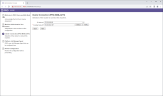
-
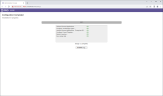
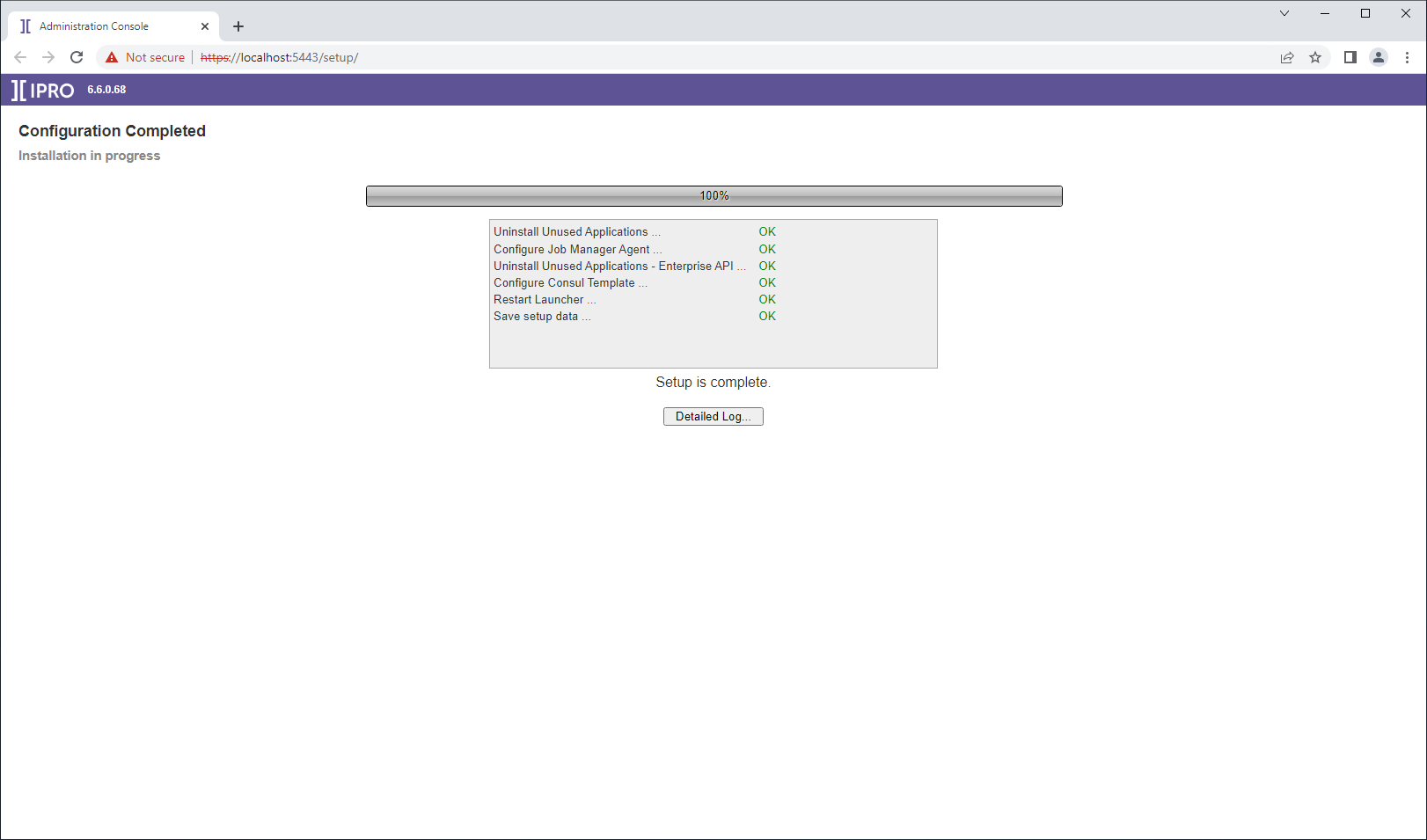
Review the input summary page. Go back and correct any mistakes if necessary. Click “Proceed” when ready to begin the automated configuration.
6. Worker Node
Worker Configuration:
The IPRO eCapture worker node can be configured multiple times within an IPRO environment. Queue Manager can delegate processing and OPEN DISCOVERY tasks to all workers configured within the environment, scaling processing capability.
To Start Confiuration:
-
While logged into Windows as the designated service account, click on the “Setup” shortcut on the Desktop to launch the Configuration Wizard.
-
Click on the drop down list and select IPRO EWK. click “Start Setup” when ready to proceed.
-
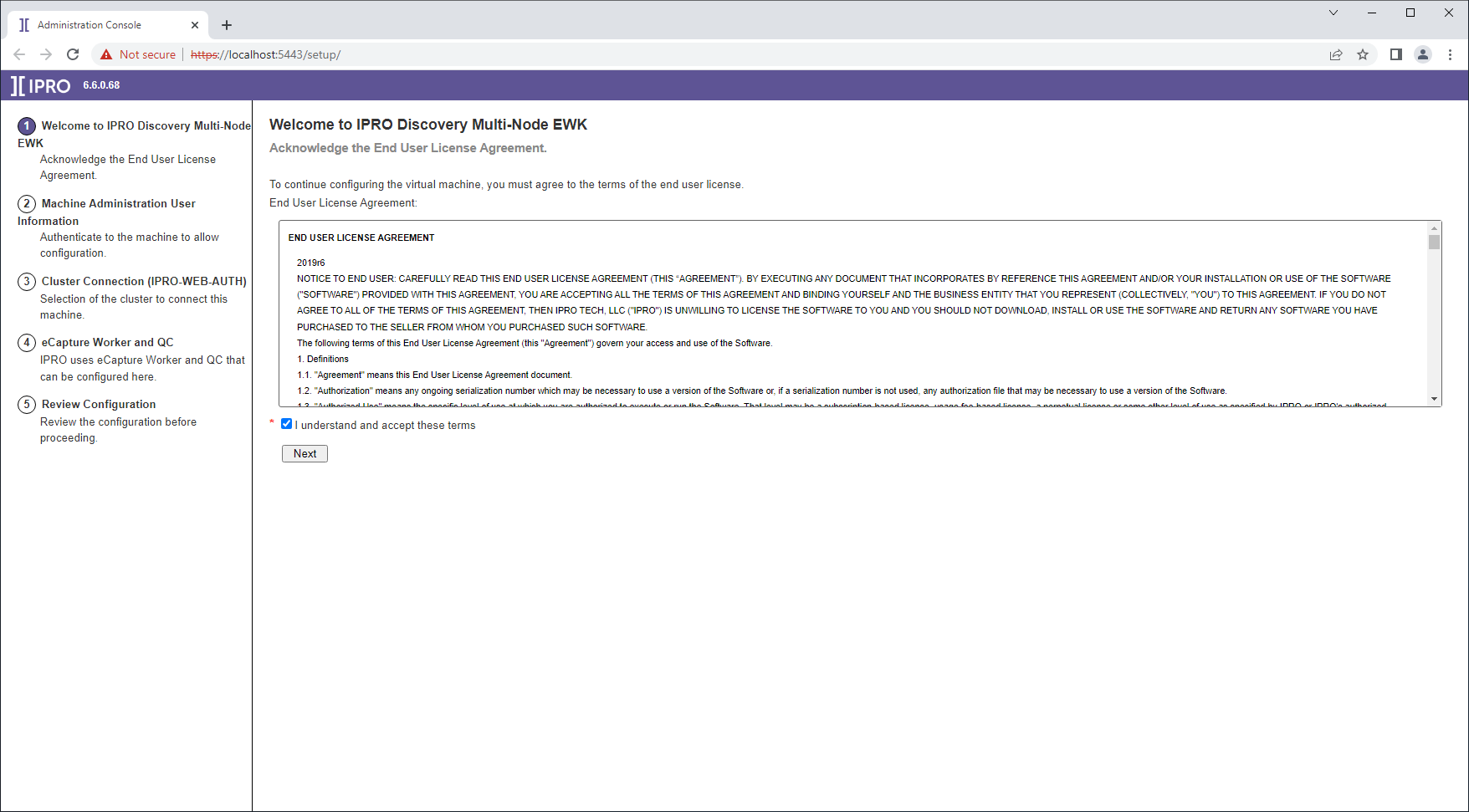
Agree to the End-User License Agreement and click “Next.”
-
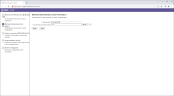
Enter the domain service account username and password that is also a member of the local Administrators group. The domain name is inferred here and does not need to be entered. All other domain account input fields will require the domain (ie. domain\serviceaccount).
-
Validate the password by clicking “Verify,” then click “Next.”
-
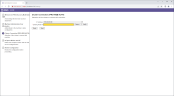
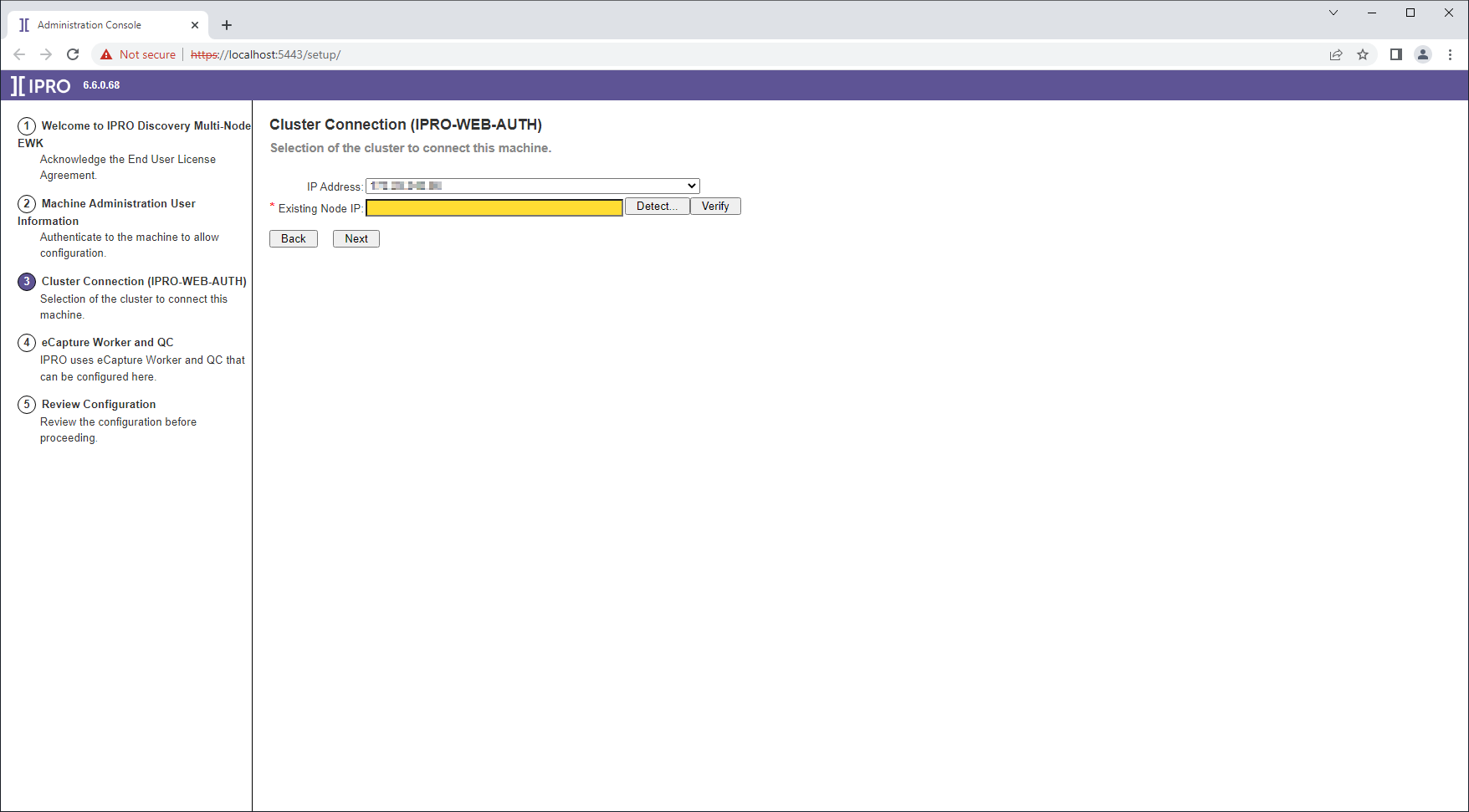
Connect the EWK node instance to the CFS cluster. Select or enter the IP address of the machine hosting the CFS cluster (WEB-AUTH) then click “Next.”
-
The ip address of the current (IPRO-EWK) worker node is detected and displayed in the IP Address field.
-
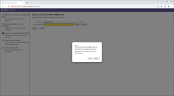
Click “Detect” to automatically detect the cluster server node (IPRO-WEB-AUTH). Select the detected IP address and continue.
-
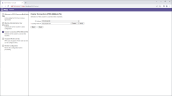
If detection fails, manually enter the IP address of the IPRO-WEB-AUTH node and click “Verify.” When auto detection fails this usually means that the CFS server is in the DMZ and will need to use port 5443 to join the cluster. After the IP Address is entered, once the field loses focus or when the verify button is clicked, the port will be added to the end of the ip address and then the connection validated.
-
-
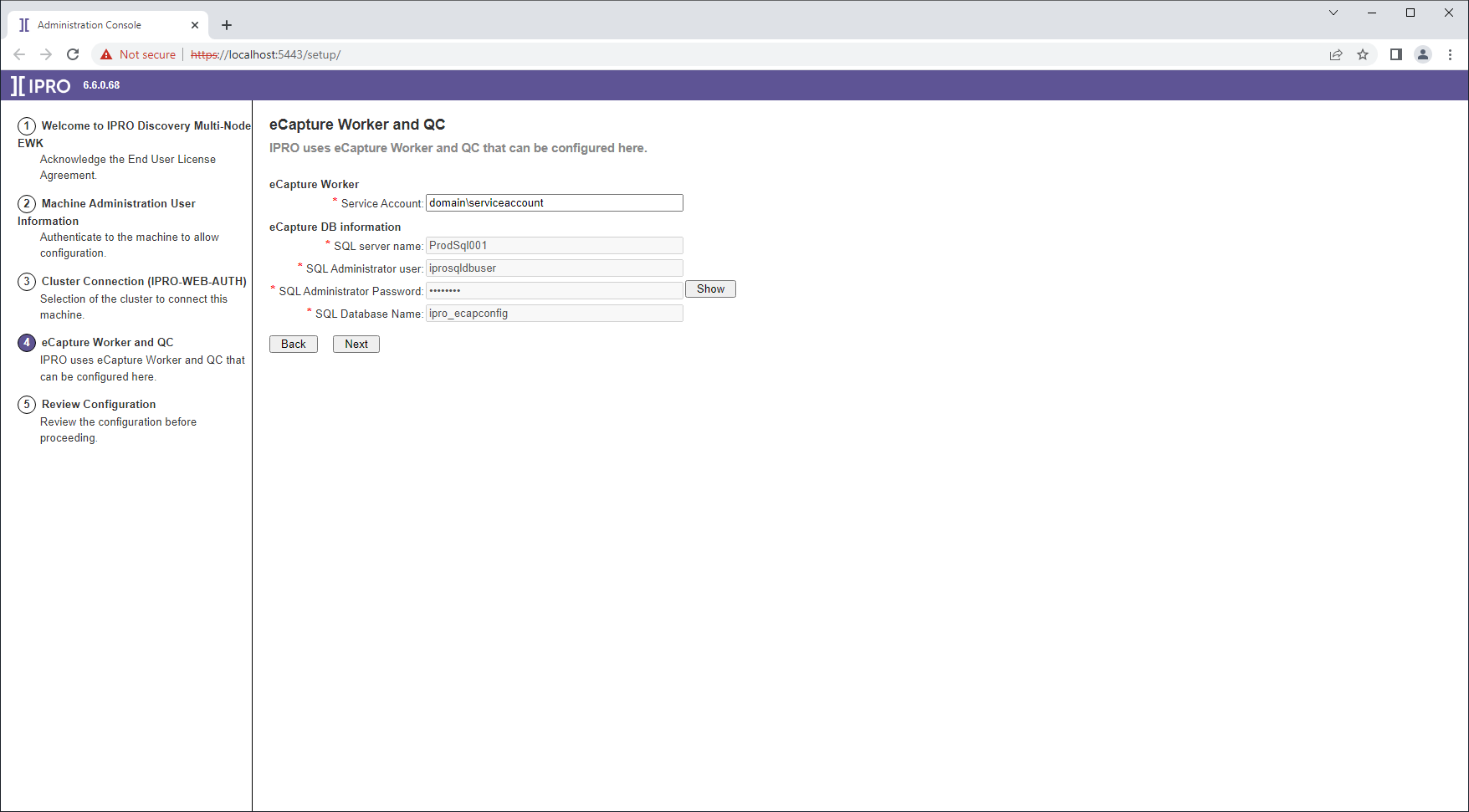
Once cluster connection has been established, the SQL database connection information will be loaded from the cluster instance. Click “Next.” Once the fields have finished populating.
-
Review the Configuration Summary. Find and fix any mistakes that are visible on the summary page. Click “Proceed” to begin the application configuration.
** If inputs are not detected in the Consul template it will need to be entered manually. A problem may be present if the inputs cannot be retrieved from Consul.


StandAlone AUTH Server Configuration (IPRO AUTH ONLY)
To Start Configuration:
-
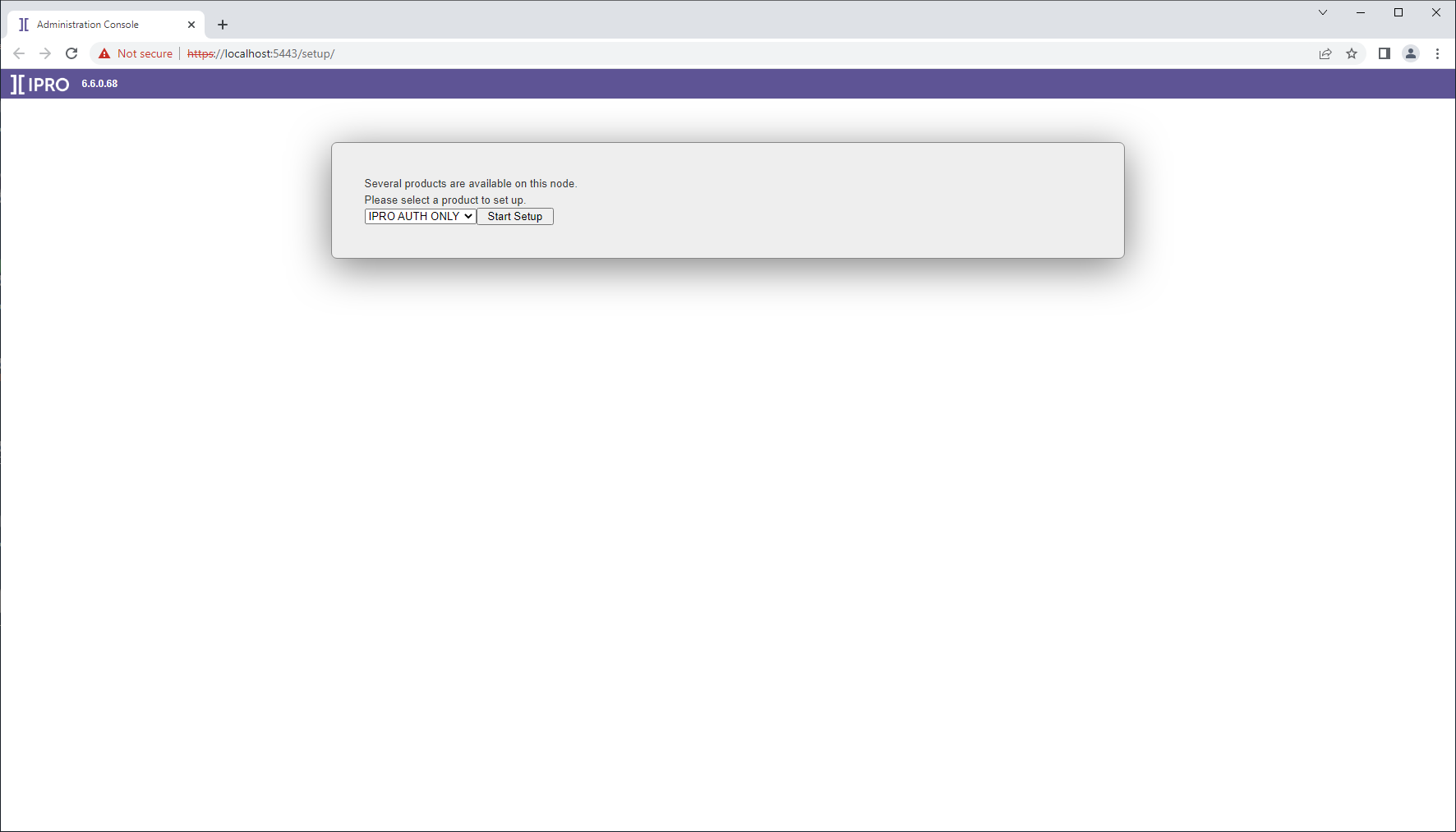
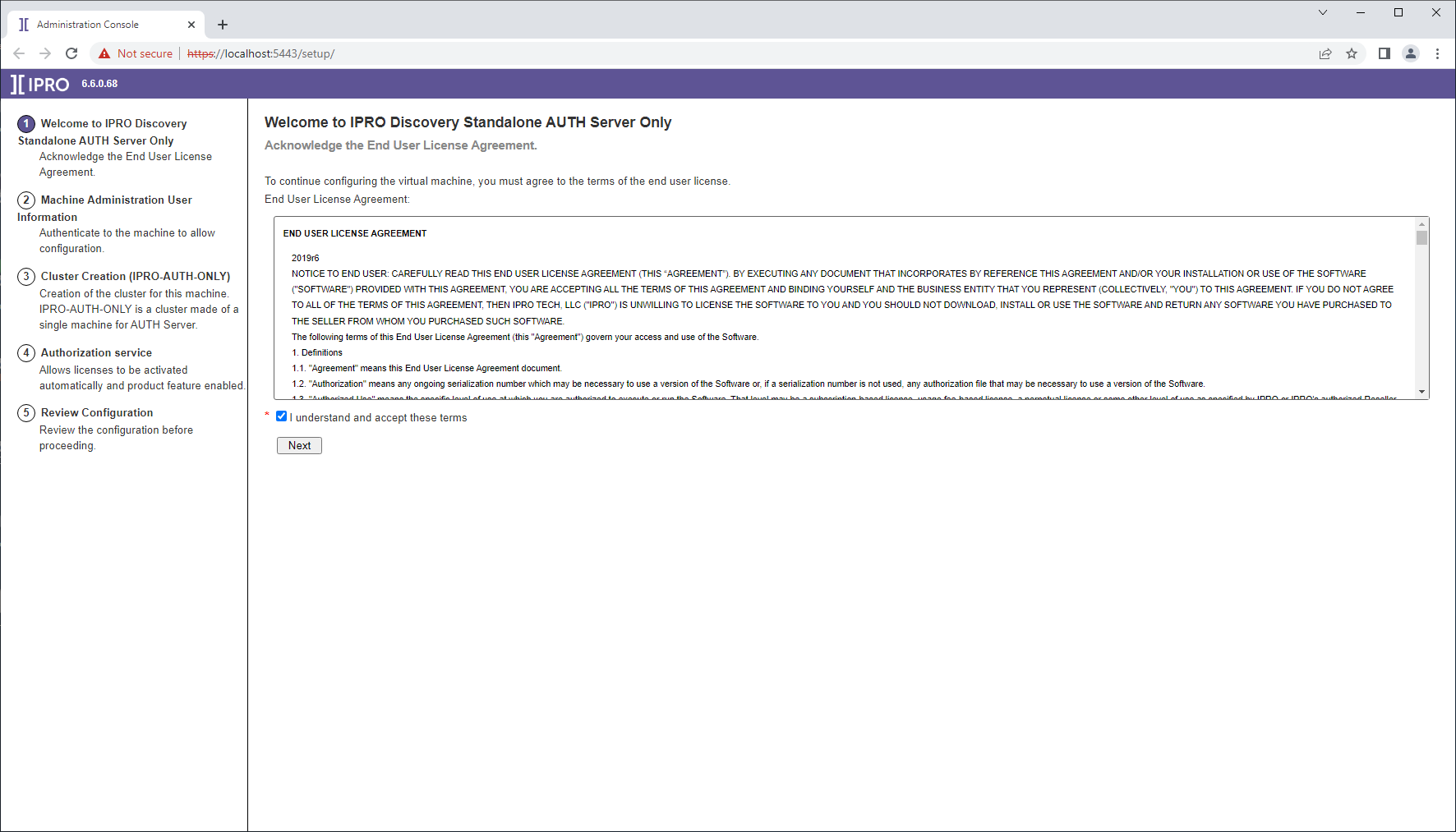
While logged into Windows as the designated service account, click on the “Setup” shortcut on the Desktop to launch the Configuration Wizard. Click on the drop down list and select IPRO AUTH ONLY. Click “Start Setup” when ready to proceed.
-
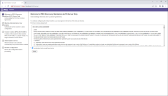
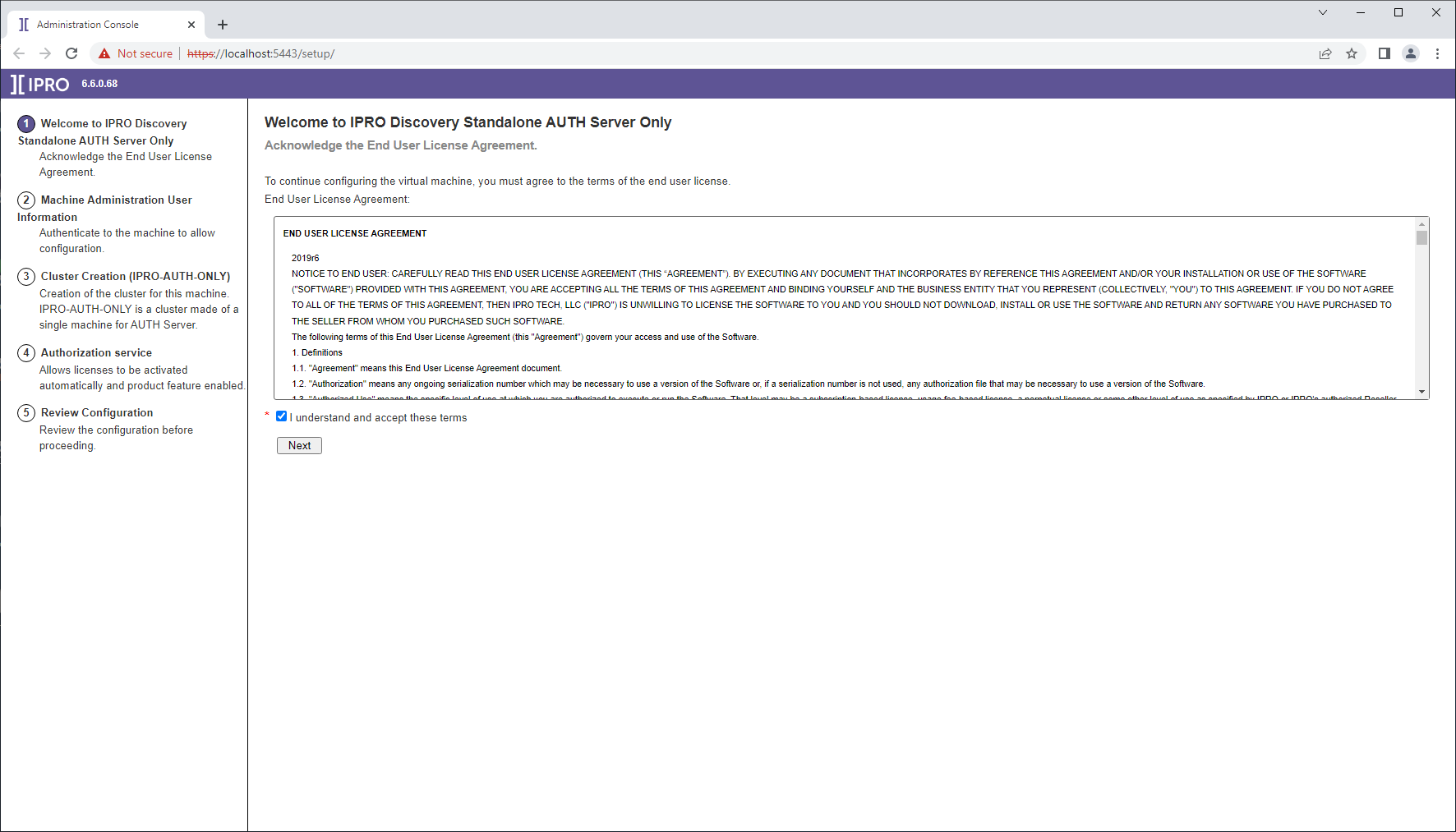
Agree to the End-User License Agreement and click “Next.”
-
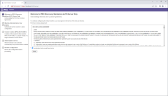
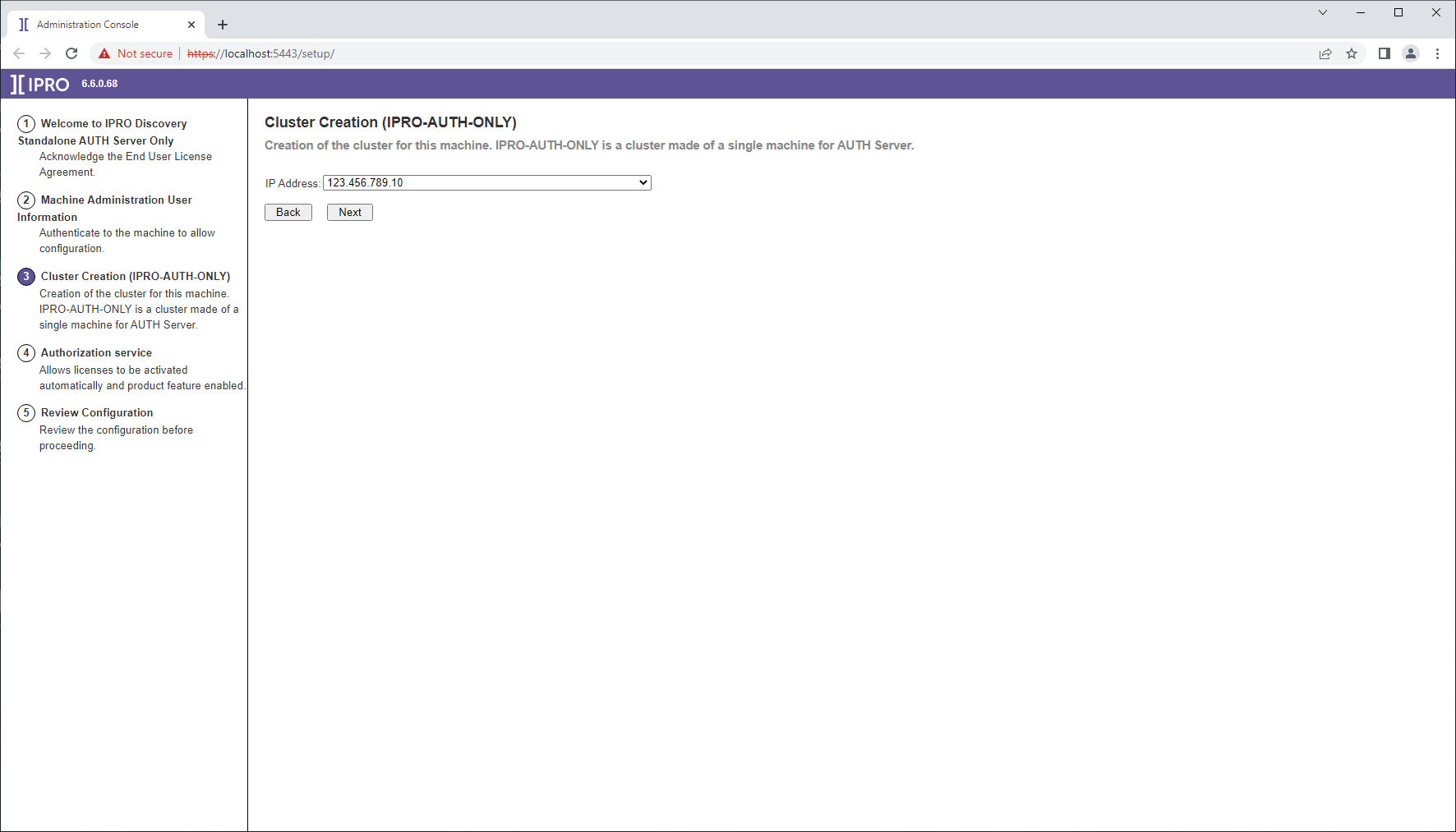
Enter the domain service account username and password that is also a member of the local Administrators group.Validate the password by clicking “Verify,” then click “Next.”
-
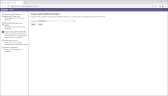
Click “Next” on Cluster Creation page
-
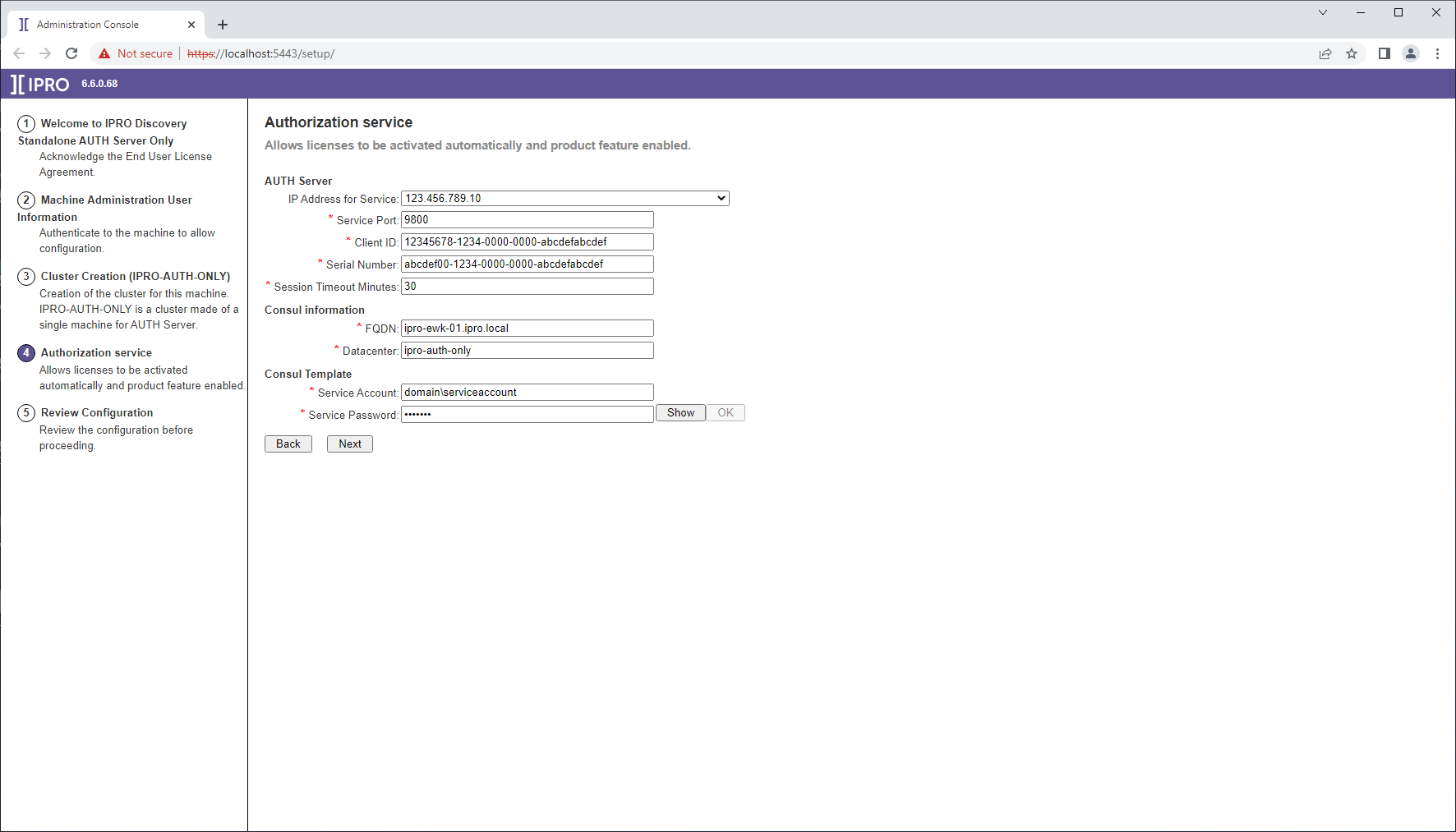
Enter Client ID and Serial Number for Auth Server. Enter Consul Template Service Account and Password. Click “Verify” to validate password and click “Next”
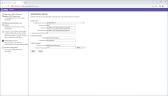
-
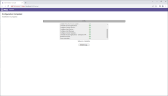
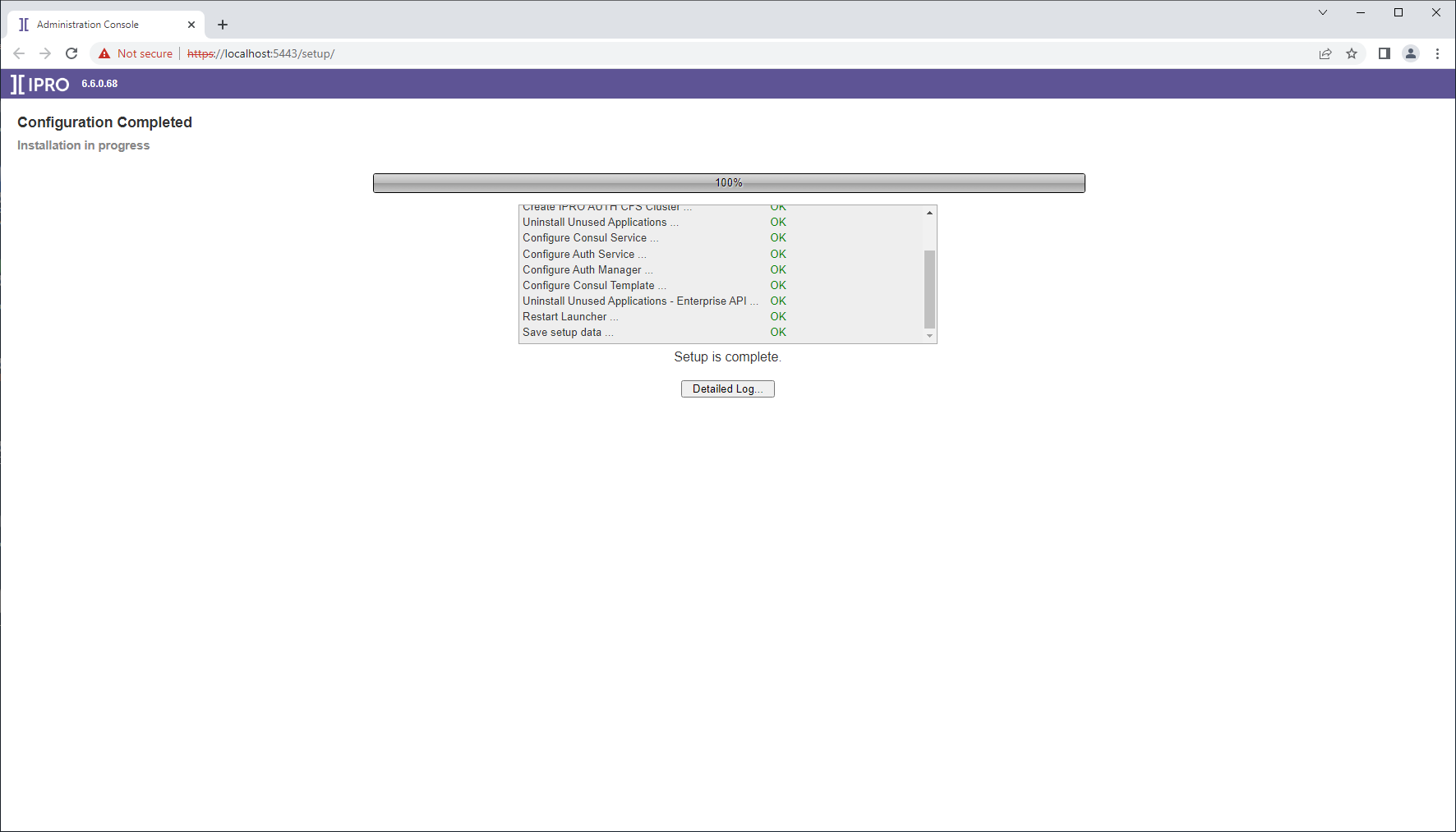
Review the Configuration Summary. Find and fix any mistakes that are visible on the summary page. Click “Proceed” to begin the application configuration.
-
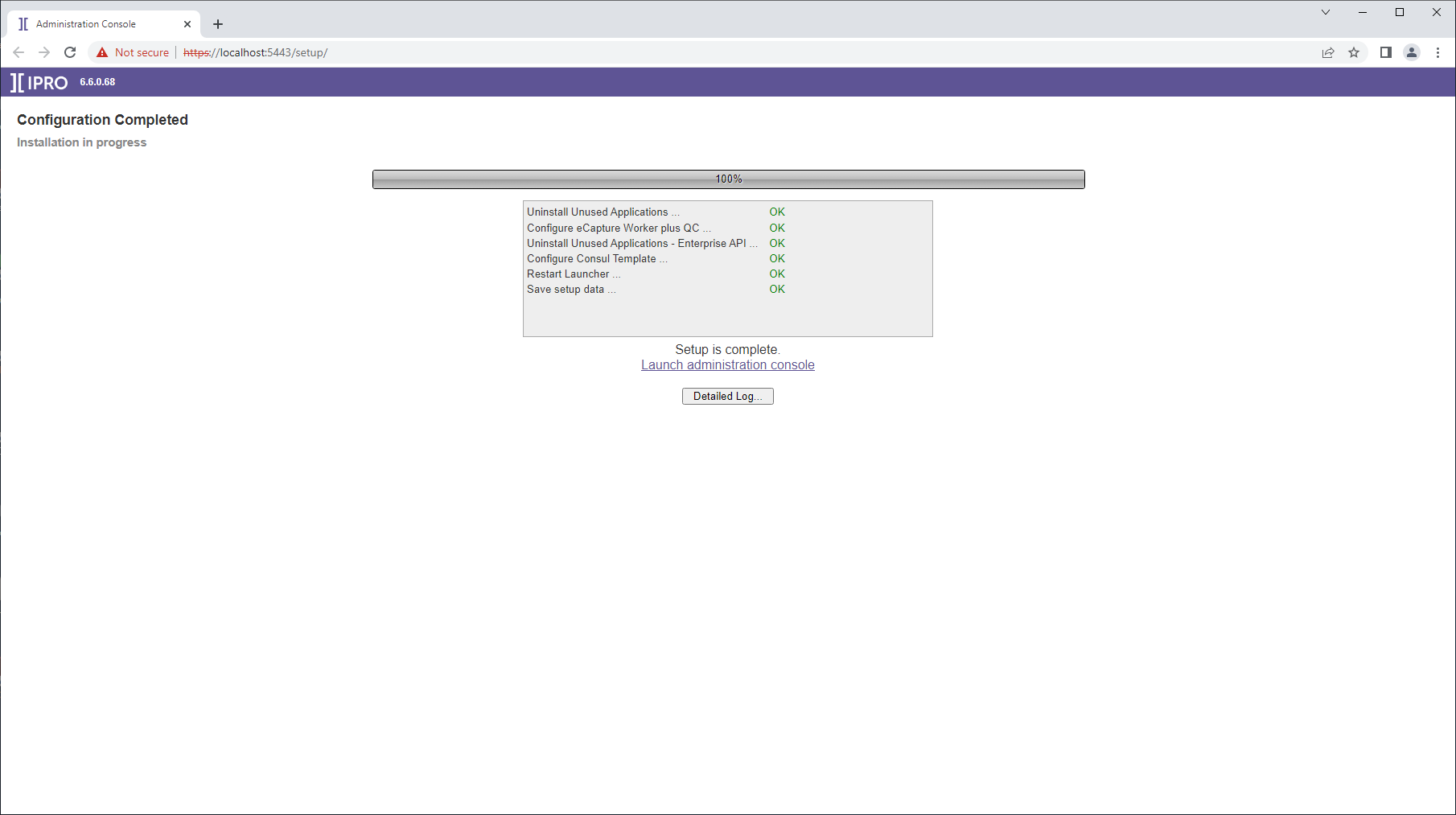
Configuration completes successfully.
Step 5. Upgrade/Migration - Post-Installation Manual Steps
SQL Scripts
-
After all applications are configured, execute the following script against the PLAT database:
-
This will update any existing links on the Job Manager UI to point to the new hostnames.
-
UPDATE [<database_name>].[JobManager].[ScheduledJob]
SET ScheduleConfigUri = REPLACE(ScheduleConfigUri, '<orig_host_name_and_port>', '<new_host_name_and_port>')
WHERE ScheduleConfigUri IS NOT NULL
-
Old VM Maintenance
-
If the old VMs were left online, they may be shut down to free up resources for the new VMs.
-
Furthermore, after validating the new environment is working successfully, the old VMs may be decommissioned.