Work with Saved Searches
Eclipse SE provides the following methods for accessing
and using saved searches:
-
Loading a saved search into
the Advanced Search dialog box. This allows you to review search criteria
and optionally revise the search to meet your current needs (often
more efficient than building a complex search from scratch). In addition,
you can load multiple searches to quickly create new combinations
of search criteria.
-
Running saved searches from
the Case Folders pane.
Saved Search Activities
-
Saving
Searches
-
Running
a Saved Search
-
Deleting
a Saved Search or Search folder
For more information about each procedure, read through the instructions below.
Users have the option of saving searches from the search list (located in the Case Folders pane) or from the Advanced Search dialog box. Additionally, users can create custom folders to store these saved searches for improved organization. Below are instructions on how to:
-
save
from the search list
-
save
from the Advanced Search dialog box
-
create new
folders
Save Searches from the
Search List
The following procedure applies to quick searches, advanced
searches, and history searches, all of which appear in the Search Results list in the Case Folders pane.
- Run a quick or an advanced search. (For instructions on running a quick search, see Enter Search Expressions. For instructions on how to define and run an advanced search, see Use Advanced Search.)
-
Searches you have
run in your current Eclipse SE session are listed in the Case Folders
pane, Searches > Search Results
list. In that list, locate the search to be saved.
-
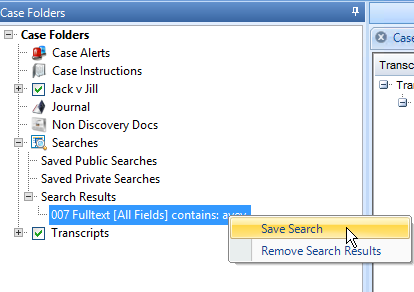
Right-click the search and
select Save Search.
-
Complete the Save Search
dialog box and click OK. Note:
If you select No Folder, the
search will be saved to the root of the Saved
Public or Private Searches
folder.
If your search involves private tags and/or private
folders, the search type must be Private.
-
To move a search into a custom folder:
-
Locate
the saved search in the Case
Folders pane, under the Saved Public or Private Searches folder (depending on where you saved it).
-
Right-click on the saved search, then select Modify
Parent Folder. Public searches can be moved to public folders;
private searches can be moved to private folders. (See Create Folders for instructions on how to create custom folders where you can store your saved searches.)
-
Select the needed
folder and click OK.
-
If you saved a search for
public use, communicate with your team members that the search is
available.
-
To run a saved search, see
Run a Saved Search.
Save Searches
from the Advanced Search Dialog Box
The following procedure applies to searches defined in
the Advanced Search dialog box, including advanced, history, or transcript
history searches:
- On the main search bar,
click Advanced.

|
NOTE:
If a previously defined search appears in the Advanced Search tab, click
the Clear button at the bottom
of the dialog box; do not manually change the search definition.
|
-
Create a search expression.
See Use Advanced Search or Execute a Search from the History List for instructions on how to create a search expression.
-
When the search is defined
as desired, click Save.
-
In the Save
Search dialog box:
-
Enter a name for
your search. Note: Names are case-sensitive
and must be unique. Public and private searches can be given the same
name, however.
-
To limit the search
for your personal use, select the Make this a private
search option.
|
|
NOTE:
Private tag and/or private folder searches must be saved as private searches.
|
-
Click OK.
The search will be saved at the “root” of the Saved
Public or Private Searches
list, or the Saved Public or Private Transcript Searches list if saving a transcript search.
- To continue work in the Eclipse SE Desktop work area, close out of the Advanced Search dialog box.
-
To move a saved search into a custom folder:
-
Locate
the saved search in the Case
Folders pane, under the Saved Public or Private Searches folder (depending on where you saved it).
-
Right-click on the saved search, then select Modify
Parent Folder. Public searches can be moved to public folders;
private searches can be moved to private folders. (See Create Folders for instructions on how to create custom folders where you can store your saved searches.)
-
Select the needed
folder and click OK.
-
If you saved a search for
public use, communicate with your team members that the search is
available.
-
To run a saved search, see Run a Saved Search.
Create Folders
By default, searches are saved to the “root” of the Saved Public or Private
Searches folder. These folders are located in the Case Folders pane on the left side of the Eclipse SE Work Area. If you want to organize your saved searches in
custom folders, create them as follows:
- For best results, determine
naming conventions for search folders.
-
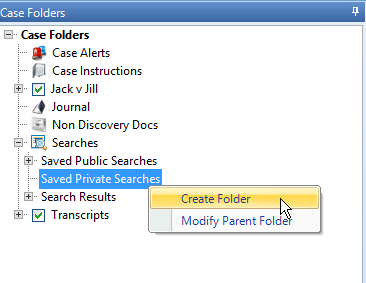
In the Case
Folders pane, under Searches, right-click Saved Public
or Private Searches (depending
on the type of folder you are creating) and select Create
Folder.
|
|
NOTE: You can only create custom folders for Saved Public and Private Searches. Transcript searches must be saved to the "root" of the Saved Public or Private Transcript Searches folders.
|
-
Enter a name for the folder
and click OK.
-
Repeat these steps to create
other folders.
To run a saved search:
- To run a saved search from the Advanced Search dialog box, complete step 2. To run a saved search from the Case Folders pane, skip to step 3.
-
Advanced Search:
-
On the search
bar, click Advanced.
-
In the Load
Saved Searches list, select the needed search.
-
Optional: Revise
the search as explained in Change an Advanced Search.
-
Click Search
and skip to step 4.
-
Case
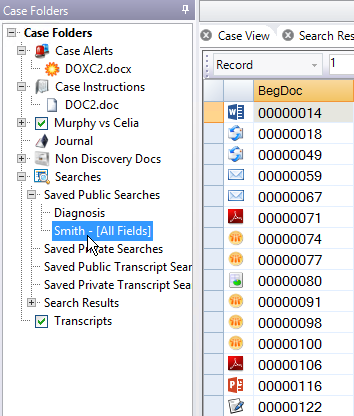
Folders pane: Locate and double-click the search in the Searches > Saved Public or Private Searches list, or the Saved Public or Private Transcript Searches list. The search will be executed.
-
View
the resulting Search Results
pane.
Users can delete any searches (public and private) or folders
they have created. Super and Case Administrators can delete any saved
public searches or folders.
|
|
NOTE:
Deleting a folder that contains searches will delete both the folder and
the searches at the same time.
|
To delete a saved search or a folder:
-
In the Case
Folders pane, under Searches >
Saved Public or Private Searches, complete either or both of the following steps as needed.
-
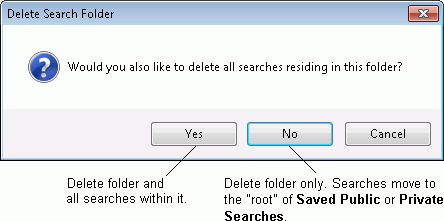
To delete a folder,
right-click a search folder and select Delete
Folder. Empty folders are deleted immediately; if searches
reside in the folder being deleted, you have the opportunity to keep
or delete the searches in the folder.
-
To delete an individual
search, right-click the search and select Delete
Search. The search will be deleted immediately.
Related Topics:
Use Search History
Use Advanced Search
Eclipse SE Search Syntax (Quick Reference)
 Save Searches