Tallying Column Data
This page contains the following content:
About the Tally Function
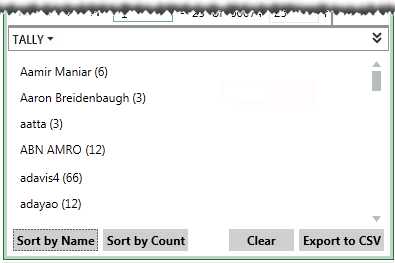
Tallying a column displays the total number of instances of a value in a selected field. The following figure shows an portion of results in the Tally pane.
For the SQL Database, each field with unique results is counted separately. In the following example, even though “Bob Smith” appears multiple times, the field content does not match exactly for the two records.
|
CC Names |
Tally Count |
|
Bob Smith |
1 |
|
Bob Smith, Alice Franklin, Bob Smith |
1 |
You can use the tally function in any tab in the case pane (such as Documents or Search Results).
Permissions and Conditions Required
Anyone assigned to a case or batch can tally case data for columns existing in their case.
Any visible column can be tallied. Fields in which values are unique or with a majority of unique entries should not be tallied, however. (For example, the BEGDOC field.)
Contact your administrator for details on which columns should be tallied.
Tallying a Column
To tally a column in the case table:
-
Getting started:
-
Log in to IPRO Eclipse and open the needed case.
-
In the Case View pane, select the Documents (or Search Results, etc.) tab.
-
Locate the column to be tallied. Resize components in the IPRO Eclipse workspace and/or scroll horizontally in the case table if needed.
-
-
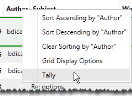
Right-click the column heading and select Tally.
-
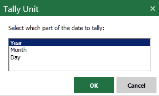
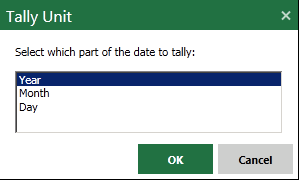
If the field being tallied is in a DATE field, select how you want the data tallied, then click OK. In the following example, Year is being selected.
-
After the Tally pane opens in the lower part of the case pane, evaluate the results. Counts for each unique result are displayed.
-
As needed:
-
Click one of the results to see all matching records in a Search Results tab.
-
Click Sort by Name to sort the results by name. Click this button again to reverse the sort order.
-
Click Sort by Count to sort the results by the number of results. Click this button again to reverse the sort order.
-
Click Clear to remove results from the Tally pane.
-

Exporting Tally Results
To export contents of the Tally pane to a .CSV file:
-
Complete "Tallying a Column."
-
Click Export to CSV.
-
Complete the Save As dialog box.