Keyboard Shortcuts
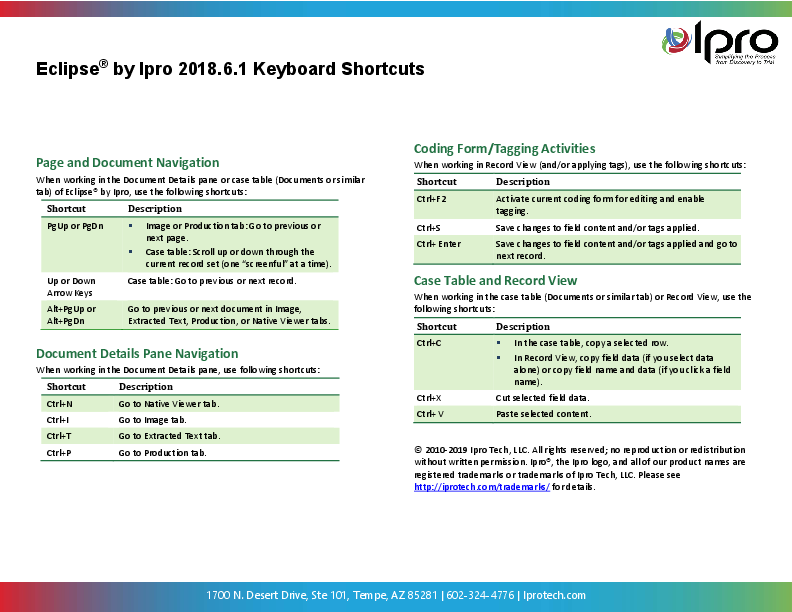
Eclipse uses various keyboard shortcuts to make using the interface more efficient. Below is a list of the keyboard shortcuts used in Eclipse's web-application:
Page and Document Navigation
When working in the Document Details pane or case table (Documents or similar tab) of Eclipse, use the following shortcuts:
|
Shortcut |
description |
|
PgUp or PgDn |
Image or Production tab: Go to previous or next page. Case table: Scroll up or down through the current record set (one "screenful" at a time). |
|
Up or Down Arrow Keys |
Case table: Go to previous or next record. |
|
Alt+PgUn or Alt+PgDn |
Go to previous or next document in Image, Extracted Text, Production, or Native Viewer tabs. |
Document Details Pane Navigation
When working in the Document Details pane, use following shortcuts:
|
Shortcut |
description |
|
Ctrl+N |
Go to Native Viewer tab. |
|
Ctrl+I |
Go to Image tab. |
|
Ctrl+T |
Go to Extracted Text tab. |
|
Ctrl+P |
Go to Production tab. |
Coding Form/Tagging Activities
When working in Record View (and/or applying tags), use the following shortcuts:
|
Shortcut |
description |
|
Ctrl+F2 |
Activate current coding form for editing and enable tagging. |
|
Ctrl+S |
Save changes to field content and/or tags applied. |
|
Ctrl+Enter |
Save changes to field content and/or tags applied and go to next record. |
Case Table and Record View
When working in the case table (Documents or similar tab) or Record View, use the following shortcuts:
|
Shortcut |
description |
|
Ctrl+C |
|
|
Ctrl+X |
Cut selected field data. |
|
Ctrl+V |
Paste selected content. |
Click  here to view the printable version of the Keyboard Shortcuts Quick Reference Sheet.