Get Started in Eclipse Web
This page contains the following content:
IPRO Eclipse is the review and production component of the OPEN DISCOVERY platform. Users are able to review, analyze, and annotate case documents with efficient, easy-to-use tools on a Web-based application.
Based on the permissions set by the case administrator, Eclipse users can:
-
View a variety of image, native, and OCR files plus record content, concurrently from a single interface.
-
Add document and/or page-level tags (as set up by the IPRO Eclipse administrator).
-
Use advanced and/or visual search to efficiently find case data.
-
Add redactions, markups, and highlights.
-
Edit document text and/or data field content.
-
Use Smart Folders to manage case details or find and organize specific documents.
-
View and annotate case transcripts.
This section is intended to explain functions typically associated with those who will use IPRO Eclipse to access, review, analyze, and annotate case documents in preparation for discovery or other document release purposes. Typical users include case reviewers and experts such as legal counsel. For more information on case set-up and other tasks typically done by a Case Administrator, see IPRO Eclipse Administration.
Before you Begin
Before working in IPRO Eclipse, the product installation must be completed and your IPRO Eclipse system or case administrator must define you as an IPRO Eclipse user. In addition:
-
Your administrator will assign you to a group that is assigned to one or more cases and/or review batches.
-
The abilities you will have are based on the permissions defined for your group in conjunction with the case you access. For example, specific permissions exist for the following:
-
Access to the list of batches on the Batching tab
-
Access details on the tabs in the Document Details pane (image, extracted text, etc.)
-
-
Tagging, redacting, and other review actions
-
Your administrator must provide you with the IPRO Eclipse URL at your company, as well as a user name and password.
If you have any questions about your permissions, contact your IPRO Eclipse administrator.
|
|
Tip: Both name and password are case sensitive—make sure you obtain the correct capitalization. User names and passwords are assigned by the IPRO Eclipse system administrator(s). Keep your credentials in a safe place. If you forget your log-in credentials, contact your IPRO Eclipse administrator. |

Browser Requirements
In addition to having an approved version of Internet Explorer (Microsoft Internet Explorer® 9, 10, or 11), before you access IPRO Eclipse the first time, add the IPRO Eclipse site to Internet Explorer’s list of trusted sites, and make sure that .NET framework is enabled.
Include in Trusted Sites
-
Obtain the IPRO Eclipse URL from your administrator.
-
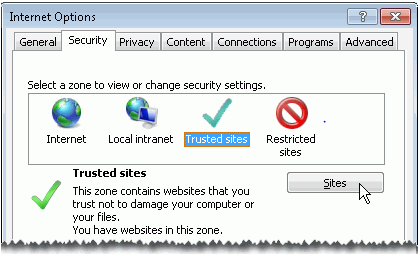
In Internet Explorer, select Tool > Internet Options.
-
Click the Security tab, then Trusted Sites.
-
Click Sites as shown in the figure below.
-
In the Trusted sites dialogue box:
-
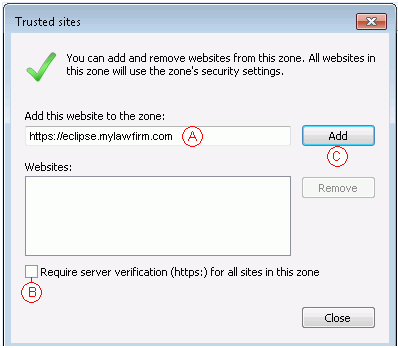
Enter the IPRO Eclipse Website's URL.
-
Optional: clear the verification option (if the protocol is not HTTPS).
-
Click Add, as shown in the figure below.
-
-
Close the dialogue box.
Enable .NET
-
In Internet Explorer, select Tools > Internet Options.
-
Click the Security tab and select Trusted sites.
-
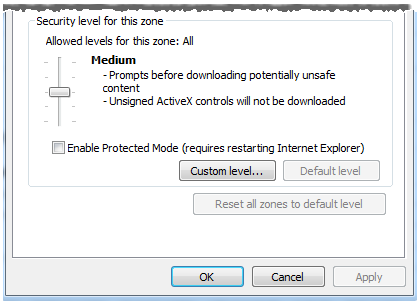
Click Custom level as shown in the image below.
-
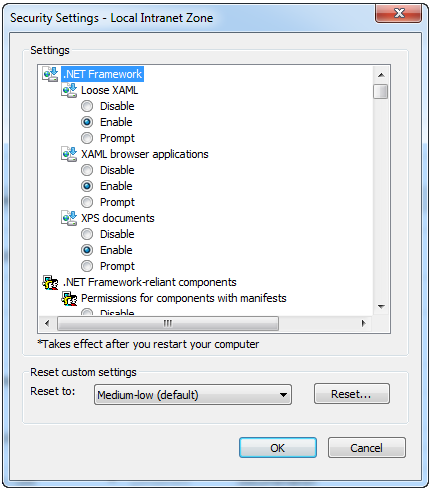
In the security settings dialogue box, ensure that the radio buttons next to the Loose XAML, XAML browser applications, and XPS documents option are all set to Enable, as shown in the figure below.

-
Click OK to close the dialogue box.
Administrative Access
Users belonging to the Super Admin group can open all cases in IPRO Eclipse. They can also open (and will be assigned) unassigned batches in any case, or open other users’ batches.
Users who are not in the SuperAdmin group but have been given case management permissions can open all cases to which they have been assigned. In addition, they can open (and will be assigned) unassigned batches in their cases, or open other user’s batches.
Working Sessions
Once you start IPRO Eclipse, your working session will remain active as long as you work in the application.
If there is a pause in your activity, the session may time out; a message will alert you that the session is idle. If this happens, click OK in response to the message and log in again.