Printing Transcripts
IPRO Eclipse offers several options for printed transcripts, including:
-
Printing multiple pages per sheet (each physical page).
-
Printing the transcript index (word wheel content).
-
Adding a header and/or footer to the printed pages.
To print a transcript:
|
|
Note: Users must have permission to View Redactions in order to print from Eclipse. Since the printer can burn in redactions when printing, users by default must have rights to view redactions to complete printing operations. |

-
Log in to IPRO Eclipse and open the needed case or batch.
-
Access the Document Details pane and click the Transcripts tab.
-
Open the needed transcript.
-
Click
 on the Transcript toolbar and complete the following steps as needed.
 -
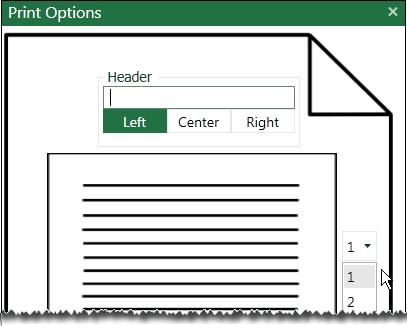
To select the number of transcript pages per printed page, click the number in the Print Options dialog box and select 1, 2, or 4. In the following example, one page is being selected. Transcript pages will be printed one-up (one per sheet).
-
To add a text header and/or footer to each printed page (excluding index pages):
-
Enter needed text in the Header and/or Footer fields.
-
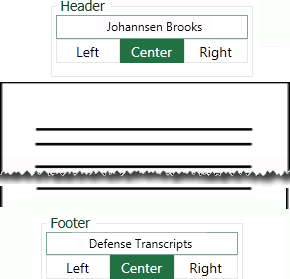
Click the preferred alignment for the header/footer text. In this example, the transcript name and transcript type will be centered in the header and footer, respectively.
-
-
Select a transcript index option:
-
No WordIndex: Do not include an index.
-
Append WordIndex: Add the index after transcript pages.
-
WordIndex Only: Print only the index.
-
When all IPRO Eclipse print options are defined, click Print.
-
Complete the Windows Print dialog box and click Print. Available options depend on your printer selection.
|
|
Note: Printer options may include multiple pages per sheet. Choosing this option in both IPRO Eclipse and for your printer may produce unexpected results. To avoid problems, choose multiple pages only in IPRO Eclipse. |