Work with Image Paths
The database records tabs described in Evaluate Case Records all allow you to review and change the paths for image files in your cases. This section describes how to use volumes and to evaluate and change the image path for one or more documents or pages within your cases.
This page contains the following content:
Check the Image File Path
To evaluate the image path defined for a page, begin with the following steps:
-
Access one of the database records tabs in Eclipse Administration as described in Evaluate Case Records.
-
In the Documents list, expand a document and click on the needed page.
-
If the image is found in the specified location, a message will display below the Image File field:

-
If volumes are being used, check the volume and path information in the center portion of the tab.
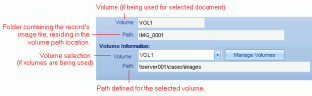
-
If volumes are not being used, or to identify or document the complete path of the image file, right-click in the Image File field and select Copy Path, then paste the path in a text or other file. The complete path and filename are included.

-
If the volume and/or path are not correct, either select a new volume or change it or the path as explained in the following procedure.

Change Image File Paths
Volumes are variables representing the paths where image files are located; use of volumes is one way to manage the location of case image files. The location of image paths can also be managed through the use of the global replace function.
Complete the following procedures to create and manage volumes.
To create or revise image paths, using volumes or the full paths themselves:
-
Get started:
-
Access one of the database records tabs in Eclipse Administration as described in Evaluate Case Records.
-
Identify the needed full UNC path(s).
-
If you are using volumes, consider a naming convention for volume names.
-
Continue with one or more of the following steps as needed.
-
-
To create new volumes:
-
In lower center area of the database records tab, click Manage Volumes.
-
In the Manage Volumes dialog box, click New Volume.
-
Enter a volume name (for example, VOL1) and the path using UNC syntax (for example, \\SERVER001\CASES, not D:\CASES).
-
Click OK.
-
Repeat these steps to create additional volumes.
-
When all volumes are defined, click OK in the Manage Volumes dialog box.
-
-
To change a selected document’s volume definition:
-
If another volume is defined that represents the needed path, select it from the Volume list in the Volume Information area. The image path changes for the selected document.
-
If the path of the selected volume needs to change for all documents using that volume, enter the correct path in the Path field in the Volume Information area and click Set Volume.
-
-
To change volume paths irrespective of the selected document:
-
In lower center area of the database records tab, click Manage Volumes.
-
For a volume whose path needs to be changed, click
 .
. -
Enter the needed path (UNC format) or click
 and navigate
to the needed location. When finished, click OK.
and navigate
to the needed location. When finished, click OK. -
Repeat these steps to change the paths of other volumes.
-
When finished, click OK in the Manage Volumes dialog box.
-
-
To use the global replace function to change the path for multiple documents (but not all of those using a particular volume), see Globally Replace Image Paths. When you use this function, the replacement path may or may not include a volume.