Run an Eclipse Report
Run an Eclipse report as follows:
-
Log in to Eclipse and open the needed case or batch.
-
In the Case View pane, click Reports.
-
Click the needed report.
-
For reports that require additional selections, make the selection(s) and click OK. Report options are listed in the following table (reports not listed require no user selections).
-
After the report is generated, review results in the Reports tab. Use the following actions as needed:
-
Scroll vertically and/or horizontally to view all information or click in the report and press the PgUp and PgDn keys for easy scrolling.
-
Click a column heading to sort by that column.
-
Enlarge or reduce a column’s width by dragging the right or left edge of the column’s heading.
-
 Report Options
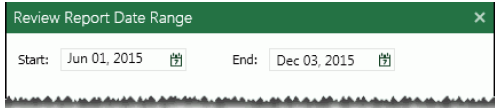
 to select the starting and ending dates of the time period
of interest. Any common date format can be entered.
to select the starting and ending dates of the time period
of interest. Any common date format can be entered.