Complete the Import
Once all aspects of the import are defined, import the data as follows. Import settings can also be saved if desired.
-
On the Step 2 tab of the Import Data screen, in the Action area, select Import.
-
Click Submit.
-
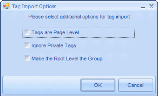
If you did not select Tag Import in the Select Mode section of the Step 2 tab, skip to step 4. If you are importing tags, the following message will display:
-
Progress will display on the Step 3. View Progress tab. Read the information as it is presented.
-
If needed, when the import is complete, take one or both of the following actions:
-
If the status for a load file is shown as “Completed with errors,” right-click the load file and select View Error File. A text file containing error details will open.
-
Click the View button to see overall details about the import. The import log (text) file opens; this file lists the fields that were mapped, options, selected, and start/stop information for each load file.
-
-
Next, click the Step 4. Verify tab.
-
Evaluate records. Possible activities include:
-
Reviewing the Documents list
-
Reviewing document details
-
Deleting a document or page
-
Managing the volume used to define the image path
-
Viewing images
-
-
Eclipse validates the data being imported. For example, if a FixedLengthText field was set at five characters, data for the field exceeding that value would not be imported. If data problems are detected, the Errors tab will appear in red and the number of validation errors will be included. To evaluate validation errors:
-
Click the Errors tab.
-
Click Display Errors to view error details. The following figure shows a simple example:

-
To view errors in load-file format, click Create Loadfile View.
-
As needed, export a load file that contains only the records with errors by clicking Export and completing the Export dialog box. For document-based errors, a .DAT file will be created; for page-based errors, an .LFP file will be created. Errors can be corrected in the exported load file, which can then be re-imported (overlaid) into the case.
-
-
When finished with the import, continue with other administrative activities.

Select the needed options. If you are importing tag group names, ensure that Make the Root Level the Group is selected; otherwise, tags will be imported to the group “Imported Tags.”