Create Managing Clients and Clients
All OPEN DISCOVERY products, including Eclipse® by IPRO, use two levels of client to help you identify and manage cases, “managing clients” and “clients.”
-
Managing Clients - Managing clients provide the basis of the relationship between cases and reviewers (groups and users).
-
Clients - A secondary or subordinate client provides a further level of identification. For law firms this may be the same as the managing client, but for service providers, different secondary clients may be appropriate. Apply these client concepts to your company’s business configuration.
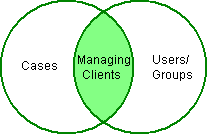
For service providers, managing clients are the companies and firms the provider does business with. For law firms, the firm itself is the managing client (a secondary client can be defined as part of case configuration.) Consider the comparison in the following figure.


 Click
here to watch the Creating Managing Clients and Clients video
Click
here to watch the Creating Managing Clients and Clients video
This page contains the following content:
OPEN DISCOVERY
Starting with release 2015.0.0, OPEN DISCOVERY Services provides a centralized database in which all OPEN DISCOVERY managing clients and clients are managed.
A managing client or client can be created in OPEN DISCOVERY, Eclipse, or eCapture® by IPRO, and it will be available in all of the products. Eclipse and eCapture allow you to include product-specific details.
|
|
Note: Prior to Eclipse 2015.0.0, “managing” clients were referred to “master” clients. |

Configuration Task Order
A managing client is required for several Eclipse administrative tasks, such as user, group, and case creation. The secondary client is required for case creation. Therefore, needed managing clients and clients must be defined early in the configuration process.
These clients can be added or removed at any time as a normal part of administration.
Permissions Required
Only members of the Super Admin group can create and manage managing clients/clients.
Add Managing Clients/Clients in Eclipse
Before You Begin
Having a basic client data policy will help ensure that you have consistent and needed information for managing clients and clients. For greatest efficiency, determine needed information as follows:
-
Managing clients: Review the table in Add New Managing Clients below.
-
Clients: Determine conventions for client names.
Add New Managing Clients
To add managing clients to OPEN DISCOVERY Services through Eclipse:
-
Log in as a user who is a member of Super Admin group.
-
Click Eclipse in the upper-left corner of the site and select Administration, as shown in this figure.
-
In the System Administration list, click Managing Clients.
-
Click
 .
. -
Complete the needed entries.
- Click Save. The managing client will be available in Eclipse and other OPEN DISCOVERY products.
- Repeat these steps to create additional managing clients.

Click
here for field descriptions
Add New Clients
To add clients to OPEN DISCOVERY through Eclipse:
-
Log in as a user who is a member of Super Admin group.
-
Click Eclipse in the upper-left corner of the site and select Administration.
-
In the System Administration list, click Clients.
-
Click
. -
In the Client Name field, enter a name (maximum of 256 Unicode characters). Use a naming approach that will help users work with cases/projects across all OPEN DISCOVERY products.
-
Select the Managing Client with which this client is associated.
-
Click Save.
-
Repeat these steps to create additional clients.
Work with Managing Clients/Clients
Once managing clients and clients have been defined, anyone who is a member of the Super Admin group can manage the client details as explained below.
Find and View Managing Client or Client Information
To find and view the details for a managing client or client:
-
Log in as a user who is a member of Super Admin group.
-
Click Eclipse in the upper-left corner of the site and select Administration.
-
In the System Administration list, click Managing Clients or Clients.
-
Review the list in the Managing Clients or Clients tab. Take any of the following actions to find the needed managing client or client:
-
Scroll vertically and/or horizontally.
-
Click the right border and drag to make it wider.
-
Sort the list by clicking the sort button, , and choosing from available options.
-
To find a specific managing client or client in a long list, start typing any of the following items, then press Enter. This is a plain text search that searches these items in order.
List
Search For
Managing Client
-
Name
-
Administrator’s name (person who created/modified the managing client)
-
Part of the created/modified date
-
Content in the notes
Client
Name of the client or associated managing client
-
-
-
When a needed managing client/client is found, click the name to view details in the right side of the tab.
Change Managing Client or Client Details
|
|
Note: Before editing a managing client or client, remember that OPEN DISCOVERY Services manages all data, and an "Eclipse” managing client/client may also be used by OPEN DISCOVERY or eCapture. Before making changes, make sure they are appropriate across OPEN DISCOVERY products. |
To change managing any client/client details:
-
Complete Find and View Managing Client or Client Information to select the needed managing client.
-
Click
 above the managing client/client details.
 -
Make needed changes, then click Save.
Delete Managing Clients or Clients
|
|
Note: Managing clients and clients can only be deleted if they are not assigned to any aspect of any OPEN DISCOVERY product. (For example, a managing client can be deleted only if it has not been selected in the definition of users, groups, clients, or cases.) |
To delete a managing client/client:
-
Complete Find and View Managing Client or Client Information to select the needed managing client/client.
-
Click
 above the managing client/client details.
 -
In response to the confirmation message, click OK.
Export Managing Client or Client Details
The list of managing clients or clients, including all client details, can be exported to a comma-separated values (.CSV) file for documentation purposes. To the list of managing clients:
-
Log in as a user who is a member of Super Admin group.
-
Click Eclipse in the upper-left corner of the site and select Administration.
-
In the System Administration list, click Managing Clients or Clients.
-
In the lower left corner of the tab, click Export to CSV.
-
Complete the Save As dialog box, then click Save.
-
Open the .CSV file in a spreadsheet or other appropriate application.