Create a Journal
|
|
NOTE: Only one journal file can be open at a time. If you are working in a journal and want to create a new journal, save and close the open journal file before creating a new one. |

To create a journal in Review:
-
On the Dashboard, click the Review module.

-
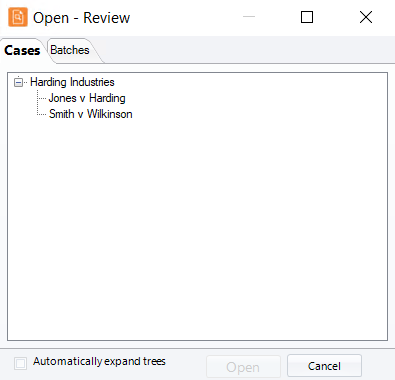
Select a Client and Case and click Open.
-
In the Case Folders pane, right-click the Journal folder and choose New Journal. The Journal editor opens.
-
If this is your first journal, complete steps a - c. Otherwise skip to step 5.
-
When a message about directory selection appears, click Yes.
-
In the Browse for Folder dialog box, browse to (or create) a folder for journals. See Overview: Journals for details about this folder.
-
Click OK.
-
-
If desired, resize the journal window or click
 to have the window stay on top
on your desktop.
to have the window stay on top
on your desktop. -
Enter and format text using the tools explained in Journal Editor Toolbar.
-
When your entry is completed, click the Save As button and save the file to your default journal folder.
-
Manage your journal as explained in Manage Journals.

Related Topics
Version: 2025.3.0
Last Revision: 6/9/2025